
How to Delete Your Meta Account: A Step-by-step Guide
Are you tired of having multiple accounts on Meta? Do you want to delete your Meta account, but don’t know how? Look no further! In this article, we will guide you through the process of deleting your Meta account and provide you with a step-by-step guide.
What is Meta?
Meta is a technology company that owns several social media platforms, including Facebook, Instagram, WhatsApp, and Threads. Having multiple accounts on these platforms can be confusing and overwhelming, especially if you’re not using them frequently.
Why Delete My Meta Account?
There are several reasons why you might want to delete your Meta account:
- You no longer use the platform.
- You’re tired of receiving notifications and emails from the platform.
- You’ve created multiple accounts for different purposes, but now find it confusing to manage them.
- You want to take a break from social media.
How to Delete Your Meta Account: A Step-by-step Guide
Deleting your Meta account is a straightforward process. Here’s how to do it:
Method 1: Using The Meta App
If you’re using the Meta app on your smartphone, you can delete your account directly from within the app.
- Open the Meta app.
- Tap on the menu icon (three horizontal lines) in the top-right corner of the screen.
- Tap on “Settings.”
- Scroll down and tap on “Account Center.”
- Tap on “Personal Details.”
- Tap on “Property and Control of Account” > “Deactivation or Elimination.”
- Select your account and tap on “Continue” for two consecutive times.
- Enter your password and tap on “Delete Account.”
Method 2: Using The Official Meta Website
If you’re using a computer, you can delete your Meta account directly from the official website.
- Go to the official Meta website.
- Click on your profile picture in the top-right corner of the screen.
- Click on “Settings.”
- Scroll down and click on “Account Center.”
- Click on “Personal Details.”
- Click on “Property and Control of Account” > “Deactivation or Elimination.”
- Select your account and follow the same steps as above.
Method 3: Using The Facebook App
If you’re using the Facebook app, you can delete your Meta account from within the app.
- Open the Facebook app.
- Tap on the menu icon (three horizontal lines) in the top-right corner of the screen.
- Tap on “Settings.”
- Scroll down and tap on “Account Center.”
- Tap on “Personal Details.”
- Tap on “Property and Control of Account” > “Deactivation or Elimination.”
- Select your account and follow the same steps as above.
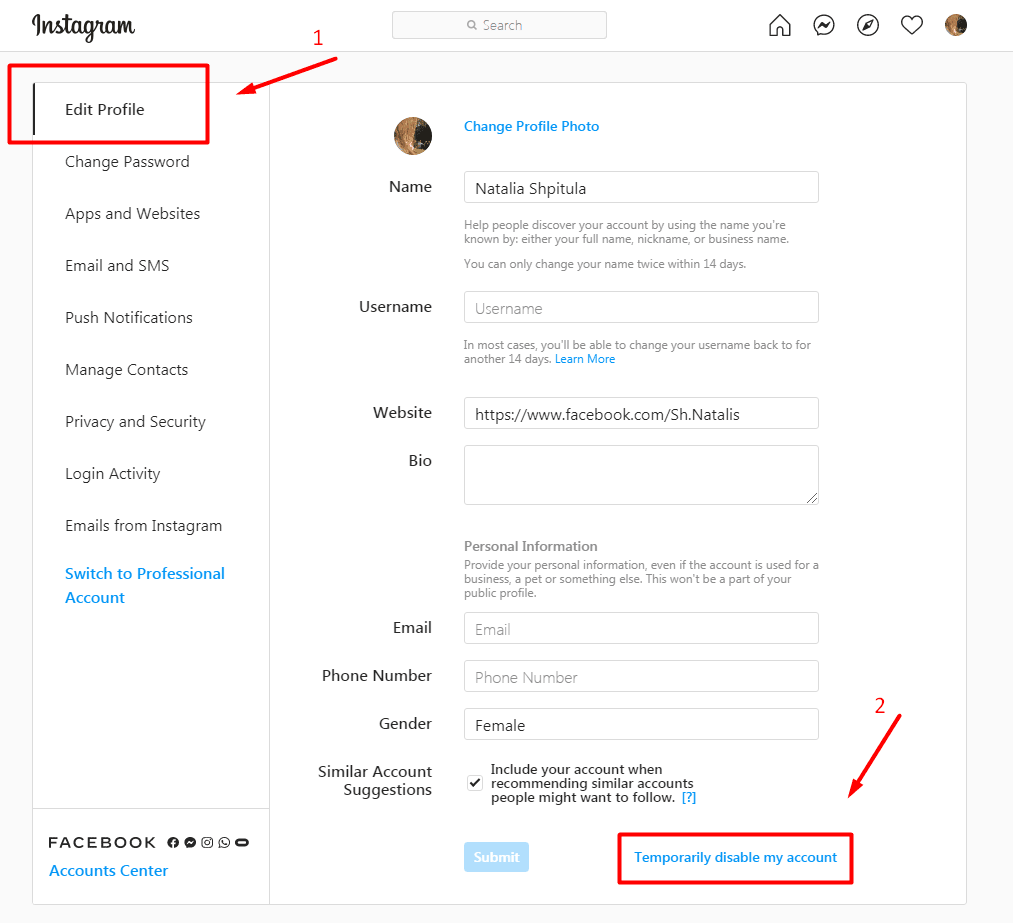
Method 4: Using The Instagram App
If you’re using the Instagram app, you can delete your Meta account from within the app.
- Open the Instagram app.
- Tap on the menu icon (three horizontal lines) in the top-right corner of the screen.
- Tap on “Settings.”
- Scroll down and tap on “Account Center.”
- Tap on “Personal Details.”
- Tap on “Property and Control of Account” > “Deactivation or Elimination.”
- Select your account and follow the same steps as above.
What Happens When I Delete My Meta Account?
When you delete your Meta account, all associated accounts will be deleted as well. This includes:
- Facebook account
- Instagram account
- WhatsApp account
- Threads account
Your profile picture, posts, and comments will also be deleted. However, your data may still be stored by Meta for a short period of time.
Conclusion
Deleting your Meta account is a straightforward process that can be completed using the Meta app or the official website. Before deleting your account, make sure to review our guide and understand what happens when you delete your account.
Faqs
- What Happens When I Delete my Meta Account?
- When you delete your Meta account, all associated accounts will be deleted as well.
- Will my Data be Deleted?
- Yes, your profile picture, posts, and comments will be deleted. However, your data may still be stored by Meta for a short period of time.
- Can I Recover my Account?
- No, deleting your account is permanent and cannot be undone.
- Will I Lose Access to Facebook, Instagram, Whatsapp, And Threads?
- Yes, you will no longer have access to these platforms using the deleted account.
- What if I Want to Delete Just One of my Accounts?
- You can delete individual accounts by following the steps outlined in this guide.
- How Long Does it Take For my Account to be Deleted?
- The deletion process typically takes a few minutes, but may take longer depending on your internet connection and server traffic.
- Can I Cancel my Deletion Request?
- No, once you’ve submitted the deletion request, it cannot be cancelled.
- Will Deleting my Meta Account Affect my Other Online Accounts?
- Deleting your Meta account will not affect your other online accounts or social media profiles.
How to Reinstall Facebook, Instagram, Whatsapp, And Threads Apps
If you deleted your account by mistake, don’t worry! You can reinstall the apps on your smartphone.
- Open the App Store (for iOS) or Google Play Store (for Android).
- Search for the app you want to reinstall (e.G., Facebook, Instagram, WhatsApp, Threads).
- Tap on the app icon.
- Tap “Get” or “Install.”
- Wait for the app to download and install.
Note: This article is intended for informational purposes only and may not be applicable in all situations.


