
How to Erase Music From Iphone: A Step-by-step Guide
Are you tired of having a cluttered music library on your iPhone? Do you want to erase some songs, albums, or playlists but don’t know where to start? Look no further! In this article, we’ll guide you through the process of erasing music from your iPhone, whether it’s local music or music synchronized with Apple Music and iCloud.
Understanding Local Music on Iphone
Local music refers to the music stored directly on your iPhone, without any synchronization with iCloud. If you want to erase local music, you can do so by following these steps:
Erasing a Single Song or Album
- Open the Music app on your iPhone.
- Select the playlist, artist, album, song, or compilation you want to delete.
- Tap on the three dots (…) at the top right corner of the screen and select “Remove” from the menu.
Erasing an Entire Playlist or Artist
- Open the Music app on your iPhone.
- Select the playlist, artist, album, song, or compilation you want to delete.
- Tap on the three dots (…) at the top right corner of the screen and select “Remove” from the menu.
Erasing All Local Music
- Open the Settings app on your iPhone.
- Scroll down and select “Music”.
- Select “Modify” and then tap on the (-) button next to “All Songs” or “All Albums”.
Understanding Apple Music And Icloud Music Library
If you have an Apple Music subscription, you can access a vast library of music synchronized with iCloud. To erase music from your iPhone that’s synchronized with Apple Music and iCloud, follow these steps:
Erasing Local Music And Synchronized Music
- Open the Settings app on your iPhone.
- Scroll down and select “Music”.
- Turn off the switch next to “Sync Library” to stop synchronization with iCloud.
- Tap on “Settings” and then “Music” again.
- Select “Modify” and then tap on the (-) button next to “All Songs” or “All Albums”.
Erasing Music Using Itunes
If you prefer to use iTunes on your computer, follow these steps:
Erasing Local Music With Itunes
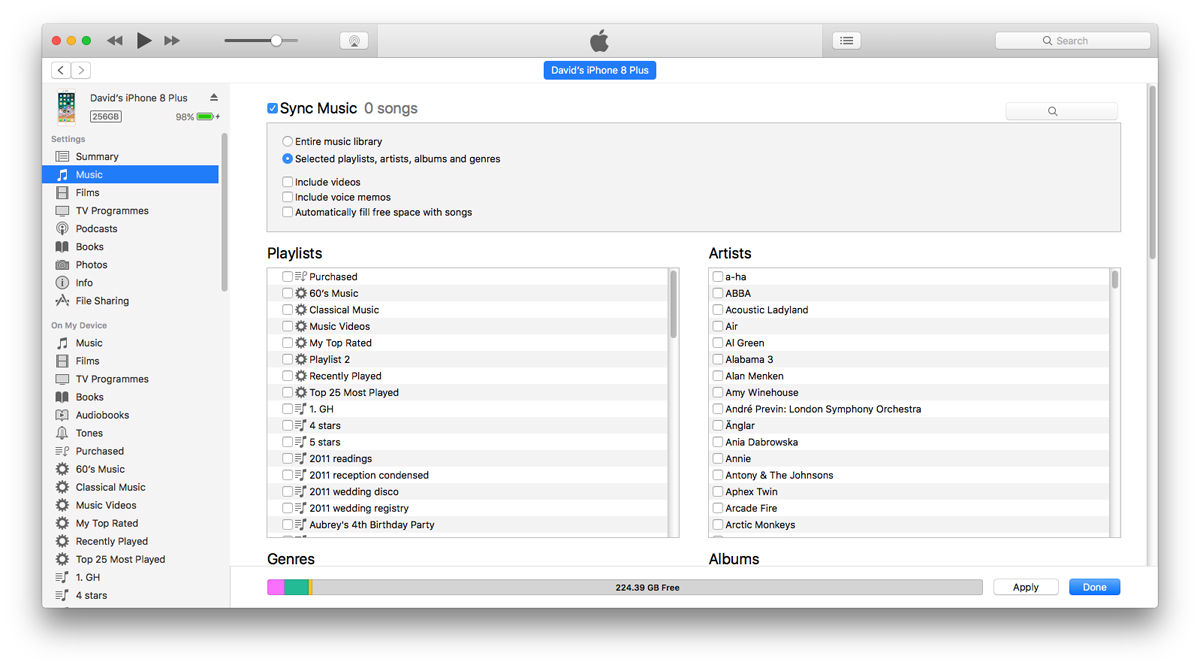
- Connect your iPhone to your computer using a USB cable.
- Open iTunes and select your iPhone from the top left menu.
- Select the “Music” tab and drag the songs or albums you want to delete into the Trash can.
Erasing Synchronized Music With Itunes
- Connect your iPhone to your computer using a USB cable.
- Open iTunes and select your iPhone from the top left menu.
- Select the “Settings” tab and then click on “Music”.
- Select the option to “Delete” all music or specific songs/albums.
Erasing Music Using Apple Devices App
If you’re using a Mac with macOS 10.15 Catalina or later, follow these steps:
Erasing Local Music With Apple Devices App
- Connect your iPhone to your computer using a USB cable.
- Open the Apple Devices app and select your iPhone from the top left menu.
- Select the “Music” tab and drag the songs or albums you want to delete into the Trash can.
Frequently Asked Questions (FAQs)
- Q: How do I Erase Music From my Iphone Without Losing All of It?
A: To erase specific music, select the song, album, or playlist you want to delete. - Q: Can I Still Listen to Apple Music And Icloud Music Library if I Erase Local Music?
A: Yes, your Apple Music subscription will remain active, and you can access music from the cloud. - Q: How do I Know Which Songs Are Synced With Icloud And Which Ones Are on my Iphone Only?
A: Songs synchronized with iCloud have a cloud icon next to them in the Music app.
Conclusion
Erasing music from your iPhone is a straightforward process, whether you’re erasing local music or synchronized music through Apple Music and iCloud. By following these steps, you can declutter your music library and enjoy a more organized listening experience.


