
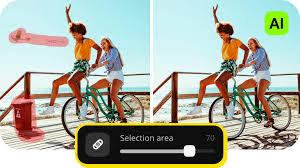
Removing Unwanted Objects From Photos: A Step-by-step Guide
Are you tired of looking at your favorite photos, only to be distracted by unwanted objects in the background? Look no further! In this article, we will guide you through the process of removing unwanted objects from photos using various photo editing software and apps.
The Problem With Unwanted Objects
Unwanted objects in photos can be frustrating, especially when they detract from the main subject. Whether it’s a tourist’s head in the background or a distracting logo, these objects can make your favorite memories less enjoyable to cherish.
Solution: Photo Editing Software And Apps
Fortunately, there are several photo editing software and apps that can help you remove unwanted objects from photos. In this article, we will explore some of the most popular options available.
Option 1: Adobe Photoshop
Adobe Photoshop is a professional-grade photo editing software that has been used by photographers for decades. With its powerful tools and features, it’s no wonder why many professionals swear by it. However, with great power comes a price – Adobe Photoshop requires a subscription to the Creative Cloud service, which can be expensive.
How to Remove Unwanted Objects in Adobe Photoshop
To remove unwanted objects in Adobe Photoshop, follow these steps:
- Open your photo in Adobe Photoshop.
- Select the Spot Healing Brush tool from the toolbar.
- Choose the size and hardness of the brush from the Options bar.
- Click on the unwanted object to select it.
- Use the Brush tool to cover the selected area with a new image or color.
- Repeat steps 4-5 until the unwanted object is completely removed.
Option 2: Gimp
GIMP (GNU Image Manipulation Program) is a free and open-source photo editing software that’s available for Windows, macOS, and Linux. With its user-friendly interface and powerful tools, GIMP is a great alternative to Adobe Photoshop.
How to Remove Unwanted Objects in Gimp
To remove unwanted objects in GIMP, follow these steps:
- Open your photo in GIMP.
- Select the Bucket Fill tool from the toolbar.
- Choose the color or texture you want to use to cover the unwanted object.
- Click on the unwanted object to select it.
- Use the Brush tool to cover the selected area with the chosen color or texture.
Option 3: Photopea
Photopea is an online photo editor that’s available for free, with optional upgrades to its premium version. With its user-friendly interface and powerful tools, Photopea is a great option for those who don’t want to download any software.
How to Remove Unwanted Objects in Photopea
To remove unwanted objects in Photopea, follow these steps:
- Open your photo in Photopea.
- Select the Brush tool from the toolbar.
- Choose the size and hardness of the brush from the Options bar.
- Click on the unwanted object to select it.
- Use the Brush tool to cover the selected area with a new image or color.
Other Options: Apps For Removing Unwanted Objects
There are several apps available that can help you remove unwanted objects from photos, including:
- Snapseed: A powerful photo editing app developed by Google.
- Picsart: A popular photo editing app with a wide range of features and tools.
- Touchretouch: An easy-to-use app for removing unwanted objects and blemishes.
- Pixelmator: A professional-grade photo editing app for iOS devices.
Conclusion
Removing unwanted objects from photos can be a frustrating task, but with the right software and apps, it’s become much easier. Whether you’re a beginner or an experienced photographer, there are options available to suit your needs and budget. Remember to always read the instructions carefully before attempting to remove unwanted objects, as the process may vary depending on the software or app you choose.
Frequently Asked Questions
- What is The Best Photo Editing Software For Removing Unwanted Objects?
Adobe Photoshop is considered one of the most powerful photo editing software available, but it requires a subscription to the Creative Cloud service. - How do I Remove Unwanted Objects From Photos Using Gimp?
To remove unwanted objects in GIMP, select the Bucket Fill tool and choose the color or texture you want to use to cover the selected area. - Is Photopea a Good Alternative to Adobe Photoshop?
Yes, Photopea is a great online photo editor that’s available for free, with optional upgrades to its premium version. - How do I Remove Unwanted Objects From Photos Using Snapseed?
To remove unwanted objects in Snapseed, select the Brush tool and choose the size and hardness of the brush from the Options bar. - What is The Best App For Removing Unwanted Objects From Photos?
The best app for removing unwanted objects depends on your personal preferences and needs, but some popular options include PicsArt, TouchRetouch, and Pixelmator. - Can I Remove Unwanted Objects From Photos Using a Smartphone or Tablet?
Yes, many photo editing apps are available for smartphones and tablets, making it easy to edit photos on the go. - How do I Save my Edited Photo?
To save your edited photo, select the Export option from the File menu and choose the format you want to use.
I hope this article has been helpful in guiding you through the process of removing unwanted objects from photos using various software and apps. Happy editing!


