
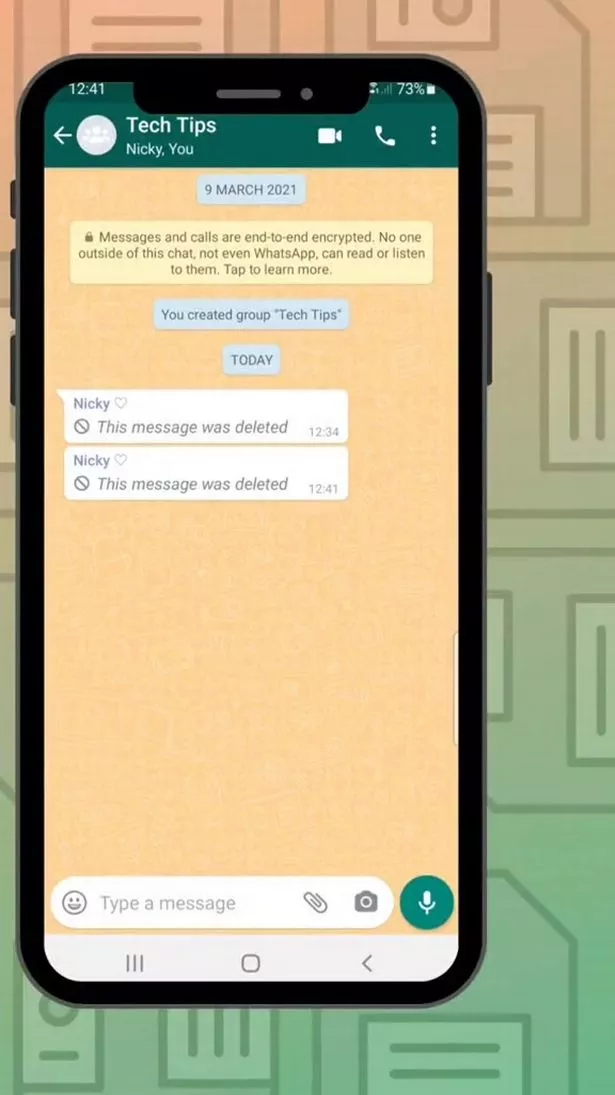
How to Erase Old Messages on Whatsapp: A Step-by-step Guide
Are you tired of cluttered conversations on WhatsApp? Do you want to delete old messages that are no longer relevant or useful? Look no further! In this article, we’ll show you how to erase old messages on WhatsApp using your smartphone, computer, and even without leaving a trace.
Why Erase Old Messages on Whatsapp?
Before we dive into the steps, let’s talk about why erasing old messages on WhatsApp is important. Cluttered conversations can be overwhelming and make it difficult to find specific information or messages. By deleting old messages, you’ll free up space on your device and improve your overall WhatsApp experience.
Erasing Messages on Whatsapp: A Step-by-step Guide
Erasing Messages on Whatsapp Using a Smartphone
On Android:
- Open Whatsapp: Launch the WhatsApp app on your Android smartphone.
- Go to Chats: Tap on the “Chats” tab at the bottom of the screen.
- Find The Conversation: Scroll through the list of conversations and find the one you want to erase messages from.
- Tap And Hold: Long press on a message you want to delete, then tap on the “Delete” icon (a red circle with a white line through it).
- Confirm Deletion: Tap on “Delete for me” to confirm that you want to delete the message.
On Iphone:
- Open Whatsapp: Launch the WhatsApp app on your iPhone.
- Go to Chats: Tap on the “Chats” tab at the bottom of the screen.
- Find The Conversation: Scroll through the list of conversations and find the one you want to erase messages from.
- Long Press: Long press on a message you want to delete, then tap on the “Delete” icon (a red circle with a white line through it).
- Confirm Deletion: Tap on “Delete for me” to confirm that you want to delete the message.
Erasing Messages on Whatsapp Using a Computer
- Open Whatsapp Web: Launch WhatsApp Web on your computer by scanning the QR code in the WhatsApp app.
- Find The Conversation: Scroll through the list of conversations and find the one you want to erase messages from.
- Click And Hold: Click on a message you want to delete, then click on the “Delete” icon (a red circle with a white line through it).
- Confirm Deletion: Click on “Delete for me” to confirm that you want to delete the message.
Erasing Messages Without Leaving a Trace
If you don’t want to leave any evidence of deleted messages, you can try erasing all messages in a conversation or deleting the entire conversation.
How to Delete an Entire Conversation:
On Android:
- Open Whatsapp: Launch the WhatsApp app on your Android smartphone.
- Go to Chats: Tap on the “Chats” tab at the bottom of the screen.
- Find The Conversation: Scroll through the list of conversations and find the one you want to delete entirely.
- Tap And Hold: Long press on the conversation, then tap on the “Delete” icon (a red circle with a white line through it).
- Confirm Deletion: Tap on “Delete” to confirm that you want to delete the entire conversation.
On iPhone:
- Open Whatsapp: Launch the WhatsApp app on your iPhone.
- Go to Chats: Tap on the “Chats” tab at the bottom of the screen.
- Find The Conversation: Scroll through the list of conversations and find the one you want to delete entirely.
- Swipe Left: Swipe left on the conversation, then tap on the “Delete” icon (a red circle with a white line through it).
- Confirm Deletion: Tap on “Delete” to confirm that you want to delete the entire conversation.
How to Erase Ephemeral Messages:
If you’re interested in erasing ephemeral messages (messages that automatically delete after 7 days), you can follow these steps:
- Open Whatsapp: Launch the WhatsApp app on your smartphone or computer.
- Go to Chats: Tap on the “Chats” tab at the bottom of the screen.
- Find The Conversation: Scroll through the list of conversations and find the one you want to erase ephemeral messages from.
- Tap on The Conversation: Tap on the conversation, then tap on the “Settings” icon (three dots).
- Enable Ephemeral Messages: Toggle on “Ephemeral Messages” to enable this feature.
Conclusion:
Erasing old messages on WhatsApp is a simple process that can improve your overall experience with the app. By following these steps, you’ll be able to delete unwanted messages and free up space on your device.
Frequently Asked Questions (FAQs)
- Q: How do I Erase Old Messages on Whatsapp?
A: To erase old messages on WhatsApp, simply tap on a message you want to delete, then tap on the “Delete” icon. - Q: Can I Erase an Entire Conversation?
A: Yes, you can erase an entire conversation by tapping and holding on the conversation, then tapping on the “Delete” icon. - Q: How do I Enable Ephemeral Messages?
A: To enable ephemeral messages, tap on a conversation, then tap on the settings icon (three dots). Toggle on “Ephemeral Messages” to enable this feature. - Q: Can I Erase Messages Without Leaving a Trace?
A: Yes, you can erase messages without leaving a trace by deleting an entire conversation or enabling ephemeral messages. - Q: How do I Know if a Message Has Been Deleted Permanently?
A: If you’ve enabled ephemeral messages or deleted a conversation entirely, the messages will be deleted permanently and cannot be recovered. - Q: Can I Recover Deleted Messages on Whatsapp?
A: No, deleted messages on WhatsApp are permanent and cannot be recovered. - Q: How do I Report a Suspicious Message on Whatsapp?
A: To report a suspicious message on WhatsApp, tap on the message, then tap on the “Report” icon. - Q: Can I Save Old Messages on Whatsapp For Future Reference?
A: Yes, you can save old messages on WhatsApp by taking a screenshot of the conversation or exporting it to an external storage device.


