
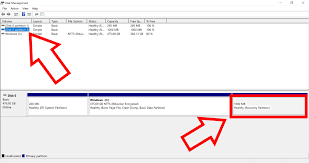
How to Delete a Partition on Windows
Are you tired of having multiple partitions on your computer and want to simplify your storage space? Look no further! Deleting a partition on Windows can be a straightforward process, but it’s essential to follow the correct steps to avoid any potential issues.
In this article, we’ll guide you through the step-by-step process of deleting a partition on Windows using the built-in utility called “Disk Management.” We’ll also explore alternative solutions and provide tips for those who are not comfortable with this process.
What is Partitioning?
Partitioning refers to dividing your hard drive or solid-state drive (SSD) into separate sections, each containing its own file system. This allows you to organize your files and applications independently, making it easier to manage your storage space.
Why Delete a Partition?
There are several reasons why you might want to delete a partition:
- You have multiple partitions and want to simplify your storage space.
- You’ve created a new partition for a specific purpose (e.G., Separating work files from personal ones), but no longer need it.
- You’re upgrading or reinstalling Windows, and the old partition is taking up valuable space.
How to Delete a Partition on Windows
To delete a partition on Windows, follow these steps:
- Open Disk Management: Press the Windows key + R to open the Run dialog box. Type
diskmgmt.Mscand press Enter. - Right-click on The Partition: In the Disk Management window, right-click on the partition you want to delete and select “Delete Volume.”
- Confirm Deletion: A confirmation prompt will appear asking if you’re sure you want to delete the volume. Click “Yes” to proceed.
Alternative Solutions
If you’re not comfortable with deleting a partition or are experiencing issues with Disk Management, consider these alternative solutions:
- Easeus Partition Master: This software offers advanced features for managing partitions, including resizing, moving, and merging them.
- Gparted: A free, open-source partition manager that can be used to delete partitions, resize them, or even create new ones.
Tips And Precautions
Before deleting a partition, keep the following in mind:
- Backup Your Data: Ensure you have a backup of any important files or applications stored on the partition you’re about to delete.
- Verify Partition Information: Double-check that the partition you want to delete is indeed unnecessary and doesn’t contain any critical files or applications.
- Use Caution With System Partitions: Be extremely careful when deleting system partitions, as this can lead to instability or even prevent Windows from booting properly.
Conclusion
Deleting a partition on Windows can be a simple process if done correctly. By following the steps outlined above and considering alternative solutions, you can safely remove unnecessary partitions and simplify your storage space.


