
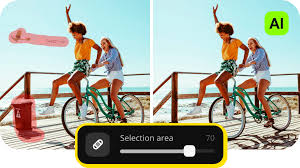
How to Delete Persons From a Photo: A Step-by-step Guide
Are you tired of having unwanted people in your photos? Do you want to remove them without having to take a new picture? Look no further! In this article, we will guide you through the process of deleting persons from a photo using various software and apps.
Why Delete Persons From a Photo?
There are many reasons why you might want to delete persons from a photo. Perhaps someone photobombed your shot, or maybe you don’t like the way they look in the picture. Whatever the reason, we have got you covered!
Methods For Deleting Persons From a Photo
There are several methods you can use to delete persons from a photo, depending on your device and software. Here are some of the most popular options:
Android
If you’re using an Android device, you can use Snapseed, a powerful photo editing app that offers a range of tools for editing photos.
How to Delete Persons From a Photo With Snapseed
To delete persons from a photo using Snapseed, follow these steps:
- Open the Snapseed app and select the photo you want to edit.
- Tap on the “Tools” icon (a small toolbox) at the bottom of the screen.
- Select the “Correction” tool.
- Tap on the area where the person is located.
- Move the brush over the person’s face or body, and tap on it to select.
- Once you’ve selected the person, you can move them to a different part of the photo or delete them altogether.
Iphone
If you’re using an iPhone, you can use the same method as above with Snapseed.
How to Delete Persons From a Photo With Photoshop
If you have Photoshop installed on your computer, you can also use it to delete persons from a photo. Here’s how:
- Open the photo in Photoshop.
- Select the “Healing Brush” tool.
- Choose a brush size and select the area where the person is located.
- Move the brush over the person’s face or body, and click on it to select.
- Once you’ve selected the person, you can move them to a different part of the photo or delete them altogether.
Photoshop on Pc
If you’re using Photoshop on your computer, you can use the “Clone Stamp” tool to remove persons from a photo.
How to Delete Persons From a Photo With Gimp
GIMP is another popular photo editing software that offers a range of tools for editing photos. Here’s how to delete persons from a photo using GIMP:
- Open the photo in GIMP.
- Select the “Healing Brush” tool.
- Choose a brush size and select the area where the person is located.
- Move the brush over the person’s face or body, and click on it to select.
- Once you’ve selected the person, you can move them to a different part of the photo or delete them altogether.
Online Tools
If you don’t have any software installed on your computer, there are still some online tools that can help you delete persons from a photo.
How to Delete Persons From a Photo With Photopea
Photopea is an online photo editing tool that allows you to edit photos without having to download or install any software. Here’s how to use it:
- Open the photo in Photopea.
- Select the “Healing Brush” tool.
- Choose a brush size and select the area where the person is located.
- Move the brush over the person’s face or body, and click on it to select.
- Once you’ve selected the person, you can move them to a different part of the photo or delete them altogether.
How to Delete Persons From a Photo With Pixlr
Pixlr is another online photo editing tool that allows you to edit photos without having to download or install any software. Here’s how to use it:
- Open the photo in Pixlr.
- Select the “Heal” tool (a small icon of a plaster).
- Choose a brush size and select the area where the person is located.
- Move the brush over the person’s face or body, and click on it to select.
- Once you’ve selected the person, you can move them to a different part of the photo or delete them altogether.
Conclusion
Deleting persons from a photo can be a bit tricky, but with these methods, you should be able to remove them easily. Whether you’re using an Android device, iPhone, Photoshop on PC, GIMP, or online tools like Photopea and Pixlr, we have got you covered!
Frequently Asked Questions (FAQs)
- Can I Delete Persons From a Photo Without Having Any Software Installed?
Yes! There are several online tools that allow you to edit photos without having to download or install any software.
- Which App is The Best For Deleting Persons From a Photo on Android?
Snapseed is an excellent app for editing photos and deleting persons from them. It offers a range of powerful tools that make it easy to remove unwanted people from your photos.
- Can I Use Photoshop on my Iphone?
Yes! You can use the mobile version of Photoshop, called Adobe Photoshop Express, which offers many of the same features as the desktop version.
- Is There an Online Tool That Allows me to Delete Persons From a Photo Without Having to Install Any Software?
Yes! Photopea and Pixlr are two popular online tools that allow you to edit photos without having to download or install any software.
- How do I Remove Someone’s Face From a Photo Using Gimp?
To remove someone’s face from a photo using GIMP, select the “Healing Brush” tool and choose a brush size. Then, move the brush over the person’s face or body and click on it to select. Once you’ve selected the person, you can move them to a different part of the photo or delete them altogether.
- Can I Use These Methods to Remove Objects From a Photo?
Yes! These methods also work for removing objects from a photo, not just persons.
- Are There Any Free Online Tools That Allow me to Edit Photos Without Having to Install Any Software?
Yes! Photopea and Pixlr are both free online tools that allow you to edit photos without having to download or install any software.
- How do I Save The Edited Photo After Removing a Person From It?
To save the edited photo, select the “Export” option in your chosen app or software and choose a format for saving the image. Then, click on the “Save” button to save the image to your device or computer.


