
How to Delete Photos From Icloud
Are you tired of having unwanted photos stored on your iCloud account? Look no further! In this article, we will guide you through the step-by-step process of deleting photos from iCloud on various devices.
Understanding Icloud Photo Library
Before we dive into the deletion process, it’s essential to understand how iCloud Photo Library works. When you enable iCloud Photo Library on a device, all your photos and videos are automatically synced across all your Apple devices linked to that account. This means that if you delete a photo from one device, it will be deleted from all other devices as well.
Deleting Photos From Icloud on Iphone And Ipad
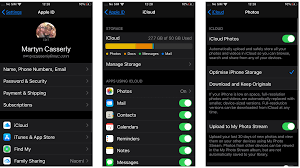
To delete photos from iCloud on an iPhone or iPad:
- Go to Settings > [Your Name] > iCloud.
- Tap on “Photos” and toggle off the switch next to “Synchronise this iPhone/iPad”.
- Open the Photos app and select the photo you want to delete.
- Tap the three dots in the top-right corner of the screen and select “Delete Photo”.
Deleting Photos From Icloud on Mac
To delete photos from iCloud on a Mac:
- Click on the Apple menu and select System Preferences.
- Click on Apple ID and then select iCloud.
- Ensure that the checkbox next to “iCloud” is selected and click on Options.
- Deselect the checkbox next to “Photos”.
- Open the Photos app and select the photo you want to delete.
- Right-click on the photo and select “Delete [number] photos”.
Deleting Photos From Icloud on PC
To delete photos from iCloud on a Windows PC:
- Download and install the iCloud for Windows application.
- Launch the application and click on Options.
- Deselect the checkbox next to “Photos”.
- Open the Photos app and select the photo you want to delete.
- Right-click on the photo and select “Delete”.
Deleting a Specific Photo From Icloud
If you only want to delete a specific photo from iCloud, you can follow these steps:
- Open the Photos app on any device linked to your iCloud account.
- Select the photo you want to delete.
- Tap or click on the three dots in the top-right corner of the screen and select “Delete Photo”.
What Happens When You Delete a Photo From Icloud
When you delete a photo from iCloud, it will be removed from all devices linked to that account. However, if you reactivate the photo library on any device, the deleted photo will reappear.
How to Recover Deleted Photos From Icloud
If you accidentally deleted a photo from iCloud and want to recover it within 30 days, follow these steps:
- Open the Photos app on any device linked to your iCloud account.
- Tap or click on “Albums” in the top-left corner of the screen.
- Select “Deleted Photos”.
- Choose the photos you want to recover and tap or click on “Recover Photo”.
Conclusion
Deleting photos from iCloud can be a straightforward process if you follow these steps. Remember that deleting a photo from one device will remove it from all other devices linked to your iCloud account. If you need to recover a deleted photo, act quickly within 30 days.
Frequently Asked Questions (FAQs)
- How do I Delete All Photos From Icloud?
To delete all photos from iCloud, follow the steps outlined in this article for deleting photos on each device type. You will need to repeat these steps on every device linked to your iCloud account.
2. What Happens When I Delete a Photo From One Device?
When you delete a photo from one device, it will be removed from all other devices linked to that iCloud account.
3. Can I Recover Deleted Photos From Icloud?
Yes, if you delete a photo within 30 days, you can recover it by following the steps outlined in this article.
4. How do I Prevent Accidentally Deleting Photos From Icloud?
To avoid accidentally deleting photos from iCloud, download and store your photos on individual devices or use a third-party cloud storage service.
5. Can I Delete Specific Photos Without Affecting Others?
Yes, you can delete specific photos from iCloud without affecting other photos stored in the library.
6. What if I Need to Recover Deleted Photos Quickly?
Act fast within 30 days and follow the steps outlined in this article to recover deleted photos.
7. How do I Reactivate Photo Synchronization on an Iphone or Ipad?
To reactivate photo synchronization, go to Settings > [Your Name] > iCloud, tap on “Photos”, and toggle the switch next to “Synchronise this iPhone/iPad” back to the ON position.
8. Can I Use Icloud Photo Library Without Deleting Photos From Other Devices?
Yes, you can use iCloud Photo Library to sync your photos across devices without deleting them from individual devices.


