
How to Delete Photos on Iphone: A Step-by-step Guide
Are you tired of cluttered photo galleries on your iPhone? Do you want to free up storage space without deleting photos entirely? Look no further! In this article, we’ll show you how to delete photos on iPhone using various methods, including the built-in Photo app, iCloud, and third-party apps.
Understanding Iphone Storage
Before we dive into deleting photos, it’s essential to understand how iPhone storage works. The Photos app stores all your photos, videos, and screenshots in a folder called “Photos” on your device. This folder takes up valuable space on your iPhone, especially if you have a large collection of high-quality photos.
Method 1: Deleting Photos Using The Photo App
The easiest way to delete photos is by using the built-in Photo app. Here’s how:
Step-by-step Instructions
- Open the Photo app.
- Tap on the “Albums” tab at the bottom of the screen.
- Select the album you want to edit (e.G., “Camera Roll,” “Screenshots,” etc.).
- Choose the photos you want to delete by tapping on them.
- Tap on the “Edit” button in the top-right corner of the screen.
- Select the photos you want to delete and tap on the “Trash” icon at the bottom of the screen.
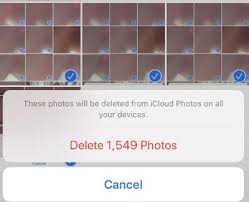
Method 2: Deleting Photos Using Icloud
If you want to free up storage space without deleting photos entirely, you can use iCloud’s Photo Library feature.
Step-by-step Instructions
- Open the Settings app.
- Tap on your name at the top of the screen and select “iCloud.”
- Tap on “Photos” and toggle off the switch next to “Optimise Storage.”
- The Photos app will automatically delete photos from your device, but keep them in iCloud.
Method 3: Using Third-party Apps
If you want more control over deleting photos or have a large collection of photos to manage, consider using third-party apps like Gemini Photos or Photo Cleaner.
Step-by-step Instructions
- Download and install the app of your choice.
- Open the app and select the photos you want to delete.
- Follow the app’s instructions to delete the selected photos.
Method 4: Deleting Photos After Importing to PC
If you’ve imported photos from your iPhone to a PC, you can also delete them on the device itself using various methods:
Step-by-step Instructions (Windows)
- Connect your iPhone to your Windows PC.
- Open the AutoPlay window and select “Matter images and video” when prompted.
- Choose which photos to delete by selecting them.
- Click on the “Delete rows of the device after import” option.
Step-by-step Instructions (Mac)
- Connect your iPhone to your Mac.
- Open the Photos app on your Mac.
- Select the photos you want to delete and click on the “Trash” icon at the bottom of the screen.
Method 5: Deleting Photos With Itunes
If you’re using iTunes to sync photos from your iPhone to a PC, you can also delete them directly from the device.
Step-by-step Instructions
- Open iTunes and select your iPhone.
- Toggle off the switch next to “Sync Photos” in the Summary tab.
- The Photos app will automatically delete photos from your device.
Conclusion
Deleting photos on iPhone is a straightforward process, but it’s essential to understand how iPhone storage works first. By using various methods, including the built-in Photo app, iCloud, and third-party apps, you can free up valuable space on your device without compromising your photo collection.
Frequently Asked Questions (FAQs)
- Q: How do I Delete a Single Photo From my Iphone?
A: Open the Photos app, select the photo, and tap on the “Trash” icon at the bottom of the screen. - Q: Can I Delete Photos Without Deleting Them From Icloud?
A: Yes, you can disable syncing for specific albums or folders in the Settings app. - Q: Which Third-party Apps Can Help me Manage my Photo Collection?
A: Gemini Photos and Photo Cleaner are popular options. - Q: How do I Delete Photos After Importing to Pc?
A: Follow the instructions above for Windows or Mac. - Q: Can I Delete Photos With Itunes?
A: Yes, toggle off the switch next to “Sync Photos” in the Summary tab. - Q: Will Deleting Photos From my Iphone Affect my Icloud Storage?
A: Deleting photos on your device will not affect your iCloud storage capacity. - Q: How do I Recover Deleted Photos on my Iphone?
A: Check our tutorial on recovering deleted photos for more information.
Hope this article helps you manage your photo collection and free up space on your iPhone!


