
What is a Browser Hijacker?
A browser hijacker is a type of malware that takes control of your web browser and redirects you to unwanted websites or search engines. They can be included in software downloads, free apps, or even legitimate programs.
Symptoms of a Browser Hijacker:
- Your home page has been changed.
- You are redirected to unwanted search engines like PCH, SearchSafer, or MyStart Search.
- Pop-ups and banners appear on your browser.
Removing The Search Engine
If you notice any suspicious activity in your browser, it’s time to take action!
If You’re Using Windows 10:
- Click on the Start button (the icon with the Windows logo) and select Settings.
- Go to System > Apps & features.
- Type “Search” in the search bar, and if any suspicious apps appear, click on them and then click Uninstall.
- Confirm that you want to uninstall the app by clicking Yes.
If You’re Using Windows 7 or Earlier:
- Click on the Start button (the icon with the Windows logo) and select Control Panel.
- Go to Programs > Uninstall a program.
- Type “Search” in the search bar, and if any suspicious apps appear, click on them and then click Uninstall.
- Confirm that you want to uninstall the app by clicking Yes.
Using Revo Uninstaller
If the above steps don’t work, it’s time to use some heavy artillery!
- Download Revo Uninstaller from their official website.
- Run the portable version (it doesn’t require installation).
- Select Search Engine (or the suspicious app you want to remove) and click Uninstall.
- Confirm that you want to uninstall the app by clicking Yes.
Using Adwcleaner
AdwCleaner is a powerful tool for removing unwanted programs, including browser hijackers!
- Download AdwCleaner from their official website.
- Run the program and select Analyze.
- Wait for the analysis to complete.
- If any suspicious programs are detected, click Clean.
Using Malwarebytes Anti-malware
Malwarebytes is a top-notch anti-malware tool that can help you remove unwanted programs!
- Download Malwarebytes from their official website.
- Run the program and select Scan.
- Wait for the scan to complete.
- If any suspicious programs are detected, click Quarantine.
Restoring The Browser
If your browser is still not behaving as expected, it’s time to restore it to its original state!
Removing Extensions
Browser hijackers often use extensions to modify your browser settings.
- Go to your browser settings (Chrome: ≡ > More tools > Extensions; Firefox: ≡ > Add-ons).
- Check for any suspicious extensions related to Search Engine or PCH.
- Remove them by clicking the trash can icon next to each extension.
Restoring Initial Page And Search Engine
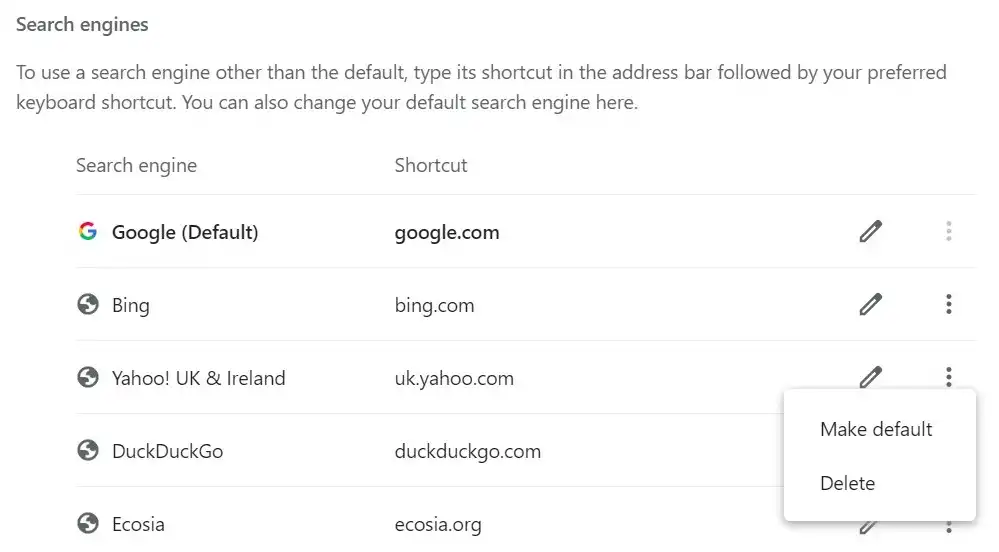
If your initial page or search engine is still modified, it’s time to restore them to their default settings!
- Go to your browser settings (Chrome: ≡ > More tools > Settings; Firefox: ≡ > Options/Preferences).
- Check for any suspicious settings related to Search Engine or PCH.
- Restore the default settings by clicking on the gear icon next to each setting.
Restoring The Browser to Its Factory State
If all else fails, it’s time to reset your browser to its factory settings!
- Go to your browser settings (Chrome: ≡ > More tools > Settings; Firefox: ≡ > Options/Preferences).
- Click on the gear icon next to each setting and select Reset.
- Confirm that you want to reset the browser by clicking Yes.


