
How to Erase Forwarded Sms on Android, Samsung, Huawei, Iphone, Whatsapp, And Telegram
Are you wondering how to erase forwarded messages on your Android, Samsung, Huawei, iPhone, WhatsApp, or Telegram? Look no further! In this article, we’ll guide you through the steps to delete forwarded messages on these popular messaging platforms.
Understanding Forwarded Messages
Before we dive into the deletion process, let’s understand what forwarded messages are. Forwarded messages are copies of a message that have been sent from one person to another, often with additional content or context. These messages can be sent via various messaging apps, including WhatsApp, Telegram, and SMS.
Deleting Forwarded Messages on Android
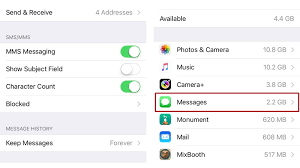
If you’re using an Android device, follow these steps to delete forwarded messages:
- Step 1: Open the Messages app on your Android device.
- Step 2: Select the conversation containing the message you want to delete.
- Step 3: Long-press on the message you want to delete and select the “Delete” option.
- Step 4: Confirm that you want to delete the message.
Deleting Forwarded Messages on Samsung
If you’re using a Samsung device, follow these steps to delete forwarded messages:
- Step 1: Open the Messages app on your Samsung device.
- Step 2: Select the conversation containing the message you want to delete.
- Step 3: Long-press on the message you want to delete and select the “Delete” option.
- Step 4: Confirm that you want to delete the message.
Deleting Forwarded Messages on Huawei
If you’re using a Huawei device, follow these steps to delete forwarded messages:
- Step 1: Open the Messages app on your Huawei device.
- Step 2: Select the conversation containing the message you want to delete.
- Step 3: Long-press on the message you want to delete and select the “Delete” option.
- Step 4: Confirm that you want to delete the message.
Deleting Forwarded Messages on Iphone
If you’re using an iPhone, follow these steps to delete forwarded messages:
- Step 1: Open the Messages app on your iPhone.
- Step 2: Select the conversation containing the message you want to delete.
- Step 3: Long-press on the message you want to delete and select the “Delete” option.
- Step 4: Confirm that you want to delete the message.
Deleting Forwarded Messages on Whatsapp
If you’re using WhatsApp, follow these steps to delete forwarded messages:
- Step 1: Open the WhatsApp app on your device.
- Step 2: Select the conversation containing the message you want to delete.
- Step 3: Long-press on the message you want to delete and select the “Delete” option.
- Step 4: Confirm that you want to delete the message.
Deleting Forwarded Messages on Telegram
If you’re using Telegram, follow these steps to delete forwarded messages:
- Step 1: Open the Telegram app on your device.
- Step 2: Select the conversation containing the message you want to delete.
- Step 3: Long-press on the message you want to delete and select the “Delete” option.
- Step 4: Confirm that you want to delete the message.
Conclusion
Deleting forwarded messages is a straightforward process, regardless of which messaging platform you use. By following these steps, you can erase unwanted messages and maintain a clean and organized conversation history.


