
How to Erase Browsing History on Your Mobile Device
Are you tired of having a cluttered browsing history on your mobile device? Do you want to keep your internet activities private? Look no further! In this article, we will guide you through the process of erasing browsing history on various mobile devices and browsers.
Why is it Important to Erase Browsing History?
Erasing browsing history is essential for maintaining online privacy. When you browse the internet, your device stores a record of all websites visited, which can be accessed by others if you share or compromise your device. This can lead to security breaches and unauthorized access to sensitive information.
How to Erase Browsing History on Android Devices
If you use an Android device, erasing browsing history is a straightforward process. Here are the steps:
- Open Google Chrome: Launch the Google Chrome browser on your Android device.
- Tap on The Three Dots: Tap on the three dots in the top-right corner of the screen to open the menu.
- Select Settings: Select “Settings” from the menu.
- Scroll Down: Scroll down and select “Privacy” or “Clear Browsing Data.”
- Choose Erase Option: Choose the option to erase browsing data, including history, cookies, and site data.
- Confirm Deletion: Confirm that you want to delete the browsing data.
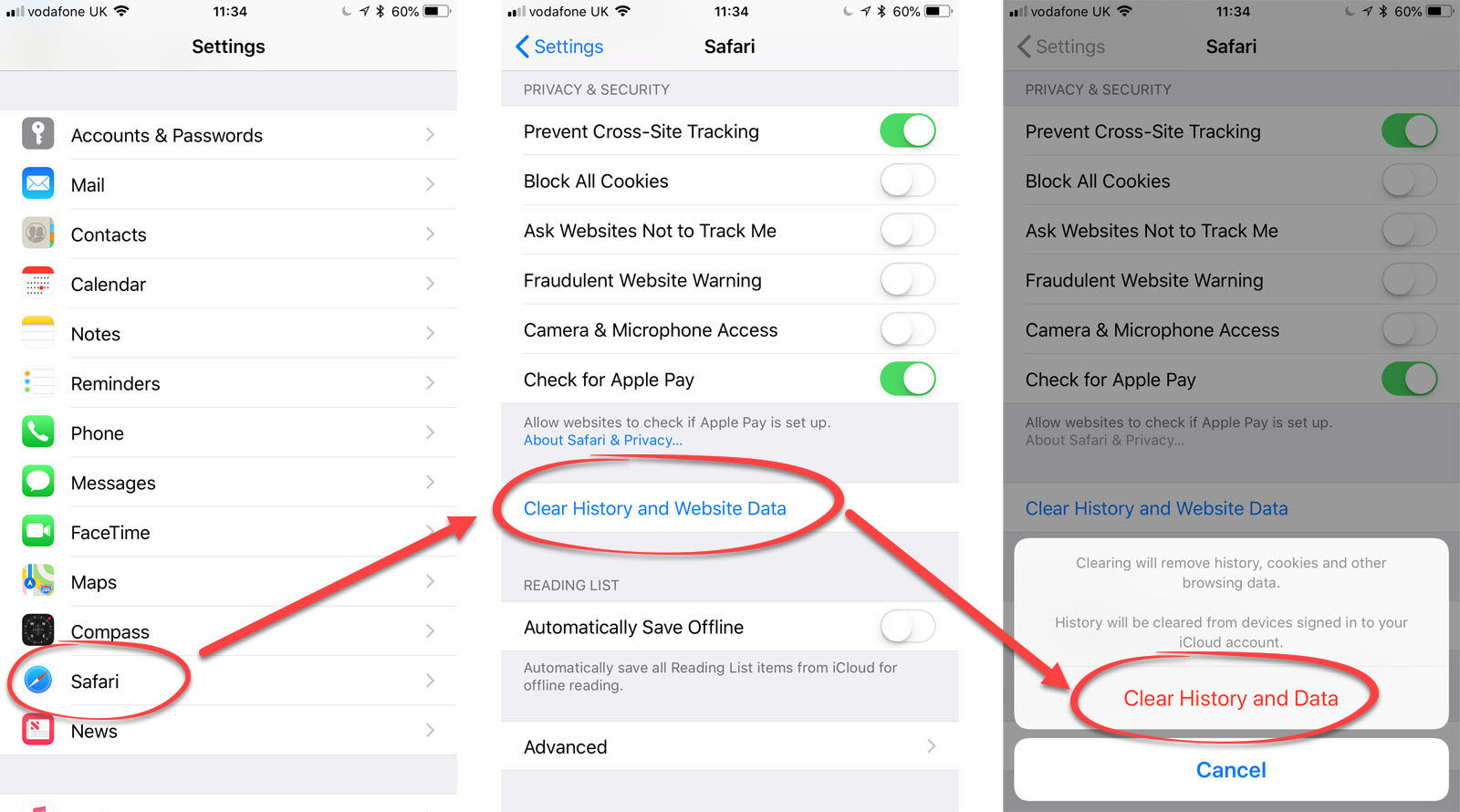
How to Erase Browsing History on Ios Devices
If you use an iOS device, erasing browsing history is also easy:
- Open Safari: Launch the Safari browser on your iOS device.
- Tap on The Book Icon: Tap on the book icon in the bottom toolbar to open the bookmarks and reading list.
- Select Settings: Select “Settings” from the menu.
- Scroll Down: Scroll down and select “Clear Browsing Data.”
- Choose Erase Option: Choose the option to erase browsing data, including history, cookies, and site data.
- Confirm Deletion: Confirm that you want to delete the browsing data.
How to Erase Browsing History on Other Mobile Devices
If you use a different mobile device or browser, follow these general steps:
- Open Browser App: Launch the browser app on your device.
- Tap on Settings Icon: Tap on the settings icon (usually represented by three dots or a gear).
- Select Privacy or Clear Browsing Data: Select the option to clear browsing data, including history, cookies, and site data.
- Confirm Deletion: Confirm that you want to delete the browsing data.
How to Erase Specific Websites From Browsing History
If you only want to erase specific websites from your browsing history, follow these steps:
- Open Browser App: Launch the browser app on your device.
- Tap on Three Dots or Settings Icon: Tap on the three dots or settings icon (usually represented by a gear).
- Select History: Select “History” or “Browsing History.”
- Find Website to Erase: Find the website you want to erase from your browsing history.
- Delete Website: Tap on the “X” button next to the website name or select “Delete” to remove it from your browsing history.
How to Prevent Browsing History From Being Saved
To prevent browsing history from being saved in the future, follow these steps:
- Open Browser App: Launch the browser app on your device.
- Tap on Settings Icon: Tap on the settings icon (usually represented by three dots or a gear).
- Select Privacy or Clear Browsing Data: Select the option to clear browsing data, including history, cookies, and site data.
- Choose to Not Save Browsing History: Choose the option to not save browsing history for future sessions.
Conclusion
Erasing browsing history on your mobile device is an essential step in maintaining online privacy. By following these simple steps, you can ensure that your browsing activities are private and secure. Remember to regularly erase your browsing history to keep your online presence secure.
Frequently Asked Questions (FAQs)
- How Often Should I Erase my Browsing History?
It’s recommended to erase your browsing history at least once a week or whenever you feel it’s necessary to maintain online privacy.
- Will Erasing my Browsing History Delete All of my Data?
No, erasing your browsing history will only remove the record of websites visited and other related data. Other personal information, such as login credentials and saved passwords, remains secure.
- Can I Still Access Previously Erased Websites?
Yes, you can still access previously erased websites by visiting them directly or searching for their names in a search engine.
- Will Erasing my Browsing History Affect Any Bookmarks or Favorites?
No, erasing your browsing history will not delete any bookmarks or favorites saved on your device.
- Can I Erase my Browsing History if I’m Using a Vpn?
Yes, you can still erase your browsing history even when using a Virtual Private Network (VPN).


