
How to Erase Google Search History: A Step-by-step Guide
Are you tired of seeing your browsing history on Google? Do you want to delete the search terms that you’ve entered in the past? If so, this article is for you! We’ll show you how to erase your Google search history on both desktop and mobile devices.
Why Erase Your Google Search History?
You may have searched for things on Google that you’d rather not be reminded of. Perhaps you’re a bit embarrassed about something you searched for in the past, or maybe you just want to keep your browsing history private. Whatever the reason, we’ll guide you through the process of erasing your Google search history.
How to Erase Your Google Search History on Desktop
To erase your Google search history on desktop, follow these steps:
- Go to Your Google Account: Sign in to your Google account by going to myaccount.Google.Com.
- Click on The Three Vertical Dots: In the top right corner of the page, click on the three vertical dots.
- Select “History”: From the drop-down menu, select “History”.
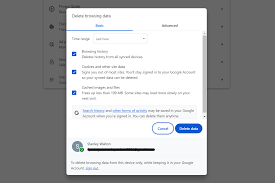
- Click on The “Clear Browsing Data” Button: On the next page, click on the “Clear browsing data” button.
- Choose Your Options: Select the type of data you want to delete (e.G., Search history, cookies, etc.) And choose a time frame for deletion (e.G., Last hour, last day, etc.).
How to Erase Your Google Search History on Mobile
To erase your Google search history on mobile, follow these steps:
- For Android Devices: Open the Google app, tap on the three horizontal lines in the top left corner, and select “Settings”. From there, go to “Account”, then “History”, and finally “Clear browsing data”.
- For Ios Devices: Open the Google app, tap on your profile picture, and select “Settings”. From there, go to “Account”, then “History”, and finally “Clear browsing data”.
How to Erase Your Google Search History in Other Browsers
You can also erase your Google search history in other browsers like Chrome, Firefox, Microsoft Edge, and Safari.
- For Chrome: Click on the three vertical dots in the top right corner of the browser window, select “More tools”, then “Clear browsing data”.
- For Firefox: Click on the three horizontal lines in the top right corner of the browser window, select “Options”, then “Privacy & Security”. From there, go to “History” and click on “Clear your browsing history”.
- For Microsoft Edge: Click on the three dots in the top right corner of the browser window, select “Settings”, then “Clear browsing data”.
- For Safari: Go to Preferences > Privacy, then click on “Show details”. From there, go to “History” and click on “Clear”.
How to Disable Search Suggestions
In addition to erasing your Google search history, you can also disable search suggestions. This will prevent Google from suggesting previous searches as you type in the search bar.
- For Chrome: Go to Settings > Search engines, then uncheck the box next to “Search engine suggestions”.
- For Firefox: Go to Options > Privacy & Security, then uncheck the box next to “Show suggestions for”.
- For Microsoft Edge: Go to Settings > Clear browsing data, then uncheck the box next to “Save search suggestions”.
- For Safari: Go to Preferences > Search engines, then uncheck the box next to “Include search engine suggestions”.
Conclusion
Erasing your Google search history is a simple process that can be completed on both desktop and mobile devices. By following the steps outlined in this article, you can keep your browsing history private and prevent previous searches from being suggested as you type in the search bar.
Faqs
- Q: Will Deleting my Search History Delete All of my Google Account Data?
A: No, deleting your search history will only delete the data related to your search activity. - Q: Can I Recover Deleted Search History?
A: Yes, you can recover deleted search history by going to your Google account settings and selecting “History”. - Q: Will Disabling Search Suggestions Affect my Browsing Experience?
A: No, disabling search suggestions will only prevent Google from suggesting previous searches as you type in the search bar. -
Q: Can I Erase my Search History on All Devices Connected to my Google Account?
A: Yes, erasing your search history on one device will delete it on all devices connected to your Google account. -
Q: How Often Should I Clear my Browsing Data?
A: You can clear your browsing data as often as you like, but it’s recommended to do so at least once a month to keep your browsing history private. -
Q: Will Erasing my Search History Affect my Google Recommendations?
A: No, erasing your search history will not affect your Google recommendations. -
Q: Can I Use The Same Steps to Erase my Search History on Multiple Browsers?
A: Yes, you can use the same steps outlined in this article to erase your search history on multiple browsers. -
Q: How do I Prevent Others From Seeing my Search History?
A: To prevent others from seeing your search history, make sure to sign out of all devices and clear your browsing data regularly.


