
How to Erase Your Skype Name: A Step-by-step Guide
Are you tired of seeing your name pop up every time someone initiates a call or message on Skype? Do you want to erase your Skype name but don’t know how? Look no further! In this article, we’ll guide you through the process of erasing your Skype name on various devices and operating systems.
Why Erase Your Skype Name?
Before we dive into the steps, let’s quickly discuss why you might want to erase your Skype name. Perhaps you’re concerned about privacy or security issues, or maybe you just want to start fresh with a new identity. Whatever the reason, erasing your Skype name is a relatively simple process that can be completed in a few easy steps.
How to Erase Your Skype Name on PC
To erase your Skype name on PC, follow these steps:
- Close All Skype Sessions: Make sure you’ve closed all Skype windows and sessions.
- Access Skype Settings: Go to Settings > Account > Family and other users.
- Add a New User Account: Select the option to add a new user account without logging in with your Microsoft account.
- Choose a Name And Password: Create a new username and password for the local account.
- Log Out of Your Original Account: Log out of your original Skype account.
- Login With The New Account: Login with the new account you just created.
That’s it! By following these steps, you should be able to erase your Skype name on PC.
How to Erase Your Skype Name on Mac
The process for erasing your Skype name on Mac is identical to that of Windows. Follow these steps:
- Close All Skype Sessions: Make sure you’ve closed all Skype windows and sessions.
- Access Skype Settings: Go to Settings > Account > Family and other users.
- Add a New User Account: Select the option to add a new user account without logging in with your Microsoft account.
- Choose a Name And Password: Create a new username and password for the local account.
- Log Out of Your Original Account: Log out of your original Skype account.
- Login With The New Account: Login with the new account you just created.
How to Erase Your Skype Name Online
If you’re using the online version of Skype, erasing your name is a bit different. Follow these steps:
- Logout of Your Account: Logout of your Skype account.
- Access The Skype Website: Go to the Skype website and login with your account credentials.
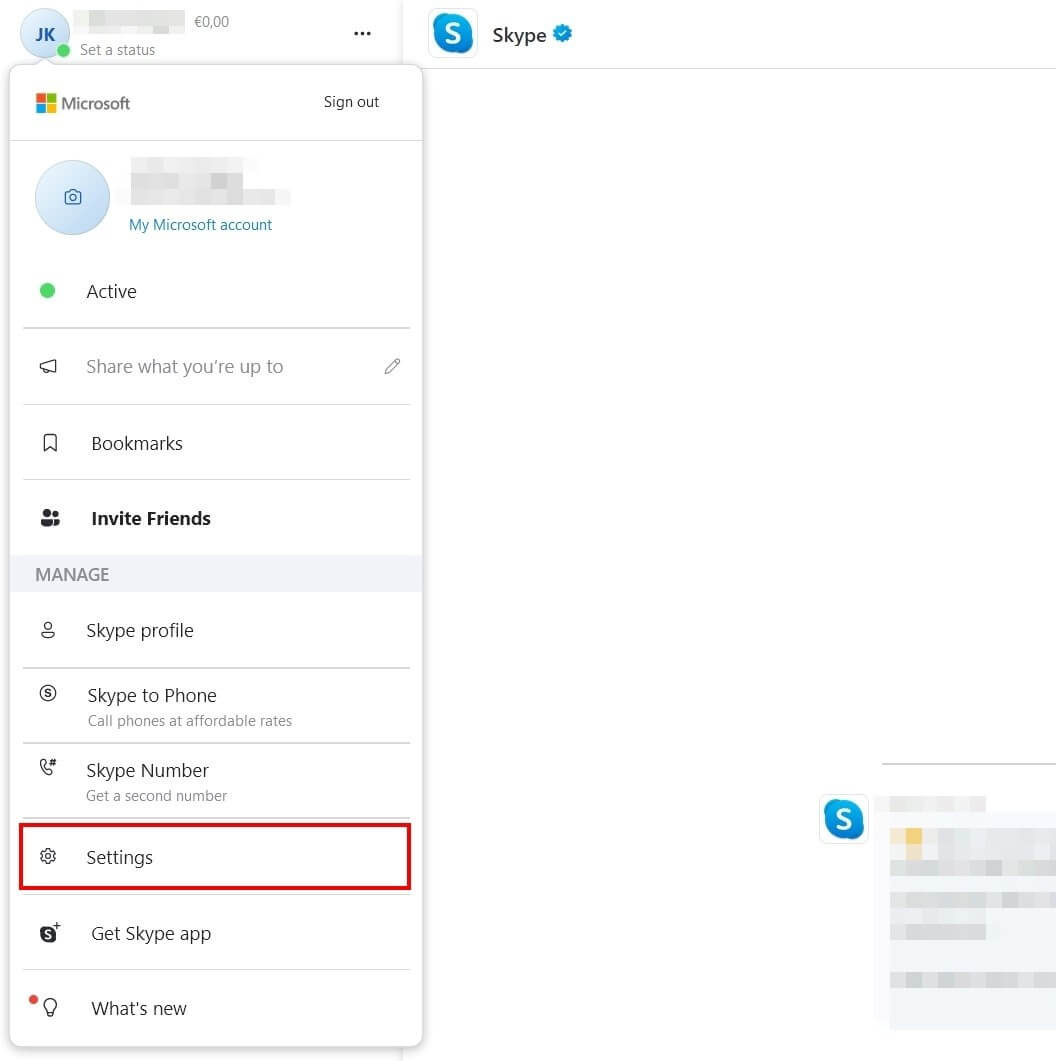
- Go to Settings: Click on your profile picture in the top right corner, then select “Settings”.
- Close Your Account: Select the option to close your account.
How to Erase Contact on Skype
If you want to erase a contact from Skype, follow these steps:
- Open Skype: Open Skype and go to the contacts list.
- Right-click on The Contact: Right-click on the contact you want to delete and select “Delete contact”.
- Confirm Deletion: Confirm that you want to delete the contact.
How to Erase Contact on Skype on Smartphone or Tablet
Erasing a contact on Skype on smartphone or tablet is similar to erasing it on PC. Follow these steps:
- Open Skype: Open Skype and go to the contacts list.
- Long Press on The Contact: Long press on the contact you want to delete until a pop-up menu appears.
- Select Delete Contact: Select “Delete contact” from the pop-up menu.
Frequently Asked Questions
Here are some frequently asked questions about erasing your Skype name:
Q: Will Erasing my Skype Name Affect my Microsoft Account?
A: Erasing your Skype name will not directly affect your Microsoft account, but it may affect any associated subscriptions or services.
Q: Can I Erase my Skype Name And Still Use The Service?
A: Yes, you can erase your Skype name and still use the service, but you’ll need to create a new username and password for the local account.
Q: Will Erasing my Contact on Skype Affect Their Account?
A: No, erasing a contact on Skype will not affect their account or any associated data.
Q: How Long Does it Take to Erase my Skype Name?
A: Erasing your Skype name typically takes a few minutes to complete.
Q: Can I Restore my Original Skype Name if I Change my Mind?
A: Unfortunately, once you’ve erased your Skype name, you won’t be able to restore it.


