
How to Delete Your Snapchat Account: A Step-by-step Guide
Are you tired of using Snapchat and want to delete your account? Look no further! In this guide, we will walk you through the process of deleting your Snapchat account on both Android and iPhone devices, as well as on a computer.
What Happens When You Delete Your Snapchat Account?
Before we dive into the deletion process, let’s discuss what happens when you delete your Snapchat account. When you deactivate your account, it will be temporarily suspended for 30 days. During this time, your account will not be visible to others, and you won’t be able to access or share new content. However, all your data, including your settings, friends list, chats, and shared content, will still be stored in the Snapchat database.
Important: Data Retention And Recovery
After 30 days, all your data will be permanently deleted from the Snapchat database, and you won’t be able to recover it. This means that if you change your mind or need access to something, you might not be able to retrieve it.
Deleting Your Snapchat Account on Android And Iphone
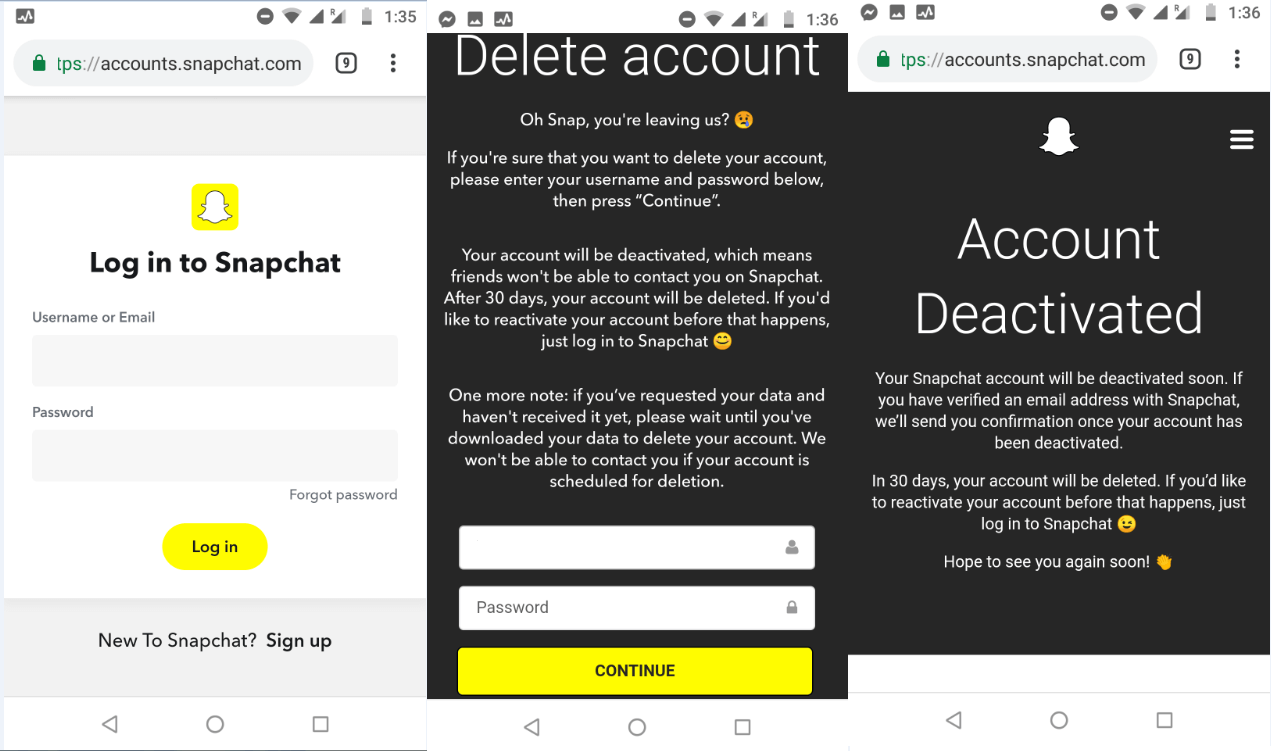
To delete your Snapchat account on Android or iPhone devices, follow these steps:
- Open the web browser on your device (e.G., Chrome on Android or Safari on iPhone/iPad).
- Navigate to the Snapchat account management website: Https://Accounts.Snapchat.Com.
- Log in with your Snapchat username and password.
- Select “Delete my account” from the menu.
- Enter your password again to confirm you want to delete your account.
- Confirm that you want to deactivate your account.
Deleting Your Snapchat Account on a Computer
The process of deleting your Snapchat account on a computer is identical to that on Android and iPhone devices:
- Open a web browser (e.G., Google Chrome).
- Navigate to the Snapchat account management website: Https://Accounts.Snapchat.Com.
- Log in with your Snapchat username and password.
- Select “Delete my account” from the menu.
- Enter your password again to confirm you want to delete your account.
- Confirm that you want to deactivate your account.
What If I Change My Mind?
If, after 30 days, you realize you need access to something or want to reactivate your Snapchat account, follow these steps:
- Open the Snapchat app on your device (if it’s still installed).
- Tap on “Access” and log in with your credentials.
- Reactivate your account by tapping “Yes” and then “OK”.
Troubleshooting: If You Encounter Problems
If you encounter any issues during the deletion process, contact the Snapchat support team for assistance. You can do this by accessing the app’s settings menu on your device.
Conclusion
Deleting your Snapchat account is a straightforward process that requires minimal effort. However, please be aware of the data retention and recovery implications discussed above. Remember to also check our guide on recovering your Snapchat account if you change your mind.
Faqs: Deleting Your Snapchat Account
- Q: What happens when I delete my Snapchat account?
A: Your account will be temporarily suspended for 30 days, after which all your data will be deleted. - Q: Can I recover my Snapchat account if I change my mind?
A: Yes, you can reactivate your account within 30 days of deactivation by accessing the Snapchat app and following the prompts. - Q: How long does it take to delete a Snapchat account?
A: The process typically takes a few minutes, but it may vary depending on your internet connection speed. - Q: Will deleting my Snapchat account affect my online presence?
A: No, deleting your Snapchat account will not impact your online presence or social media profiles on other platforms. - Q: Can I delete my Snapchat account from the app itself?
A: Unfortunately, no, you need to access the account management website to delete your Snapchat account.
Remember to carefully consider the implications of deleting your Snapchat account and take necessary precautions before proceeding!


