
How to Delete Snapchat: A Step-by-step Guide
Are you tired of using Snapchat but don’t know how to delete the app from your device? Or perhaps you want to cancel your account but are unsure about the process? Look no further! In this article, we will guide you through the simple steps of deleting Snapchat from your Android or iPhone device, as well as canceling your account and deleting messages.
Why Delete Snapchat?
Before we dive into the step-by-step guide, let’s explore why you might want to delete Snapchat in the first place. Maybe you’re not a fan of the app’s filters and features, or perhaps you’re concerned about data privacy. Whatever your reason, we’ve got you covered.
Deleting Snapchat From Android Devices
If you have an Android device, deleting Snapchat is a straightforward process. Here are the steps:
- Find The Snapchat Icon: Locate the Snapchat icon on your home screen or in your app drawer.
- Hold Down on The Icon: Press and hold down on the Snapchat icon until it starts to wiggle.
- Tap on The “X”: Tap on the “X” that appears above the Snapchat icon.
- Confirm Deletion: Confirm that you want to delete Snapchat by tapping on the “OK” button.
Alternatively, you can also delete Snapchat from your Android device’s settings:
- Open Settings: Open the Settings app on your Android device.
- Find Apps: Tap on the “Apps” or “Applications” option.
- Find Snapchat: Locate the Snapchat app in the list of installed apps.
- Tap on Uninstall: Tap on the “Uninstall” button next to Snapchat.
Deleting Snapchat From Iphone Devices
If you have an iPhone, deleting Snapchat is just as easy. Here are the steps:
- Find The Snapchat Icon: Locate the Snapchat icon on your home screen or in your app library.
- Hold Down on The Icon: Press and hold down on the Snapchat icon until it starts to jiggle.
- Tap on The “X”: Tap on the “X” that appears above the Snapchat icon.
- Confirm Deletion: Confirm that you want to delete Snapchat by tapping on the “Delete” button.
Alternatively, you can also delete Snapchat from your iPhone’s settings:
- Open Settings: Open the Settings app on your iPhone.
- Find General: Tap on the “General” option.
- Find Iphone Storage: Tap on the “iPhone Storage” option.
- Find Snapchat: Locate the Snapchat app in the list of installed apps.
- Tap on Offload App: Tap on the “Offload App” button next to Snapchat.
Canceling Your Snapchat Account
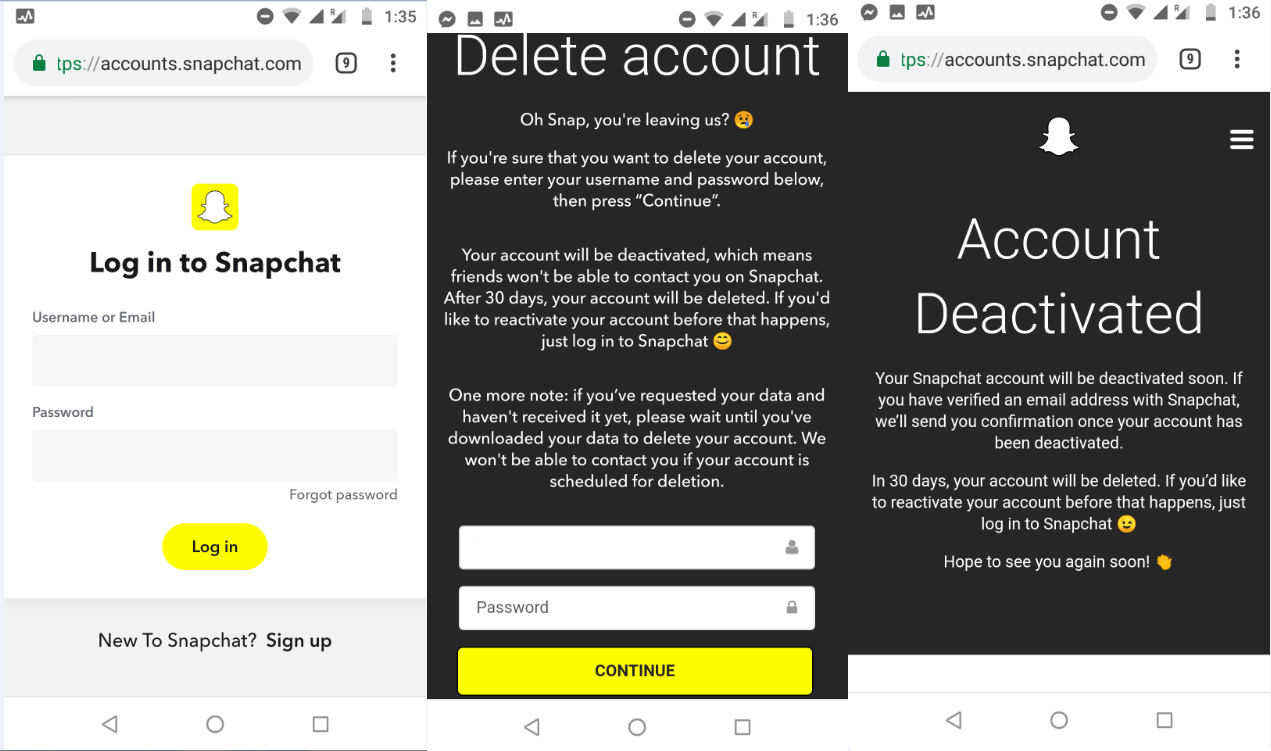
If you want to cancel your Snapchat account, here’s how:
- Open The Snapchat App: Open the Snapchat app on your device.
- Tap on Your Profile Icon: Tap on your profile icon in the top left corner of the screen.
- Tap on Settings: Tap on the “Settings” gear icon.
- Tap on My Account: Tap on the “My Account” option.
- Tap on Delete Account: Tap on the “Delete Account” button.
Deleting Messages From Snapchat
If you want to delete messages from a specific conversation, here’s how:
- Open The Snapchat App: Open the Snapchat app on your device.
- Find The Chat: Locate the chat with the person whose message you want to delete.
- Tap on The Message: Tap on the message that you want to delete.
- Tap on The “X”: Tap on the “X” that appears above the message.
- Confirm Deletion: Confirm that you want to delete the message by tapping on the “Delete” button.
Conclusion
Deleting Snapchat from your device or canceling your account is a straightforward process. Whether you’re concerned about data privacy, don’t like the app’s features, or simply want to free up space on your device, we’ve got you covered. Just follow these simple steps and you’ll be all set!


