
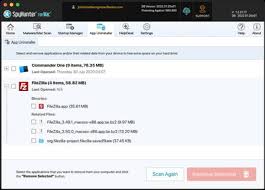
How to Delete Spyhunter: A Step-by-step Guide
Are you tired of dealing with unwanted programs on your computer? Do you want to delete SpyHunter, but not sure how? Look no further! In this article, we will guide you through the process of uninstalling SpyHunter from your Windows 10, 8, or older operating system.
What is Spyhunter?
SpyHunter is a malware removal tool that claims to detect and remove spyware, adware, trojans, dialers, and other malicious software from your computer. However, some users have reported false positives and unwanted behavior from the program. In this article, we will show you how to uninstall SpyHunter if you no longer need it.
Why Uninstall Spyhunter?
There are several reasons why you might want to uninstall SpyHunter:
- You may have installed it by mistake or as part of a bundle with another program.
- The software may be causing conflicts or slowing down your computer.
- You may have found a more effective malware removal tool that you prefer.
Uninstalling Spyhunter on Windows 10
If you’re using Windows 10, follow these steps to uninstall SpyHunter:
- Click the Start button and select Settings.
- Choose the Apps option from the Settings menu.
- Look for SpyHunter in the list of installed apps and click it.
- Click the Uninstall button to begin the removal process.
- Follow the prompts to complete the uninstallation.
Uninstalling Spyhunter on Windows 8 or Older
If you’re using an older version of Windows, follow these steps to uninstall SpyHunter:
- Click the Start button and select Control Panel.
- Choose the Programs and Features option from the Control Panel menu.
- Look for SpyHunter in the list of installed programs and click it.
- Click the Uninstall button to begin the removal process.
- Follow the prompts to complete the uninstallation.
Troubleshooting Issues
If you encounter any issues during the uninstallation process, try the following:
- Restart your computer to ensure that all changes take effect.
- Run a virus scan using an anti-virus program like Malwarebytes Anti-Malware.
- Use Microsoft Fixit to resolve common installation and uninstallation problems.
Using Malwarebytes Anti-malware
If you’re unable to uninstall SpyHunter using the built-in tools, you can try using Malwarebytes Anti-Malware. This free software is designed to detect and remove malware from your computer.
- Download Malwarebytes Anti-Malware from the official website.
- Follow the installation prompts to install the software.
- Launch the program and click the Scan button to begin the scanning process.
- If SpyHunter is detected, select it and choose Quarantine to remove the malware.
Conclusion
Deleting SpyHunter is a relatively simple process that can be completed in just a few steps. By following the instructions outlined above, you should be able to uninstall SpyHunter from your Windows 10, 8, or older operating system. If you encounter any issues during the process, don’t hesitate to try troubleshooting methods or seek additional help.
Common Questions And Answers
- Q: Is it safe to delete SpyHunter?
A: Yes, it is generally safe to uninstall SpyHunter if you no longer need the software. - Q: Will deleting SpyHunter remove any malware from my computer?
A: If SpyHunter was installed with malware, deleting the program may not automatically remove the malware. Use a reputable anti-virus program like Malwarebytes Anti-Malware to detect and remove any malware. - Q: Can I reinstall SpyHunter if needed?
A: Yes, you can reinstall SpyHunter if you need it in the future. However, be sure to follow proper installation procedures to avoid any potential conflicts with other software.
Additional Resources
For more information on uninstalling programs or dealing with malware, check out these additional resources:
- Microsoft Support: Uninstall a program (Windows 10)
- Microsoft Support: Uninstall a program (Windows 8 or older)
- Malwarebytes Anti-Malware Official Website
- SpyHunter Official Website


