
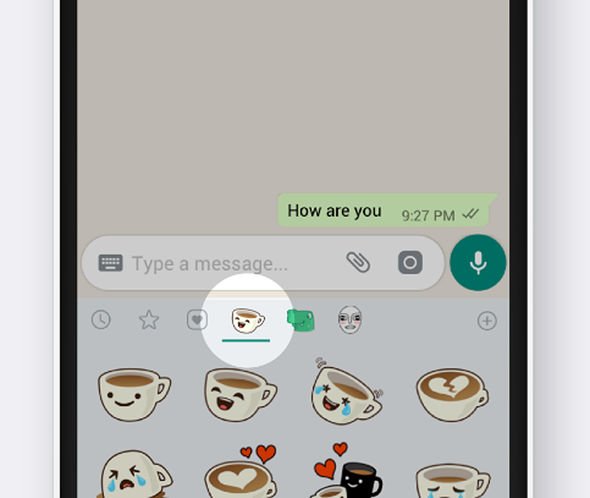
How to Delete Whatsapp Stickers: A Step-by-step Guide
Are you tired of cluttering your WhatsApp conversations with stickers that no longer bring a smile to your face? Deleting unwanted stickers is easier than you think! In this article, we’ll guide you through the process of removing stickers from your WhatsApp chats on Android, iOS, and computer.
What Are Whatsapp Stickers?
Before we dive into the deletion process, let’s quickly explain what WhatsApp stickers are. Stickers are small, fun images that can be sent to friends and family in WhatsApp conversations. They’re a great way to add some personality to your messages and make them more engaging. However, with so many stickers available, it’s easy to accumulate a collection of stickers you no longer use or find annoying.
Deleting Stickers on Android
If you’re using an Android device, deleting stickers is a straightforward process. Here’s how:
- Open WhatsApp and navigate to the chat conversation where you want to delete the sticker.
- Tap on the sticker icon (a smiling face) in the bottom left corner of the screen.
- Select the “My Stickers” tab from the menu that appears.
- Choose the sticker pack you want to delete.
- Tap on the “Delete” button next to the sticker pack.
Deleting Stickers on Ios
If you’re using an iPhone or iPad, deleting stickers is a bit more involved, but still easy. Here’s how:
- Open WhatsApp and navigate to the chat conversation where you want to delete the sticker.
- Tap on the sticker icon (a smiling face) in the bottom left corner of the screen.
- Select the “My Stickers” tab from the menu that appears.
- Choose the sticker pack you want to delete.
- Tap on the “Delete” button next to the sticker pack.
Deleting Stickers on Computer
If you’re using WhatsApp Web or the desktop client, deleting stickers is a bit more complicated, but still doable. Here’s how:
- Open WhatsApp Web or the desktop client and navigate to the chat conversation where you want to delete the sticker.
- Click on the sticker icon (a smiling face) in the top left corner of the screen.
- Select the “My Stickers” tab from the menu that appears.
- Choose the sticker pack you want to delete.
- Click on the “Delete” button next to the sticker pack.
How to Delete Specific Stickers
If you only want to delete a specific sticker, rather than an entire sticker pack, you can do so in a few easy steps. Here’s how:
- Open WhatsApp and navigate to the chat conversation where you want to delete the sticker.
- Tap on the sticker icon (a smiling face) in the bottom left corner of the screen.
- Select the “My Stickers” tab from the menu that appears.
- Choose the sticker pack containing the sticker you want to delete.
- Long press on the sticker you want to delete and select the “Delete” option.
Frequently Asked Questions
Q: How do I add stickers back after deleting them?
A: You can add stickers back by downloading new sticker packs or reinstalling a previously deleted sticker pack.
Q: Can I delete stickers from specific conversations only?
A: Yes, you can delete stickers from specific conversations only. Simply navigate to the conversation and follow the steps above to delete the stickers.
Q: How do I remove all unused stickers at once?
A: Unfortunately, WhatsApp doesn’t have a built-in feature to remove all unused stickers at once. However, you can delete individual sticker packs or use third-party apps to manage your stickers.
Conclusion
Deleting unwanted stickers from your WhatsApp conversations is easier than you think! By following the steps outlined above, you can quickly and easily remove stickers that no longer bring a smile to your face. Whether you’re using Android, iOS, or computer, deleting stickers is a straightforward process. Happy sticker deletion!
Frequently Asked Questions (FAQs)
-
Q: How do I Delete Whatsapp Stickers on my Phone?
A: To delete WhatsApp stickers on your phone, go to the chat conversation where you want to delete the sticker, tap on the sticker icon, select the “My Stickers” tab, choose the sticker pack you want to delete, and tap on the “Delete” button next to the sticker pack. -
Q: How do I Delete Whatsapp Stickers on my Computer?
A: To delete WhatsApp stickers on your computer, go to the chat conversation where you want to delete the sticker, click on the sticker icon, select the “My Stickers” tab, choose the sticker pack you want to delete, and click on the “Delete” button next to the sticker pack. -
Q: Can I Delete Specific Stickers Instead of Deleting an Entire Sticker Pack?
A: Yes, you can delete specific stickers instead of deleting an entire sticker pack. To do this, go to the chat conversation where you want to delete the sticker, tap on the sticker icon, select the “My Stickers” tab, choose the sticker pack containing the sticker you want to delete, long press on the sticker you want to delete, and select the “Delete” option. -
Q: How do I Add Stickers Back After Deleting Them?
A: You can add stickers back by downloading new sticker packs or reinstalling a previously deleted sticker pack. -
Q: Can I Delete Stickers From Specific Conversations Only?
A: Yes, you can delete stickers from specific conversations only. Simply navigate to the conversation and follow the steps above to delete the stickers. -
Q: How do I Remove All Unused Stickers at Once?
A: Unfortunately, WhatsApp doesn’t have a built-in feature to remove all unused stickers at once. However, you can delete individual sticker packs or use third-party apps to manage your stickers.


