
How to Delete Temporary Files on Your Pc: A Step-by-step Guide
Are you tired of your computer’s hard drive being cluttered with temporary files? Do you want to free up some space and make your computer run faster? Look no further! In this article, we will show you how to delete temporary files on Windows 10, Windows 7, Mac, Android, iPhone, Google Chrome, Mozilla Firefox, Microsoft Edge, Safari, and Internet Explorer.
What Are Temporary Files?
Temporary files, also known as temp files or system files, are created by your computer’s operating system and applications when you run programs, browse the internet, or use various software. These files are meant to be temporary and are usually deleted automatically after a certain period of time. However, sometimes these files can accumulate and take up valuable space on your hard drive.
Why Delete Temporary Files?
Deleting temporary files is an essential maintenance task for any computer user. By removing these unnecessary files, you can:
- Free up disk space: Temporary files can take up a significant amount of space on your hard drive, which can slow down your computer.
- Improve performance: Deleting temporary files can improve your computer’s overall performance by reducing the load on your CPU and RAM.
- Prevent errors: Temporary files can sometimes cause errors or crashes if they become corrupted or outdated.
How to Delete Temporary Files on Windows 10
To delete temporary files on Windows 10, follow these steps:
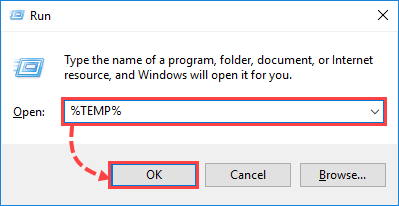
- Press the Windows key + R to open the Run dialog box.
- Type
cleanmgrand press Enter. - Click OK to confirm that you want to clean up system files.
- Select the drive you want to clean (usually C:).
- Choose which types of files you want to delete:
- System files
- Temporary files
- System logs
- Click Clean to start the cleaning process.
How to Delete Temporary Files on Windows 7
To delete temporary files on Windows 7, follow these steps:
- Press the Windows key + R to open the Run dialog box.
- Type
cleanmgrand press Enter. - Click OK to confirm that you want to clean up system files.
- Select the drive you want to clean (usually C:).
- Choose which types of files you want to delete:
- System files
- Temporary files
- System logs
- Click Clean to start the cleaning process.
How to Delete Temporary Files on Mac
To delete temporary files on a Mac, follow these steps:
- Open Finder.
- Go to Applications > Utilities > Activity Monitor.
- Look for processes that are using up memory or CPU resources.
- Select the processes you want to quit and click Quit Process.
- Restart your computer to clear out temporary files.
How to Delete Temporary Files on Android
To delete temporary files on an Android device, follow these steps:
- Go to Settings > Storage & USB.
- Select Internal Storage or External Storage (depending on where you want to clean).
- Choose which types of files you want to delete:
- Photos
- Videos
- Music
- Documents
- Click Clean to start the cleaning process.
How to Delete Temporary Files on Iphone
To delete temporary files on an iPhone, follow these steps:
- Go to Settings > General.
- Select Storage & iCloud Usage.
- Tap Manage Storage.
- Choose which types of files you want to delete:
- Photos
- Videos
- Music
- Documents
- Click Clean to start the cleaning process.
How to Delete Temporary Files on Google Chrome
To delete temporary files in Google Chrome, follow these steps:
- Open Chrome.
- Press Ctrl + Shift + Delete (Windows) or Command + Shift + Delete (Mac).
- Select which types of data you want to delete:
- Browsing history
- Cookies and other site data
- Saved website data
- Click Clear browsing data.
How to Delete Temporary Files on Mozilla Firefox
To delete temporary files in Mozilla Firefox, follow these steps:
- Open Firefox.
- Press Ctrl + Shift + Delete (Windows) or Command + Shift + Delete (Mac).
- Select which types of data you want to delete:
- Browsing history
- Cookies and other site data
- Saved website data
- Click Clear browsing data.
How to Delete Temporary Files on Microsoft Edge
To delete temporary files in Microsoft Edge, follow these steps:
- Open Edge.
- Press Ctrl + Shift + Delete (Windows) or Command + Shift + Delete (Mac).
- Select which types of data you want to delete:
- Browsing history
- Cookies and other site data
- Saved website data
- Click Clear browsing data.
How to Delete Temporary Files on Safari
To delete temporary files in Safari, follow these steps:
- Open Safari.
- Press Ctrl + Shift + Delete (Windows) or Command + Shift + Delete (Mac).
- Select which types of data you want to delete:
- Browsing history
- Cookies and other site data
- Saved website data
- Click Clear browsing data.
How to Delete Temporary Files on Internet Explorer
To delete temporary files in Internet Explorer, follow these steps:
- Open IE.
- Press Ctrl + Shift + Delete (Windows) or Command + Shift + Delete (Mac).
- Select which types of data you want to delete:
- Browsing history
- Cookies and other site data
- Saved website data
- Click Clear browsing data.
By following these simple steps, you can delete temporary files on your PC, Mac, Android device, iPhone, Google Chrome, Mozilla Firefox, Microsoft Edge, Safari, and Internet Explorer. This will help free up space on your hard drive, improve performance, and prevent errors.


