
How to Delete Unwanted Toolbars From Your PC
Are you tired of dealing with unwanted toolbars that clutter your browser and slow down your computer? You’re not alone! Many people fall victim to these pesky add-ons, which can compromise their online security and privacy. In this article, we’ll show you how to delete unwanted toolbars from your PC, using a combination of software and manual removal methods.
Why Do I Have Unwanted Toolbars on My Pc?
Unwanted toolbars are often installed on computers when users download free software or click on suspicious links online. These toolbars can be disguised as useful add-ons, but in reality, they’re designed to collect user data and display unwanted ads. Once installed, they can be difficult to remove, as they may bundle with other programs or integrate themselves into your browser.
Method 1: Using Malwarebytes Adwcleaner
One of the most effective ways to delete unwanted toolbars is by using Malwarebytes AdwCleaner. This free software scans your computer and removes any malware, adware, or unwanted toolbars that it finds.
To use AdwCleaner, follow these steps:
- Download Malwarebytes AdwCleaner from the official website.
- Run the program and click on “Scan” to begin the scanning process.
- Wait for the scan to complete, which should take only a few seconds.
- Review the list of detected threats and select the ones you want to remove.
- Click on “Clean” to remove the selected threats.
Method 2: Using Malwarebytes Anti-malware
If AdwCleaner doesn’t detect all the unwanted toolbars, you can try using Malwarebytes Anti-Malware instead. This software is designed to detect and remove a wide range of malware threats, including adware and unwanted toolbars.
To use Malwarebytes Anti-Malware, follow these steps:
- Download the free version of Malwarebytes Anti-Malware from the official website.
- Run the program and click on “Scan” to begin the scanning process.
- Wait for the scan to complete, which should take only a few seconds.
- Review the list of detected threats and select the ones you want to remove.
- Click on “Quarantine” to remove the selected threats.
Method 3: Manual Removal
If neither of the above methods works, you may need to manually remove the unwanted toolbar from your browser. Here’s how:
- Open your browser (e.G., Google Chrome, Firefox, Microsoft Edge, or Safari).
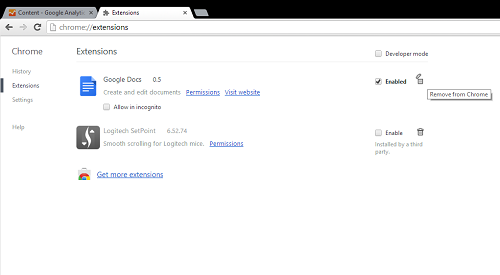
- Click on the three vertical dots in the upper-right corner and select “More tools” > “Extensions”.
- Look for the unwanted toolbar in the list of extensions.
- Click on the trash can icon next to the extension to remove it.
Browser-specific Removal Instructions
If you’re using a specific browser, here are some additional removal instructions:
- Google Chrome: Go to chrome://Extensions/, find the unwanted toolbar, and click on “Remove” to delete it.
- Firefox: Go to firefox://About:Addons, find the unwanted toolbar, and click on “Remove” to delete it.
- Microsoft Edge: Go to edge://Extensions/, find the unwanted toolbar, and click on “Uninstall” to delete it.
- Safari: Go to Safari > Preferences > Extensions, find the unwanted toolbar, and click on “Uninstall” to delete it.
Conclusion
Removing unwanted toolbars from your PC can be a challenging task, but with the right tools and instructions, you can do it safely. Remember to always use reputable software and be cautious when clicking on suspicious links online. By following these steps, you can protect yourself from malware threats and keep your computer running smoothly.
Frequently Asked Questions (FAQs)
- What Are Unwanted Toolbars?
Unwanted toolbars are add-ons that clutter your browser and compromise your online security and privacy.
- How do I Know if I Have an Unwanted Toolbar on my Pc?
Look for suspicious programs or extensions in your browser that you didn’t install yourself.
- Can I Remove Unwanted Toolbars Manually?
Yes, but be careful not to accidentally delete important system files or extensions.
- What is Malwarebytes Adwcleaner?
Malwarebytes AdwCleaner is a free software that scans and removes malware, adware, and unwanted toolbars from your PC.
- Can I Use Other Software to Remove Unwanted Toolbars?
Yes, there are many other software options available, such as CCleaner or Spybot Search & Destroy.
- How do I Prevent Unwanted Toolbars From Installing on my PC in The Future?
Be cautious when downloading free software and always read user reviews before installing programs.
- Can I Remove Unwanted Toolbars From my Mobile Device?
Yes, you can remove unwanted toolbars from your smartphone or tablet by following similar steps to those described above for PCs.
- What Should I do if I’m Not Sure How to Remove an Unwanted Toolbar?
Consult online forums or seek help from a professional technician to ensure safe removal.


