
How to Delete Your Twitch Account: A Step-by-step Guide
Are you tired of your Twitch account taking up space on your device? Do you want to delete it definitively or simply deactivate it? In this article, we will guide you through the process of deleting your Twitch account from all devices and platforms.
Why Delete Your Twitch Account?
Before we dive into the steps, let’s understand why you might want to delete your Twitch account. Perhaps you’re no longer interested in streaming or following specific streamers. Maybe you’ve realized that having a Twitch account is taking up too much space on your device.
Whatever your reason, deleting your Twitch account can be a liberating experience. In this guide, we will walk you through the process of deactivating and deleting your account from various devices and platforms.
Deactivating Your Twitch Account: A Quick Overview
Before we dive into the nitty-gritty details, here’s a quick overview of the steps involved in deactivating your Twitch account:
- Log in to your Twitch account using the browser on your device.
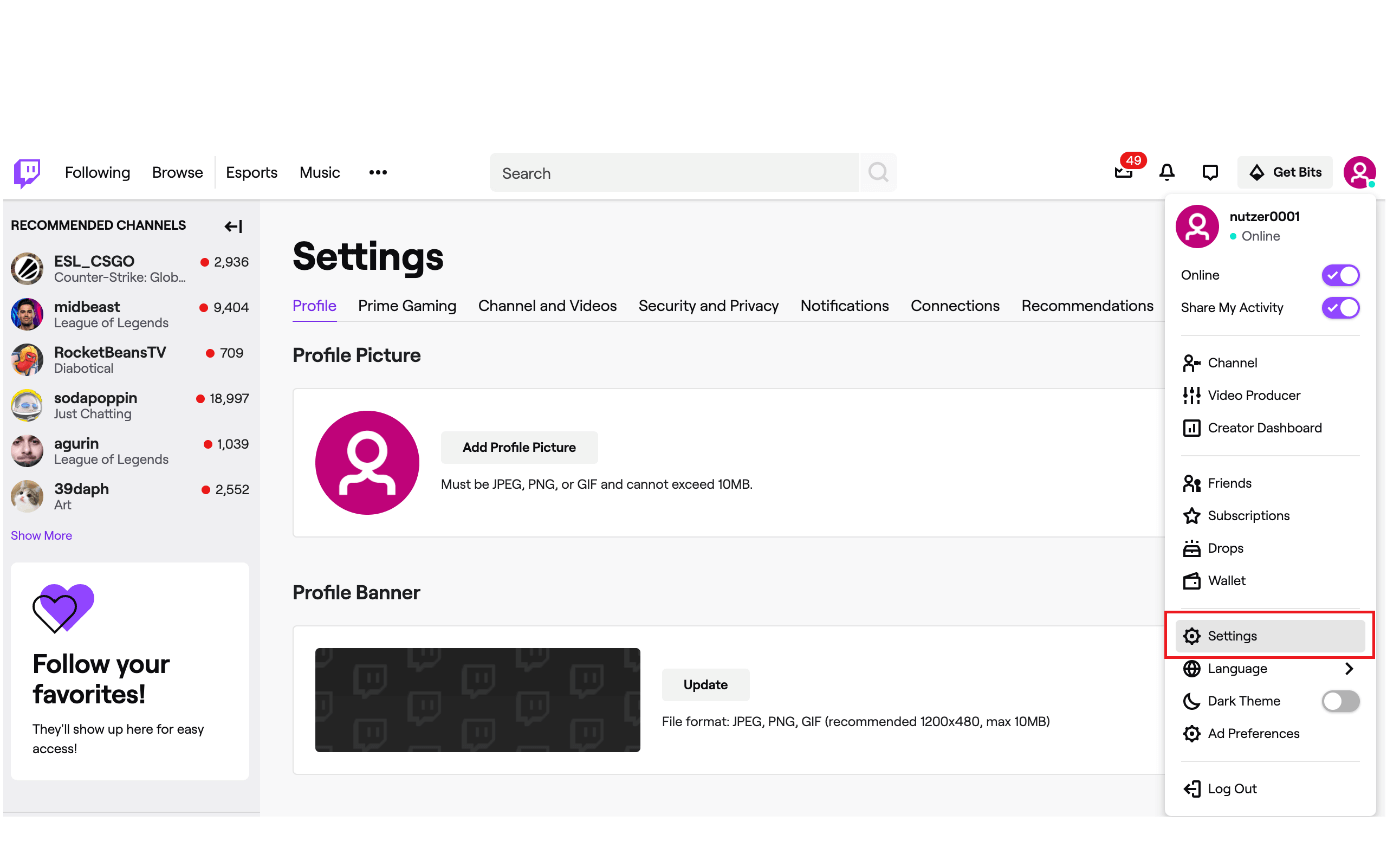
- Click on your profile picture and select “Settings.”
- Scroll down to the “Deactivate Account” section and click on it.
- Fill out the required information, including your reason for deactivating your account.
- Click on the “Deactivate Account” button.
Deleting Your Twitch Account: A Step-by-step Guide
Now that we’ve covered the basics of deactivating your account, let’s dive into the step-by-step guide for deleting it definitively:
Deactivating And Deleting Your Twitch Account From Pc
To deactivate and delete your Twitch account from PC, follow these steps:
- Open a web browser on your PC and navigate to the official Twitch website.
- Log in to your Twitch account using your credentials.
- Click on your profile picture and select “Settings.”
- Scroll down to the “Deactivate Account” section and click on it.
- Fill out the required information, including your reason for deactivating your account.
- Click on the “Deactivate Account” button.
Deleting Your Twitch Account From Mobile Devices
To delete your Twitch account from mobile devices, follow these steps:
- Open a web browser on your smartphone or tablet (e.G., Chrome on Android or Safari on iOS/iPadOS).
- Navigate to the official Twitch website.
- Log in to your Twitch account using your credentials.
- Tap on the “Deactivate Account” button.
- Fill out the required information, including your reason for deactivating your account.
- Tap on the “Deactivate Account” button.
Deleting Your Twitch Account From Console
To delete your Twitch account from console (e.G., PS4), follow these steps:
- Open the browser integrated with your console.
- Navigate to the official Twitch website.
- Log in to your Twitch account using your credentials.
- Tap on the “Deactivate Account” button.
- Fill out the required information, including your reason for deactivating your account.
- Tap on the “Deactivate Account” button.
Deleting Your Twitch Prime Account
To delete your Twitch Prime account, follow these steps:
- Log in to your Twitch account using a web browser.
- Click on your profile picture and select “Settings.”
- Scroll down to the “Disconnect” section and click on it.
- Select “Amazon” from the list of connected accounts.
- Click on the “Disconnect” button.
Conclusion
Deleting your Twitch account can be a liberating experience, freeing up space on your device and giving you peace of mind. In this article, we’ve walked you through the steps involved in deactivating and deleting your Twitch account from various devices and platforms. Remember to follow these steps carefully to ensure that your account is deleted definitively.
Frequently Asked Questions (FAQs)
- What Happens When I Delete my Twitch Account?
When you delete your Twitch account, all associated data will be deleted, including your profile information, watch history, and any other relevant details.
- Can I Reactivate my Twitch Account if I Change my Mind?
No, once you delete your Twitch account, it cannot be reactivated. If you want to use the service again in the future, you’ll need to create a new account from scratch.
- Will Deleting my Twitch Account Affect my Amazon Prime Subscription?
Deleting your Twitch account will not affect your Amazon Prime subscription. However, if you have connected your Twitch account to Amazon Prime, you may need to disconnect them separately.
- Can I Delete Only my Twitch Prime Account Without Affecting my Main Twitch Account?
Yes, you can delete only your Twitch Prime account without affecting your main Twitch account. Follow the steps outlined in the article for deleting your Twitch Prime account.
- How Long Does it Take to Delete a Twitch Account?
The deletion process typically takes a few minutes to an hour, depending on server load and other factors.
- Can I Delete my Twitch Account From The Mobile App?
Yes, you can delete your Twitch account from the mobile app by following the steps outlined in the article.
- Will Deleting my Twitch Account Remove All Associated Data?
Yes, deleting your Twitch account will remove all associated data, including your profile information, watch history, and any other relevant details.
- Can I Contact Support For Help With Deleting my Twitch Account?
Yes, if you need assistance or have questions about the deletion process, you can contact Twitch support directly.


