
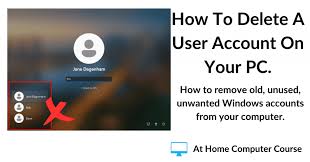
How to Delete a Windows 10 Account: A Step-by-step Guide
Are you tired of having multiple accounts on your Windows 10 computer, taking up space and causing clutter? Deleting an account can be a liberating experience, but it’s essential to do it correctly to avoid any potential issues. In this article, we’ll guide you through the process of deleting a Windows 10 account, including various types like administrator, Microsoft, local, limited, family, and guest accounts.
Why Delete a Windows 10 Account?
Before we dive into the steps, let’s consider why you might want to delete an account:
- Reduce clutter: Having multiple accounts can make your computer look messy.
- Free up space: Deleting an account can help free up disk space.
- Improve security: Removing unnecessary accounts can improve your computer’s overall security.
What You Need to Know Before Deleting a Windows 10 Account
Before proceeding, keep the following points in mind:
- Make sure the account you want to delete is not currently active.
- Have an administrator account available to perform this task.
- Understand that deleting an account will also remove its associated files and folders.
Step-by-step Guide to Deleting a Windows 10 Account
Deleting an Administrator Account
- Open the Start menu and click on Settings (or press
Win + I). - Click on “Accounts” in the left panel.
- Click on “Family & other users.”
- Select the account you want to delete.
- Click on “Delete user.”
Deleting a Microsoft Account
- Open the Settings app (or press
Win + I). - Click on “Accounts” in the left panel.
- Click on “Your email & accounts.”
- Select the account you want to delete.
- Click on “Delete.”
Deleting a Local Account
- Open the Settings app (or press
Win + I). - Click on “Accounts” in the left panel.
- Click on “Family & other users.”
- Select the account you want to delete.
- Click on “Delete user.”
Deleting a Limited Account
- Open the Settings app (or press
Win + I). - Click on “Accounts” in the left panel.
- Click on “Family & other users.”
- Select the account you want to delete.
- Click on “Delete user.”
Deleting a Family Account
- Sign in to your Microsoft account and go to the Microsoft Family Safety page.
- Click on the three dots next to the family member’s name you want to delete.
- Select “Remove” from the menu.
Deleting a Guest Account
- Open the Start menu and type
cmdin the search bar. - Right-click on Command Prompt and select “Run as administrator.”
- Type
net user guest /active:Noand press Enter. - Restart your computer to complete the deletion.
Conclusion
Deleting a Windows 10 account can be a straightforward process if you follow these steps. Remember to always have an administrator account available before deleting any account, and make sure the account you want to delete is not currently active. If you’re unsure about any of these steps or experience difficulties during the process, consider seeking help from a professional.
Frequently Asked Questions
- What Happens When I Delete a Windows 10 Account?
When you delete an account, all associated files and folders will also be removed. - How do I Prevent Deleted Accounts From Coming Back?
To avoid previously deleted accounts from being reinstated, make sure to remove any necessary permissions or access rights before deleting the account. - Can I Recover a Deleted Windows 10 Account?
It may not always be possible to recover a deleted account. However, if you have backups of your files and folders, you can try restoring them after reinstalling the operating system.
Additional Tips
When deleting an account, consider backing up any important data or files associated with it. You may also want to check for any potential conflicts between accounts before proceeding with deletion.
By following this guide, you should now be able to confidently delete a Windows 10 account when needed.


