
How to Delete a Page in Word: A Step-by-step Guide
Are you tired of searching for ways to delete a page in Microsoft Word? Look no further! In this article, we will guide you through the process of deleting pages, sections, headers, and numbers with ease.
Why Do You Need to Delete a Page in Word?
Deleting unnecessary pages can help you declutter your document, making it easier to read and edit. Whether you want to remove empty pages, merge two documents, or simply tidy up your content, this guide has got you covered.
How to Delete a Page in Microsoft Word For Windows And Macos
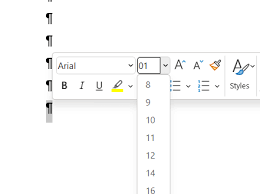
Before we begin, make sure to activate the “View” tab in the ribbon. This will allow you to see all the hidden characters in your document. To do this:
- Click on the “Home” tab in the top menu bar.
- Select the icon that looks like a paragraph (¶) situated in the “Paragraph” section.
Deleting Interruptions of Page And Section
If you want to delete an empty page, follow these steps:
- Search for the interruptions of page present in your document.
- Select them and press the “Delete” key or use the keyboard shortcut Ctrl + Backspace (Windows) or Command + Backspace (macOS).
Deleting The Content of a Page
If the page you want to delete contains text, images, or other elements, follow these steps:
- Highlight all the content on the page.
- Press the “Delete” key or use the keyboard shortcut Ctrl + Backspace (Windows) or Command + Backspace (macOS).
How to Delete a Header Page in Word
If you want to delete a header from your document, follow these steps:
- Double-click on the header section.
- Select the “Header” and “Footer” tab.
- Click on the “Edit Header” button.
- Remove any headers or footers by deleting them.
How to Delete Number Page in Word
If you want to delete a progressive numbering from your document, follow these steps:
- Go to the “Insert” tab.
- Select the “Numbering” option.
- Choose the “Start with 1” option.
- Remove any numbers by deleting them.
How to Merge Two Pages in Word
If you want to merge two pages into one, follow these steps:
- Select both pages.
- Go to the “Layout” tab.
- Click on the “Breaks” button.
- Choose the “Next Page” option.
- Repeat this process for each page you want to merge.
Conclusion
Deleting a page in Microsoft Word is a simple process that can help you declutter your document and make it easier to edit. Whether you’re removing empty pages, merging two documents, or deleting headers and numbers, this guide has provided you with the necessary steps to do so. Remember to always activate the “View” tab before deleting any pages or sections.
Frequently Asked Questions (FAQs)
- Q: How do I Delete a Page in Microsoft Word?
A: To delete a page, select it and press the “Delete” key or use the keyboard shortcut Ctrl + Backspace (Windows) or Command + Backspace (macOS). - Q: How do I Merge Two Pages in Microsoft Word?
A: Select both pages, go to the “Layout” tab, click on the “Breaks” button, and choose the “Next Page” option. - Q: How do I Delete a Header Page in Microsoft Word?
A: Double-click on the header section, select the “Header” and “Footer” tab, and remove any headers or footers by deleting them. - Q: How do I Delete Number Page in Microsoft Word?
A: Go to the “Insert” tab, select the “Numbering” option, choose the “Start with 1” option, and remove any numbers by deleting them. - Q: Can I Delete a Page Without Affecting The Rest of my Document?
A: Yes, deleting a page will not affect the rest of your document. - Q: How do I Activate The “View” Tab in Microsoft Word?
A: To activate the “View” tab, click on the “Home” tab and select the icon that looks like a paragraph (¶) situated in the “Paragraph” section. - Q: Can I Merge Two Documents Into One Using Microsoft Word?
A: Yes, you can merge two documents by selecting both files, going to the “Layout” tab, clicking on the “Breaks” button, and choosing the “Next Page” option. - Q: How do I Remove Unwanted Headers or Footers in Microsoft Word?
A: To remove unwanted headers or footers, double-click on the header section, select the “Header” and “Footer” tab, and remove any headers or footers by deleting them.
I hope this article has been helpful in answering your questions about deleting pages in Microsoft Word.


