
How to Delete a Youtube Account: A Step-by-step Guide
Are you tired of using your YouTube account? Perhaps you want to delete it permanently, or simply take a break from the platform. Whatever your reason, deleting a YouTube account can be a straightforward process if you know what to do. In this article, we will guide you through the steps to delete a YouTube account on both mobile devices (Android and iPhone) and computers.
Why Delete a Youtube Account?
Before we dive into the steps, let’s quickly discuss why someone might want to delete their YouTube account. Perhaps:
- You’re no longer interested in creating content or watching videos.
- You’ve experienced harassment or bullying on the platform.
- You want to take a break from social media and online activity.
Whatever your reason, deleting a YouTube account can be a liberating experience!
Deleting a Youtube Account on Mobile Devices (Android And Iphone)
If you’re using an Android device, follow these steps:
- Open The Youtube App: Find the YouTube icon on your home screen and tap it to open the app.
- Go to Settings: Tap the three horizontal lines in the top left corner of the screen, then select “Settings.”
- Select Google Account: Choose your Google account associated with the YouTube channel you want to delete.
- Confirm Cancellation: Tap “Cancel” to confirm that you want to delete the account.
Alternatively, if you’re using an iPhone or iPad:
- Open The Youtube App: Find the YouTube icon on your home screen and tap it to open the app.
- Go to Account Settings: Tap your profile picture in the top right corner of the screen, then select “Account.”
- Select Google Account: Choose your Google account associated with the YouTube channel you want to delete.
- Confirm Cancellation: Tap “Cancel” to confirm that you want to delete the account.
Deleting a Youtube Account on Computers
If you’re using a computer to access YouTube, follow these steps:
- Sign in to Google Account: Go to www.Google.Com and sign in with your Google account credentials.
- Go to Data & Personalization: Click on the “Data & personalization” tab.
- Select Delete a Service or Your Account: Choose the option that says “Delete a service or your account.”
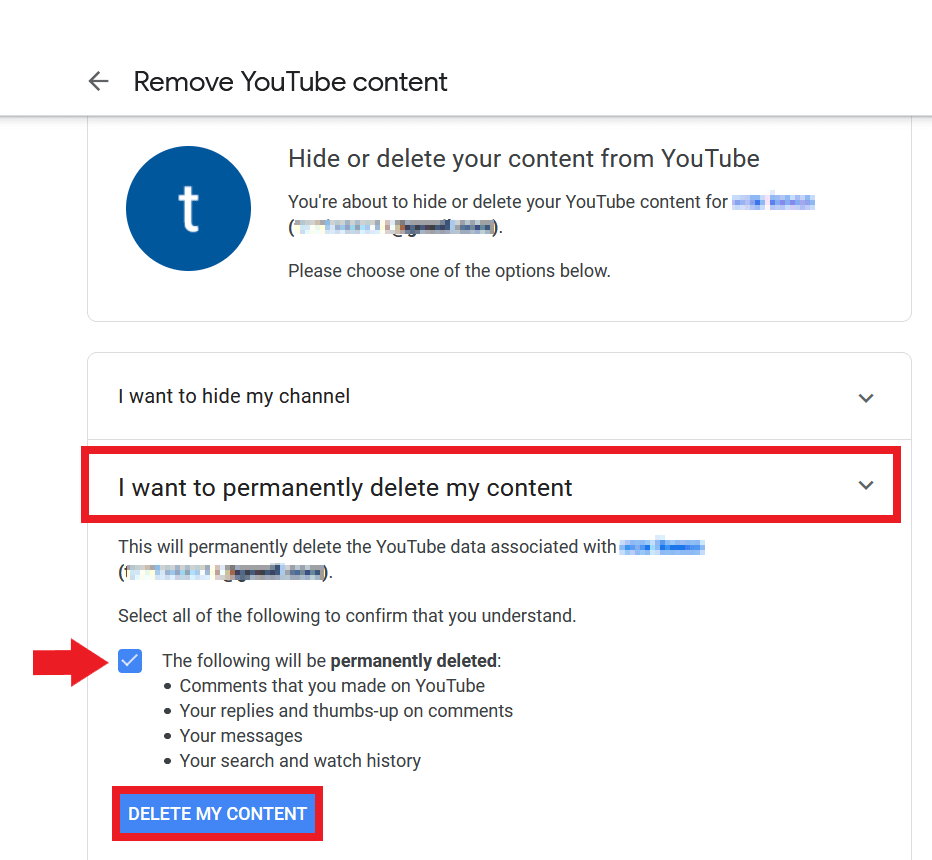
- Confirm Cancellation: Follow the prompts to confirm that you want to delete the YouTube channel and associated data.
Backing Up Your Data
Before deleting your YouTube account, it’s essential to back up any important data, such as videos, comments, or playlists. You can do this by following these steps:
- Go to Google Takeout: Sign in to takeout.Google.Com with your Google account credentials.
- Select Youtube Data: Choose the type of data you want to back up (e.G., Videos, comments, playlists).
- Set Export Options: Select the format and size of the export file.
- Download Your Backed-up Data: Follow the prompts to download a copy of your backed-up data.
Deleting a Youtube Music Account
If you’re using a YouTube Music account, deleting it is relatively straightforward:
- Go to Youtube Music Settings: Sign in to www.Youtube.Com/music and go to settings.
- Select Subscription: Choose the “Subscription” tab.
- Cancel Your Subscription: Follow the prompts to cancel your subscription.
Faqs
Q: What happens when I delete my YouTube account?
A: Deleting a YouTube account will remove all associated data, including videos, comments, and playlists. However, you can back up this data before deleting your account.
Q: Can I recover my YouTube account if I change my mind?
A: Yes, you can recover your YouTube account within 30 days of deletion by signing in with your Google account credentials.
Q: How do I delete a YouTube channel that’s not associated with a Google account?
A: You cannot delete a YouTube channel without a Google account. If you’re experiencing issues with a YouTube channel, try contacting the creator or reporting the issue to YouTube support.
Q: Can I cancel my YouTube Music subscription?
A: Yes, you can cancel your YouTube Music subscription by following the steps outlined in this article.
Conclusion
Deleting a YouTube account is a relatively straightforward process if you follow these step-by-step guides. Remember to back up any important data before deleting your account. If you’re experiencing issues with a YouTube channel or want to take a break from the platform, consider deleting your account.


