
How to Purchase a Hard Disk External: A Step-by-step Guide
Are you experiencing problems with your external hard disk not being recognized by your computer? You’re not alone! Many users face this issue, but don’t worry, we’ve got the solution for you.
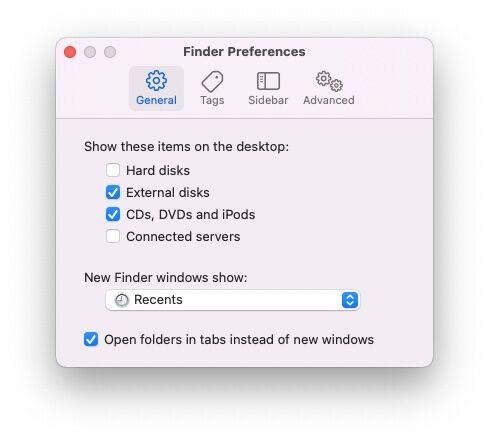
What to Do When Your External Hard Disk is Not Recognized
If your external hard disk is not being recognized by your computer, there could be several reasons for it. The most common issues include:
- Incorrect Configuration: Make sure that the external hard disk is properly connected to the computer and configured correctly.
- Driver Issues: Check if the driver software for the external hard disk is up-to-date or corrupted.
- File System Problems: Verify that the file system of the external hard disk is compatible with your operating system.
Step-by-step Guide: How to Purchase a Hard Disk External
Here’s a step-by-step guide on how to purchase and configure an external hard disk:
Step 1: Choose The Right External Hard Disk
When purchasing an external hard disk, consider the following factors:
- Capacity: Choose a capacity that suits your needs. If you’re planning to store large files or videos, opt for a higher capacity.
- Speed: Select an external hard disk with a fast transfer speed (such as USB 3.0) To ensure smooth data transfer.
- Compatibility: Ensure the external hard disk is compatible with your operating system.
Step 2: Install The External Hard Disk
Once you’ve purchased the external hard disk, install it on your computer:
- Connect the external hard disk to your computer using a USB cable.
- Power on the external hard disk.
- Wait for the operating system to recognize the external hard disk.
Step 3: Format And Configure The External Hard Disk
Format and configure the external hard disk as follows:
- Format: Format the external hard disk with a compatible file system (such as NTFS or HFS+).
- Configure: Configure the external hard disk to work with your operating system.
Troubleshooting Tips
If you’re experiencing problems with your external hard disk, try these troubleshooting tips:
- Check The Power Cable: Ensure that the power cable is securely connected.
- Check The File System: Verify that the file system of the external hard disk is compatible with your operating system.
- Update Drivers: Update the driver software for the external hard disk.
Conclusion
Purchasing and configuring an external hard disk can be a straightforward process if you follow these steps. If you’re still experiencing issues, consult the user manual or contact customer support for assistance.
Frequently Asked Questions (FAQs)
Here are some frequently asked questions related to purchasing and configuring an external hard disk:
Q: What is The Recommended Capacity of an External Hard Disk?
A: The recommended capacity depends on your needs. If you’re storing large files or videos, opt for a higher capacity.
Q: How do I Format my External Hard Disk?
A: Format the external hard disk with a compatible file system (such as NTFS or HFS+).
Q: What is The Best Way to Troubleshoot Issues With my External Hard Disk?
A: Try checking the power cable, verifying the file system, and updating drivers.
Conclusion
Purchasing and configuring an external hard disk can be a straightforward process if you follow these steps. If you’re still experiencing issues, consult the user manual or contact customer support for assistance.
By following this step-by-step guide, you’ll be able to purchase and configure an external hard disk in no time.
If you have any further questions, please don’t hesitate to ask!
Stay tech-savvy!


