
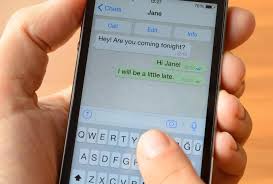
How to Dictate Sms on Android
Are you tired of typing out long messages on your Android smartphone? Do you wish there was an easier way to communicate with friends and family without having to press each key individually? Well, wonder no more! With the power of Google Now and the Messages app on your Android device, you can dictate SMS messages in a breeze.
What is Google Now?
Google Now is a virtual assistant that comes pre-installed on many Android devices. It’s designed to make your life easier by predicting what you need before you even ask for it. With Google Now, you can get answers to questions, send messages, and even control your smart home devices with just your voice.
Using Google Now to Dictate Sms
To dictate an SMS message using Google Now, follow these simple steps:
- Open the Messages app on your Android device.
- Tap on the three horizontal lines in the top left corner of the screen.
- Select the contact you want to send a message to.
- Tap on the microphone icon next to the text input field.
- Speak clearly and concisely, and Google Now will transcribe your words into text.
Alternative Method: Using The Messages App
If you don’t have Google Now installed on your device or prefer not to use it, you can also dictate SMS messages using the Messages app itself. Here’s how:
- Open the Messages app.
- Tap on the contact you want to send a message to.
- Select the keyboard icon next to the text input field.
- Tap on the Gboard keyboard option (if available).
- Tap on the microphone icon at the bottom of the screen.
- Speak clearly and concisely, and the Messages app will transcribe your words into text.
Benefits of Dictating Sms
Dictating SMS messages using Google Now or the Messages app has several benefits:
- Convenience: You can dictate a message without having to press each key individually, saving you time and effort.
- Accuracy: The transcription process is surprisingly accurate, reducing errors and typos.
- Efficiency: You can multitask while dictating an SMS, making it easier to communicate on the go.
Requirements For Using Google Now
To use Google Now to dictate SMS messages, you’ll need:
- An Android device with a version of 4.1 Or later.
- The Google app installed on your device (ensure you’re running the latest version).
- The Start Applications Now launcher installed on your device.
Troubleshooting Tips
If you encounter any issues while using Google Now to dictate SMS messages, try these troubleshooting tips:
- Ensure your Android device meets the minimum requirements for Google Now.
- Restart your device and try again.
- Check that the Google app is updated to the latest version.
- Consider reinstalling the Start Applications Now launcher.
Conclusion
Dictating SMS messages on Android using Google Now or the Messages app is a game-changer. With these simple steps, you can communicate more efficiently and accurately, saving you time and effort in the process. So why not give it a try today?
Frequently Asked Questions (FAQs)
- Q: Do I Need to Have Google Now Installed on my Device?
A: Yes, you’ll need to have Google Now installed on your device to use this feature. - Q: Can I Dictate Sms Messages Using The Messages App Itself?
A: Yes, you can also dictate SMS messages using the Messages app without relying on Google Now. - Q: What Are The Benefits of Dictating Sms Messages?
A: Dictating SMS messages saves time and effort, reduces errors and typos, and allows for multitasking while communicating on the go. - Q: Are There Any Requirements For Using Google Now to Dictate Sms Messages?
A: Yes, you’ll need an Android device with a version of 4.1 Or later, the Google app installed, and the Start Applications Now launcher installed. - Q: Can I Use Google Now to Dictate Sms Messages Without a Connection to The Internet?
A: No, you’ll need a connection to the internet to use Google Now for dictating SMS messages. - Q: What Happens if I Encounter Issues While Using Google Now to Dictate Sms Messages?
A: Try restarting your device, checking that the Google app is updated, and reinstalling the Start Applications Now launcher to resolve any issues.
Recommended Reading
For more information on using Google Now and other Android features, check out these recommended guides:
- “How to Use Google Now on Android”
- “Android SMS Tips and Tricks”
- “Google Assistant: A Beginner’s Guide”
We hope this guide has been informative and helpful. Happy dictating!


