
How to Disable Antivirus: A Step-by-step Guide
Are you wondering how to disable antivirus on your PC or mobile device? While it’s essential to have antivirus protection, there may be situations where you need to temporarily disable it. In this article, we’ll guide you through the process of disabling antivirus for various popular antivirus software.
Why Disable Antivirus?
Disabling antivirus might seem counterintuitive, but there are legitimate reasons to do so. For instance:
- You’re running a program that requires temporary antivirus deactivation.
- You’re experiencing issues with your antivirus, and you need to troubleshoot or update it.
- You want to add exceptions to the scanning process without completely disabling antivirus.
Disabling Antivirus: A Step-by-step Guide
We’ll cover the steps for disabling antivirus on Windows, Avira, AVG, Panda, Avast, Bitdefender, Kaspersky, and Norton. Please note that these instructions might vary depending on your specific antivirus software version.
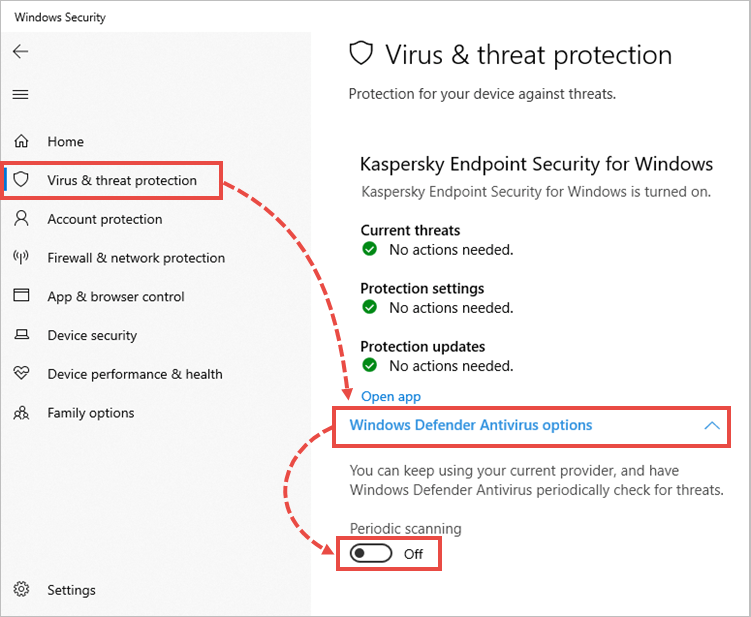
Windows Defender (Windows 10/11)
- Go to Start > Settings.
- Click on Update & Security.
- Select Virus & threat protection.
- Click on Manage settings.
- Toggle off the switch next to “Real-time protection.”
Disabling Avira
- Click on the Avira icon in your system tray.
- Select the option to disable protection.
- Choose the desired time interval for temporary deactivation (e.G., 10 Minutes, 1 hour).
Disabling Avg
- Right-click on the AVG icon in your system tray.
- Select “Protection: Active” and toggle it off.
- Confirm the action in the notification prompt.
Disabling Panda
- Click on the Panda icon in your system tray.
- Select the option to disable antivirus.
- Choose a time interval or select permanent deactivation.
Disabling Avast
- Right-click on the Avast icon in your system tray.
- Select “Control protection” and toggle it off.
- Confirm the action in the notification prompt.
Disabling Bitdefender
- Open Bitdefender and go to the Protection tab.
- Click on Advanced settings.
- Toggle off the switch next to “Protection.”
- Choose a time interval for temporary deactivation.
Disabling Kaspersky
- Click on the Kaspersky icon in your system tray.
- Select the option to suspend protection.
- Choose a time interval or select permanent deactivation.
Disabling Norton
- Open Norton and go to the Security & Antivirus tab.
- Click on Disable Car-Protect.
- Choose a time interval for temporary deactivation.
Note: When you’re done with these tasks, remember to reactivate your antivirus protection by following similar steps.
Disabling Antivirus on Android
If you have an Android device and want to disable antivirus, follow these general steps:
- Open the antivirus app.
- Go to its settings or configuration menu.
- Look for an option related to automatic scanning or protection.
- Toggle it off or choose a time interval for temporary deactivation.
Disabling Antivirus on Mac
As Macs are generally considered safer than Windows PCs, you might not need antivirus software at all. However, if you do use antivirus on your Mac:
- Open the antivirus app.
- Go to its settings or configuration menu.
- Look for an option related to automatic scanning or protection.
- Toggle it off or choose a time interval for temporary deactivation.
Conclusion
Disabling antivirus might seem daunting, but we’ve walked you through the process step-by-step for various popular antivirus software. Remember that it’s essential to have antivirus protection enabled at all times to ensure your device and data are secure.
Faqs:
-
Q: What happens if I disable antivirus on my PC or mobile device?
A: Disabling antivirus might expose your system to potential threats, so do this only when necessary. -
Q: Can I still use my PC or mobile device without antivirus protection?
A: It’s not recommended, as antivirus software helps protect against malware and other online threats. -
Q: How often should I update my antivirus software?
A: Regularly check for updates to ensure your antivirus remains effective and protects you from the latest threats. -
Q: What are some common reasons for disabling antivirus?
A: Temporary deactivation might be needed during troubleshooting, when running specific programs, or adding exceptions to scanning processes. -
Q: Can I disable antivirus on my Mac?
A: While not necessary, if you do use antivirus on your Mac, follow the steps above to temporarily disable it. -
Q: What happens if I permanently disable antivirus on my Android device?
A: This might compromise your device’s security and expose it to potential threats. -
Q: How can I reactivate my antivirus protection?
A: Follow similar steps as disabling antivirus, but toggle the switch or select the option to enable protection instead. -
Q: Should I use a third-party antivirus app on Android?
A: While not required, using a third-party antivirus app can provide additional security and peace of mind.
By following these guidelines, you’ll be able to temporarily disable antivirus when necessary while maintaining your device’s overall security.


