
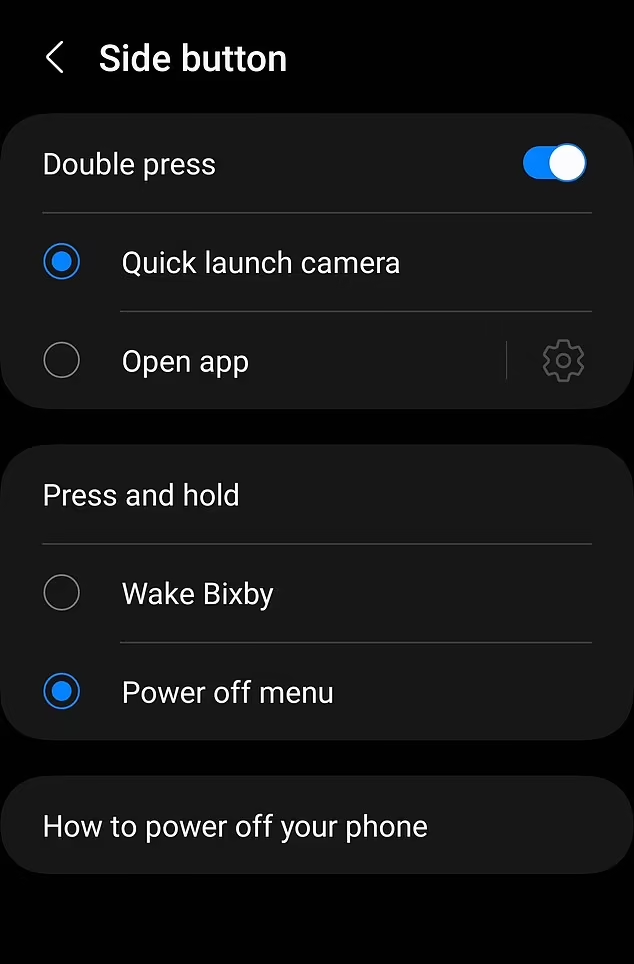
How to Disable Bixby: A Step-by-step Guide
Are you tired of Bixby popping up on your Samsung phone? Do you want to disable its various features, such as Bixby Home, Bixby Vision, and Bixby Voice? Look no further! In this article, we’ll show you how to disable Bixby and its components in a few simple steps.
What is Bixby?
Bixby is an artificial intelligence (AI) assistant developed by Samsung. It’s designed to help users with various tasks, such as answering questions, sending messages, making calls, and more. However, some users may find Bixby intrusive or unnecessary, which is why we’ll show you how to disable it.
Why Disable Bixby?
There are several reasons why you might want to disable Bixby:
- You’re tired of its constant reminders and suggestions.
- You don’t like the way Bixby takes over your phone’s home screen with Bixby Home.
- You prefer using other virtual assistants, such as Google Assistant or Siri.
Disabling Bixby Home
To disable Bixby Home, follow these steps:
- Make sure you have the latest software update on your Samsung phone.
- Open the Bixby app and go to Settings (the gear icon).
- Tap on “Bixby Button” and select “Don’t open anything”.
- Go back to the home screen and tap on a blank space for about 2 seconds.
- Swipe up to access the menu, then go to Settings > Bixby Home and toggle it off.
Disabling Bixby Vision
To disable Bixby Vision, follow these steps:
- Open the Google Lens app (available on the Play Store).
- Download and install the app.
- Launch Google Lens and tap on “Activate Camera” to start using it.
Disabling Bixby Voice
To disable Bixby Voice, follow these steps:
- Open the Bixby app and go to Settings (the gear icon).
- Tap on “Settings” and select “Voice”.
- Toggle off the switch next to “Bixby Voice”.
Troubleshooting And Support
If you’re experiencing issues with your Samsung phone or Bixby, don’t worry! You can contact Samsung’s support team through their website, chat service, or by calling them at 800-726-2864.
Conclusion
Disabling Bixby is a simple process that can help declutter your phone and reduce distractions. By following these steps, you can disable Bixby Home, Bixby Vision, and Bixby Voice. If you have any issues or concerns, don’t hesitate to reach out to Samsung’s support team.
Frequently Asked Questions (FAQs)
- Q: Why Did I Enable Bixby in The First Place?
A: You might have enabled Bixby for its convenience and features, but now you want to disable it. - Q: Will Disabling Bixby Affect my Phone’s Performance?
A: No, disabling Bixby won’t affect your phone’s performance. - Q: Can I Reinstall Bixby if I Change my Mind?
A: Yes, you can reinstall Bixby by going to the Play Store and installing it again. - Q: Will Disabling Bixby Prevent me From Using Other Virtual Assistants?
A: No, disabling Bixby won’t prevent you from using other virtual assistants like Google Assistant or Siri. - Q: Can I Customize my Phone’s Home Screen Without Disabling Bixby Home?
A: Yes, you can customize your phone’s home screen by installing a custom launcher. - Q: Will Disabling Bixby Affect my Device’s Warranty?
A: No, disabling Bixby won’t affect your device’s warranty. - Q: Can I Contact Samsung’s Support Team For More Information?
A: Yes, you can contact Samsung’s support team through their website or chat service for more information. - Q: Will Disabling Bixby Prevent me From Receiving Important Notifications And Updates?
A: No, disabling Bixby won’t affect your phone’s ability to receive important notifications and updates.


