
How to Disable Blue Spunts on Whatsapp
Are you tired of the blue spunts on WhatsApp? Do you want to know how to disable them on your smartphone or computer? Look no further! In this article, we will guide you through the steps to disable the blue spunts on WhatsApp.
What Are Blue Spunts on Whatsapp?
Blue spunts on WhatsApp are a feature that indicates when someone has read your messages. They appear as small blue dots next to each message. While this feature can be useful for some users, others may find it annoying or invasive of their privacy.
Why Disable Blue Spunts on Whatsapp?
There are several reasons why you might want to disable blue spunts on WhatsApp:
- You value your privacy and don’t want others to know when you’ve read their messages.
- You’re tired of seeing the blue dots and find them distracting.
- You’re concerned about the potential for stalking or harassment through WhatsApp.
How to Disable Blue Spunts on Whatsapp (Android)
To disable blue spunts on WhatsApp for Android devices, follow these steps:
- Open WhatsApp on your Android device.
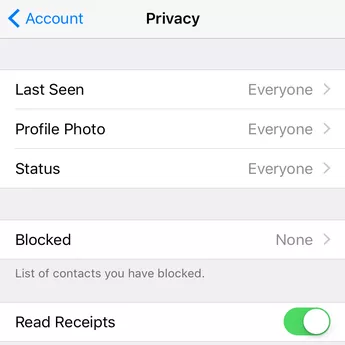
- Go to Settings > Account > Privacy.
- Scroll down and toggle off the switch next to “Read receipts”.
- Confirm that you want to disable read receipts.
How to Disable Blue Spunts on Whatsapp (iPhone)
To disable blue spunts on WhatsApp for iPhone devices, follow these steps:
- Open WhatsApp on your iPhone.
- Tap Settings > Account > Privacy.
- Scroll down and toggle off the switch next to “Read receipts”.
- Confirm that you want to disable read receipts.
How to Disable Blue Spunts on Whatsapp (PC)
To disable blue spunts on WhatsApp for PC devices, follow these steps:
- Open WhatsApp Web or the desktop client on your PC.
- Click Settings > Account > Privacy.
- Scroll down and toggle off the switch next to “Read receipts”.
- Confirm that you want to disable read receipts.
Other Settings to Augment Your Privacy on Whatsapp
In addition to disabling blue spunts, there are several other settings you can use to augment your privacy on WhatsApp:
- Last Access: Choose who can see your last access and online status.
- Online Presence: Select who can see when you’re online.
- Profile Photo: Decide who can see your profile photo.
- Info: Control who can see your custom message for the app.
- Clusters: Choose who can add you to groups automatically.
How to Remove Last Access on Whatsapp
To remove last access on WhatsApp, follow these steps:
- Open WhatsApp on your device.
- Go to Settings > Account > Privacy.
- Scroll down and toggle off the switch next to “Last seen”.
- Confirm that you want to disable last seen.
How to Change Who Can See Your Profile Photo
To change who can see your profile photo, follow these steps:
- Open WhatsApp on your device.
- Go to Settings > Account > Privacy.
- Scroll down and select who can see your profile photo from the options.
Conclusion
Disabling blue spunts on WhatsApp is a simple process that can help you maintain your privacy and avoid distractions. By following the steps outlined in this article, you can disable blue spunts on Android, iPhone, and PC devices. Remember to also explore other settings that can help augment your privacy on WhatsApp.
Frequently Asked Questions (FAQs)
- Q: Why do I See Blue Dots Next to Each Message?
A: Blue dots indicate when someone has read your messages. - Q: Can I Disable Blue Spunts Without Disabling Read Receipts?
A: No, disabling blue spunts and disabling read receipts are the same thing. - Q: How Can I Remove Last Access on Whatsapp?
A: Follow the steps outlined in this article to remove last access on WhatsApp. - Q: Who Can See my Profile Photo?
A: You can control who can see your profile photo by going to Settings > Account > Privacy.


