
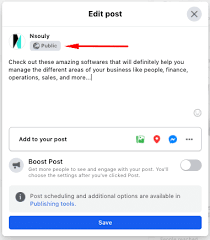
How to Disable Comments on a Specific Post on Facebook
Are you tired of dealing with unwanted comments on your Facebook posts? Do you wish there was a way to limit the comments to only specific people or pages? Look no further! In this article, we will guide you through the step-by-step process of disabling comments on a specific post on Facebook, whether you’re using an Android or iOS device.
Understanding Facebook’s Commenting System
Before we dive into the procedure, it’s essential to understand how Facebook’s commenting system works. When you create a public post, anyone can comment on it. However, if you want to limit comments to only specific people or pages, you need to use the “Who can comment” option.
Disabling Comments on a Specific Post (Android)
To disable comments on a specific post on Facebook using an Android device:
- Open the Facebook app and navigate to your profile.
- Tap on the three dots ⋯ in the top right corner of the screen.
- Select “Your profile” from the menu.
- Find the post you want to disable comments for and tap on it.
- Tap on the three dots ⋯ again and select “Who can comment?”
- Choose either “Friends and friends of friends” or “Profiles and Pages that mention.”
- If you only want specific people or pages to comment, type their names in the “Add people” field.
- Tap on “Done” to save your changes.
Disabling Comments on a Specific Post (iOS)
To disable comments on a specific post on Facebook using an iOS device:
- Open the Facebook app and navigate to your profile.
- Tap on your name at the top of the screen.
- Select “Your profile” from the menu.
- Find the post you want to disable comments for and tap on it.
- Tap on the three dots ⋯ again and select “Who can comment?”
- Choose either “Friends and friends of friends” or “Profiles and Pages that mention.”
- If you only want specific people or pages to comment, type their names in the “Add people” field.
- Tap on “Done” to save your changes.
Blocking Comments on a Specific Post (Cluster)
If you’re an administrator of a Facebook cluster, you can block comments for all posts within that cluster. To do this:
- Open the Facebook app and navigate to your profile.
- Tap on the three dots ⋯ in the top right corner of the screen.
- Select “Clusters” from the menu.
- Find the cluster you want to disable comments for and tap on it.
- Tap on the three dots ⋯ again and select “Who can comment?”
- Choose either “Friends and friends of friends” or “Profiles and Pages that mention.”
- If you only want specific people or pages to comment, type their names in the “Add people” field.
- Tap on “Done” to save your changes.
Blocking Comments on a Specific Post (Page)
If you’re an administrator of a Facebook page, you can block comments for all posts within that page. To do this:
- Open the Facebook app and navigate to your profile.
- Tap on the three dots ⋯ in the top right corner of the screen.
- Select “Pages” from the menu.
- Find the page you want to disable comments for and tap on it.
- Tap on the three dots ⋯ again and select “Who can comment?”
- Choose either “Friends and friends of friends” or “Profiles and Pages that mention.”
- If you only want specific people or pages to comment, type their names in the “Add people” field.
- Tap on “Done” to save your changes.
Blocking Comments Automatically (Cluster)
As an administrator of a Facebook cluster, you can block comments automatically by creating moderation rules. To do this:
- Open the Facebook app and navigate to your profile.
- Tap on the three dots ⋯ in the top right corner of the screen.
- Select “Clusters” from the menu.
- Find the cluster you want to disable comments for and tap on it.
- Tap on the star icon ⭐️ in the top right corner of the screen.
- Select “Automatic Administrator” from the menu.
- Choose a moderation rule (e.G., “Post with altercation”) or create a new rule by tapping on the “+” button.
- Tap on “Add” to save your changes.
Conclusion
Disabling comments on specific posts on Facebook is a straightforward process that can help you manage unwanted interactions on your social media presence. By following these step-by-step guides, you’ll be able to limit comments to only specific people or pages and maintain a cleaner online environment.
Frequently Asked Questions (FAQs)
- Can I Block Comments on All Posts on my Facebook Profile?
- No, unfortunately not. You can only block comments on specific posts.
- How do I Know if Someone Has Commented on my Post Without me Knowing?
- If you’ve disabled comments, you won’t receive notifications for new comments.
- Can I Reactivate Comments on a Post That I Previously Disabled?
- Yes, you can! Simply go to the “Who can comment?” menu and change the settings back to their original state.
- Is There a Limit to How Many People or Pages I Can Add to Block Comments From?
- No, there’s no limit!
- Can I Use This Feature on Facebook’s Desktop Version?
- Yes, you can! The steps are similar; just navigate to your profile and follow the same procedure.
I hope this article has been helpful in teaching you how to disable comments on specific posts on Facebook. If you have any further questions or concerns, feel free to ask!


