
Understanding Cookies: A Guide to Disabling Them on Various Browsers
As we navigate the internet, our devices store small bits of information called cookies. These cookies help websites remember our preferences and activities, making our online experience more personalized. However, some users might want to disable cookies for various reasons, such as security concerns or simply wanting more control over their online data.
In this article, we’ll delve into the world of cookies and explore how to disable them on different browsers, including Chrome, Firefox, Edge, Explorer, Opera, Safari, and more. We’ll also discuss the benefits and drawbacks of disabling cookies, so you can make an informed decision about your online privacy.
What Are Cookies?
Cookies are small text files stored on our devices by websites we visit. They contain information like our login details, browsing history, and preferences. Cookies help websites remember us and tailor their content to our interests.
There are two types of cookies:
- First-party Cookies: These are set directly by the website we’re visiting.
- Third-party Cookies: These are set by external services, often for advertising purposes.
Why Disable Cookies?
Disabling cookies can have benefits like:
- Improved security: By disabling cookies, you reduce the risk of hackers accessing your sensitive information.
- Enhanced control: You get more control over what data websites collect about you.
- Better online experience: Some users find that disabling cookies improves their browsing experience by reducing tracking and targeted advertising.
However, disabling cookies might also have drawbacks like:
- Reduced personalization: Websites might not be able to remember your preferences or login details.
- Difficulty accessing some services: Certain services, like online banking or shopping platforms, might not work properly without cookies.
Disabling Cookies on Chrome
To disable cookies on Chrome, follow these steps:
- Initiate the browser and click on the three dots in the top-right corner.
- Select Settings from the dropdown menu.
- Scroll down to the Advanced section and click on Privacy and security.
- Click on Content settings.
- Look for Cookies and tap on it.
- Select Block third-party cookies or Block all cookies, depending on your preference.
Disabling Cookies on Firefox
To disable cookies on Firefox:
- Initiate the browser and click on the three horizontal lines in the top-right corner.
- Select Options from the dropdown menu.
- Click on Privacy & Security in the left-hand menu.
- Look for Cookies and tap on it.
- Choose Block third-party cookies or Block all cookies, depending on your preference.
Disabling Cookies on Edge
To disable cookies on Edge:
- Initiate the browser and click on the three dots in the top-right corner.
- Select Settings from the dropdown menu.
- Scroll down to the Advanced section and click on Privacy and security.
- Look for Cookies and tap on it.
- Select Block all cookies or Block third-party cookies, depending on your preference.
Disabling Cookies on Explorer
To disable cookies on Explorer:
- Initiate the browser and click on the three horizontal lines in the top-right corner.
- Select Internet options from the dropdown menu.
- Click on the Advanced tab.
- Look for Cookies and tap on it.
- Choose Block all cookies or Block third-party cookies, depending on your preference.
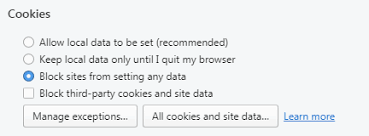
Disabling Cookies on Opera
To disable cookies on Opera:
- Initiate the browser and click on the three dots in the top-right corner.
- Select Settings from the dropdown menu.
- Scroll down to the Advanced section and click on Privacy and security.
- Look for Cookies and tap on it.
- Choose Block all cookies or Block third-party cookies, depending on your preference.
Disabling Cookies on Safari
To disable cookies on Safari:
- Initiate the browser on your Mac or iOS device.
- Click on the menu icon in the top-left corner.
- Select Preferences from the dropdown menu.
- Click on the Privacy tab.
- Look for Block all cookies and click on it.
Conclusion
Disabling cookies can have its benefits, but it’s essential to consider the potential drawbacks before making a decision. By understanding how cookies work and learning how to disable them on different browsers, you can take control of your online data and make informed choices about your browsing experience.
Frequently Asked Questions (FAQs)
- Q: What Happens if I Disable Cookies?
A: Disabling cookies might reduce the personalization of your online experience, but it can also improve security by reducing tracking and targeted advertising. - Q: Can I Still Use Online Services Without Cookies?
A: Some services might not work properly without cookies, so be aware that disabling cookies could impact your ability to access certain features or functionality. - Q: How do I Enable Cookies Again if I’ve Disabled Them?
A: To re-enable cookies on most browsers, simply follow the steps above and select the opposite option (e.G., Block all cookies instead of Block third-party cookies). - Q: Can I Selectively Block Specific Types of Cookies?
A: Some browsers allow you to choose which types of cookies to block, such as only blocking third-party cookies or allowing certain websites to set cookies. - Q: Will Disabling Cookies Affect my Online Shopping Experience?
A: Disabling cookies might impact your ability to access certain features, like saved items or login details, but most e-commerce platforms will still function with cookies disabled. - Q: Can I Use a Browser Extension to Disable Cookies?
A: Yes, there are browser extensions available that can help you disable cookies across multiple websites and browsers. - Q: Is Disabling Cookies The Same as Clearing my Browsing History?
A: No, disabling cookies is distinct from clearing your browsing history, which removes stored data about your online activities. - Q: How do I Know if a Website Uses Cookies?
A: Websites typically inform users that they use cookies in their privacy policies or terms of service; you can also check the browser’s cookie settings to see which websites have set cookies on your device.


