
Disattivare Saving Given: A Comprehensive Guide
In today’s digital age, mobile devices have become an integral part of our lives. We use them to access various apps and services, stream content, and stay connected with others. However, sometimes we may encounter issues while using these features, especially when it comes to data consumption. This article aims to provide a detailed guide on how to disable the “Saving given” feature on Android, iOS, Spotify, Facebook, and other platforms.
What is Saving Given?
The “Saving given” feature, also known as “data saving mode,” is a setting that helps manage data consumption on your mobile device. When enabled, it limits the amount of data used by apps and services to prevent excessive data usage. While this feature can be beneficial in certain situations, such as when you’re in an area with limited internet connectivity or have a restricted data plan, it can also cause issues with app functionality and performance.
Why Disable Saving Given?
There are several reasons why you might want to disable the “Saving given” feature:
- App Functionality: Some apps may not function properly when the saving given feature is enabled.
- Data Consumption: If you have an unlimited data plan or a fast internet connection, disabling this feature won’t affect your data usage.
- Streamlining App Experience: Disabling the saving given feature can improve your overall app experience by allowing apps to function as intended.
Disattivare Saving Given on Android
To disable the “Saving given” feature on Android:
- Open the Settings app on your device.
- Scroll down and select “Data usage.”
- Tap on the three-dot menu icon in the top-right corner.
- Select “Restrict background data” from the menu.
- Toggle off the switch next to “Restrict background data.”
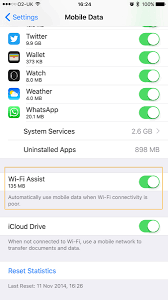
Disattivare Saving Given on Ios
To disable the “Saving given” feature on iOS:
- Open the Settings app on your device.
- Tap on “Cellular.”
- Select “Cellular Data Options.”
- Toggle off the switch next to “Low Data Mode.”
Disattivare Saving Given on Spotify
To disable the “Saving given” feature on Spotify:
- Open the Spotify app on your device.
- Tap on the three-dot menu icon in the top-right corner.
- Select “Settings.”
- Scroll down and select “Streaming Quality.”
- Toggle off the switch next to “Low quality streaming.”
Disattivare Saving Given on Facebook
To disable the “Saving given” feature on Facebook:
- Open the Facebook app on your device.
- Tap on the three-dot menu icon in the top-right corner.
- Select “Settings.”
- Scroll down and select “Account Settings.”
- Toggle off the switch next to “Data Saver.”
Other Platforms
The process for disabling the “Saving given” feature may vary depending on your device or app. However, in general, you can follow these steps:
- Open the Settings app on your device.
- Look for the “Data usage” or “Cellular data” option.
- Select this option and toggle off the switch next to “Saving given” or “Low Data Mode.”
Conclusion
Disabling the “Saving given” feature can improve your overall app experience by allowing apps to function as intended. While this feature is beneficial in certain situations, it’s essential to consider the potential consequences of disabling it.
Frequently Asked Questions (FAQs)
- Q: Why should I disable the Saving given feature?
- A: You may want to disable the saving given feature if you encounter issues with app functionality or performance.
- Q: How do I disable the Saving given feature on Android?
- A: To disable the Saving given feature on Android, go to Settings > Data usage and toggle off the switch next to “Restrict background data.”
- Q: How do I disable the Saving given feature on iOS?
- A: To disable the Saving given feature on iOS, go to Settings > Cellular and toggle off the switch next to “Low Data Mode.”
- Q: Can disabling the Saving given feature improve my app experience?
- A: Yes, disabling the Saving given feature can improve your overall app experience by allowing apps to function as intended.
- Q: Are there any potential consequences of disabling the Saving given feature?
- A: Disabling the Saving given feature may not affect your data usage if you have an unlimited data plan or a fast internet connection.
Conclusion
In conclusion, disabling the “Saving given” feature can improve your overall app experience by allowing apps to function as intended. While this feature is beneficial in certain situations, it’s essential to consider the potential consequences of disabling it.


