
How to Deactivate Google Photos: A Step-by-step Guide
Are you tired of using Google Photos, but don’t want to delete your existing photos? Do you want to know how to deactivate the service without losing access to your memories? Look no further! In this article, we’ll guide you through the process of deactivating Google Photos on Android and iPhone devices.
Why Deactivate Google Photos?
Google Photos is a great service for storing and organizing your photos, but sometimes it’s necessary to take a break or change services. Perhaps you’re running out of storage space or want to try a different photo management app. Whatever the reason, deactivating Google Photos can be a simple process that doesn’t require deleting all your existing photos.
Deactivating Google Photos on Android Devices
If you have an Android device and want to deactivate Google Photos, follow these steps:
Step 1: Open The Settings App
Open the Settings app on your Android device and navigate to the “Google” section.
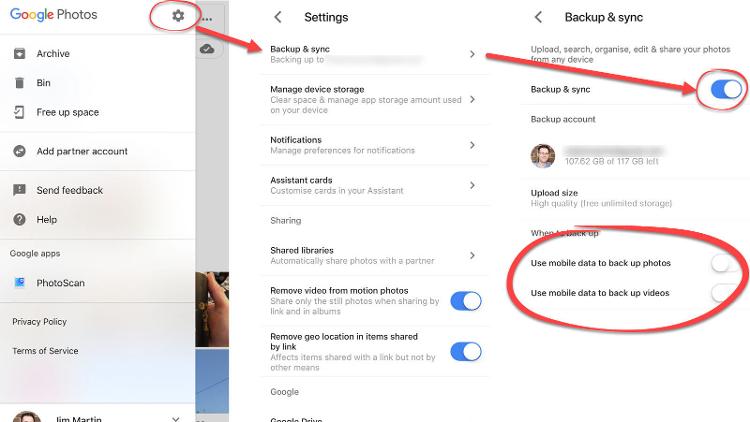
Step 2: Select Backup & Synchronization
In the Google settings menu, select “Backup & synchronization.”
Step 3: Toggle Off Backup & Synchronization
Toggle off the switch next to “Backup & synchronization” to disable this feature.
Deactivating Google Photos on Iphone Devices
If you have an iPhone or iPad and want to deactivate Google Photos, follow these steps:
Step 1: Open The Settings App
Open the Settings app on your iOS device and navigate to the “Google” section.
Step 2: Select Backup & Synchronization
In the Google settings menu, select “Backup & synchronization.”
Step 3: Toggle Off Backup & Synchronization
Toggle off the switch next to “Backup & synchronization” to disable this feature.
Disabling Backup For Specific Folders
If you want to disable backup for specific folders on your Android device, follow these steps:
Step 1: Open The Settings App
Open the Settings app and navigate to the “Google” section.
Step 2: Select Backup & Synchronization
In the Google settings menu, select “Backup & synchronization.”
Step 3: Disable Specific Folders
Disable specific folders by toggling off the switch next to each folder’s name.
Deactivating Notifications
If you want to disable notifications from Google Photos on your Android device, follow these steps:
Step 1: Open The Settings App
Open the Settings app and navigate to the “Google” section.
Step 2: Select Backup & Synchronization
In the Google settings menu, select “Backup & synchronization.”
Step 3: Disable Notifications
Disable notifications by toggling off the switch next to each notification’s name.
Disabling Account
If you want to disable your account on Google Photos on your Android device, follow these steps:
Step 1: Open The Settings App
Open the Settings app and navigate to the “Google” section.
Step 2: Select Backup & Synchronization
In the Google settings menu, select “Backup & synchronization.”
Step 3: Disable Account
Disable your account by toggling off the switch next to each account’s name.
Disabling Subscription
If you want to disable your subscription on Google Photos, follow these steps:
Step 1: Open The Settings App
Open the Settings app and navigate to the “Google” section.
Step 2: Select Backup & Synchronization
In the Google settings menu, select “Backup & synchronization.”
Step 3: Disable Subscription
Disable your subscription by toggling off the switch next to each account’s name.
Uninstalling The App
If you want to uninstall the Google Photos app on your Android device, follow these steps:
Step 1: Open The Settings App
Open the Settings app and navigate to the “Applications” section.
Step 2: Select Manage Applications
In the Applications settings menu, select “Manage applications.”
Step 3: Find Google Photos in The List
Find Google Photos in the list of installed apps and select it.
Step 4: Uninstall The App
Uninstall the app by clicking on the “Uninstall” button.
Conclusion
Deactivating Google Photos is a simple process that can be completed on both Android and iPhone devices. By following these steps, you can disable backup and synchronization, disable notifications, disable account, and uninstall the app altogether. Remember to save any changes before making them permanent.
Frequently Asked Questions (FAQs)
- Q: Will I Lose Access to my Photos if I Deactivate Google Photos?
A: No, you will not lose access to your photos. They will still be stored on your device and in the cloud. - Q: Can I Reactivate Google Photos at a Later Time?
A: Yes, you can reactivate Google Photos at a later time by following the same steps to deactivate it. - Q: Will Deactivating Google Photos Affect my Account?
A: No, deactivating Google Photos will not affect your account or any other services associated with it. - Q: Can I Disable Specific Folders For Backup And Synchronization?
A: Yes, you can disable specific folders for backup and synchronization on Android devices. - Q: How do I Disable Notifications From Google Photos?
A: To disable notifications from Google Photos, follow the same steps to deactivate the app and toggle off the notification switch. - Q: Can I Uninstall The Google Photos App if I Want To?
A: Yes, you can uninstall the Google Photos app on both Android and iPhone devices by following the same steps.
Note: The answers provided are based on general information and may not reflect specific situations or circumstances.


