
How to Get Rid of Annoying Pop-ups on Your Browser
Are you tired of dealing with pesky pop-ups that disrupt your browsing experience? Do you want to know how to get rid of them once and for all? Look no further! In this article, we will show you how to disable pop-ups on various browsers, including Google Chrome, Mozilla Firefox, Microsoft Edge, and Internet Explorer.
What Are Pop-ups?
Pop-ups are small windows that appear on your screen when you visit a website. They can be annoying and intrusive, especially if they keep appearing while you’re trying to read or watch something. Sometimes, pop-ups can even contain malicious software or viruses, so it’s essential to get rid of them as soon as possible.
How to Disable Pop-ups on Google Chrome
If you’re using Google Chrome as your browser, here’s how to disable pop-ups:
- Open The Settings Page: Click on the three vertical dots in the top right corner of the browser window and select “Settings.”
- Scroll Down to Privacy And Security: In the settings page, scroll down to the “Privacy and security” section.
- Click on Site Settings: Click on the “Site settings” button.
- Select Pop-ups And Redirects: In the site settings page, select “Pop-ups and redirects.”
- Toggle Off The Switch: Toggle off the switch next to “Blocked (recommended)” to disable pop-ups.
How to Disable Pop-ups on Mozilla Firefox
If you’re using Mozilla Firefox as your browser, here’s how to disable pop-ups:
- Open The Options Page: Click on the three horizontal lines in the top right corner of the browser window and select “Options.”
- Select Privacy & Security: In the options page, select the “Privacy & Security” tab.
- Click on Permissions: Click on the “Permissions” button.
- Select Pop-ups: Select “Pop-ups” from the list of permissions.
- Toggle Off The Switch: Toggle off the switch next to “Block pop-ups” to disable pop-ups.
How to Disable Pop-ups on Microsoft Edge
If you’re using Microsoft Edge as your browser, here’s how to disable pop-ups:
- Open The Settings Page: Click on the three horizontal dots in the top right corner of the browser window and select “Settings.”
- Scroll Down to Advanced Settings: In the settings page, scroll down to the “Advanced settings” section.
- Click on Privacy And Services: Click on the “Privacy and services” button.
- Select Cookies And Site Permissions: Select “Cookies and site permissions” from the list of options.
- Toggle Off The Switch: Toggle off the switch next to “Block pop-ups” to disable pop-ups.
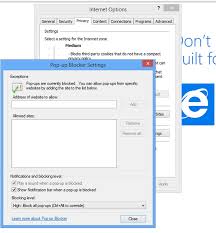
How to Disable Pop-ups on Internet Explorer
If you’re using Internet Explorer as your browser, here’s how to disable pop-ups:
- Open The Tools Menu: Click on the gear icon in the top right corner of the browser window and select “Tools.”
- Select Internet Options: In the tools menu, select “Internet options.”
- Click on Privacy: Click on the “Privacy” tab.
- Select Pop-ups: Select “Pop-ups” from the list of options.
- Toggle Off The Switch: Toggle off the switch next to “Block pop-ups” to disable pop-ups.
How to Disable Pop-ups on Safari
If you’re using Safari as your browser, here’s how to disable pop-ups:
- Open The Preferences Window: Click on the gear icon in the top right corner of the browser window and select “Preferences.”
- Select Websites: In the preferences window, select “Websites.”
- Click on Pop-ups: Click on the “Pop-ups” button.
- Toggle Off The Switch: Toggle off the switch next to “Block pop-ups” to disable pop-ups.
How to Disable Pop-ups on Smartphones And Tablets
If you’re using a smartphone or tablet as your device, here’s how to disable pop-ups:
- Open The Settings App: Open the settings app on your device.
- Select Safari (or Other Browser): Select “Safari” (or the name of your default browser) from the list of options.
- Toggle Off The Switch: Toggle off the switch next to “Block pop-ups” to disable pop-ups.
Conclusion
Disabling pop-ups on your browser is a simple process that can be done in just a few steps. By following the instructions above, you can say goodbye to annoying pop-ups and enjoy a more seamless browsing experience. Whether you’re using Google Chrome, Mozilla Firefox, Microsoft Edge, Internet Explorer, or Safari, disabling pop-ups is essential for maintaining online security and avoiding distractions.
Faqs
Q: What are pop-ups?
A: Pop-ups are small windows that appear on your screen when you visit a website.
Q: Why do I need to disable pop-ups?
A: Disabling pop-ups helps prevent malicious software or viruses from entering your device, and also prevents annoying distractions while browsing.
Q: How do I enable pop-ups again?
A: To re-enable pop-ups, simply toggle on the switch next to “Blocked (recommended)” in Google Chrome, or select “Pop-ups” from the list of permissions in Mozilla Firefox.
Q: Can I disable pop-ups for specific websites only?
A: Yes, you can disable pop-ups for specific websites by selecting the website and toggling off the switch next to “Block pop-ups”.
Q: Will disabling pop-ups affect my browsing experience?
A: Disabling pop-ups should not affect your browsing experience significantly, but may prevent some legitimate pop-ups from appearing.
Q: Can I use a third-party extension or app to disable pop-ups?
A: Yes, you can use a third-party extension or app to disable pop-ups on your browser. However, be cautious when using extensions or apps from unknown sources, as they may pose security risks.


