
How to Disable Roaming on Android, Iphone, Xiaomi, Samsung, And Huawei: A Step-by-step Guide
Are you tired of receiving unexpected roaming charges on your phone? Do you want to avoid these extra costs when traveling abroad or using your phone outside your home country? Look no further! In this article, we will guide you through the process of disabling roaming on various mobile devices, including Android, iPhone, Xiaomi, Samsung, and Huawei.
What is Roaming?
Before we dive into the step-by-step guides, let’s first understand what roaming is. Roaming refers to the use of cellular services when you are outside your home country or using a network other than your own operator. When you roam, you may incur additional charges for calls, texts, and data usage.
Why Disable Roaming?
Disabling roaming can help you avoid these extra costs and save money on your phone bill. By disabling roaming, you will only be able to use your phone’s services within your home country or using a network that you have explicitly allowed.
How to Disable Roaming on Android
To disable roaming on an Android device:
- Open Settings: Tap on the gear icon on your homescreen or in the drawer.
- Go to Network And Internet: Scroll down and select “Network and internet.”
- Select Mobile Network: Choose the mobile network option.
- Find And Tap on Roaming: Look for the roaming option and toggle it off.
How to Disable Roaming on Iphone
To disable roaming on an iPhone:
- Open Settings: Tap on the gear icon on your homescreen or in the Bookshop app.
- Select Cellular: Choose the cellular option.
- Ensure Data is Enabled: Make sure that “Cellular data” is turned on.
- Find And Toggle Off Roaming: Scroll down to find the roaming option and toggle it off.
How to Disable Roaming on Xiaomi
To disable roaming on a Xiaomi device:
- Open Settings: Tap on the gear icon on your homescreen or in the drawer.
- Select Sim Cards & Mobile Networks: Choose this option.
- Find And Tap on Roaming: Look for the roaming option and toggle it off.
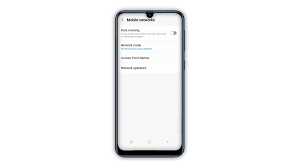
How to Disable Roaming on Samsung
To disable roaming on a Samsung device:
- Open Settings: Tap on the gear icon on your homescreen or in the drawer.
- Select Connections: Choose this option.
- Find And Tap on Mobile Networks: Look for the mobile networks option.
- Toggle Off Roaming: Toggle off the roaming option.
How to Disable Roaming on Huawei
To disable roaming on a Huawei device:
- Open Settings: Tap on the gear icon on your homescreen or in the drawer.
- Select Mobile Network: Choose this option.
- Find And Tap on Roaming: Look for the roaming option and toggle it off.
Additional Tips
When traveling abroad, consider the following tips to avoid unexpected roaming charges:
- Disable data roaming and only use Wi-Fi when possible
- Use a local SIM card or purchase a prepaid SIM for your destination country
- Turn off automatic app updates and downloads while abroad
By disabling roaming on your mobile device and following these additional tips, you can save money and stay connected without incurring unexpected charges.
Conclusion
Disabling roaming is an easy way to avoid extra costs when using your phone outside your home country. By following the step-by-step guides above, you can disable roaming on various mobile devices, including Android, iPhone, Xiaomi, Samsung, and Huawei. Remember to always check with your network operator for any additional fees or charges associated with disabling roaming.
Frequently Asked Questions
- What is The Difference Between National And International Roaming?
National roaming refers to using cellular services within your home country, while international roaming involves using services outside your home country. - Can I Block All Roaming Charges?
Yes, by disabling roaming on your mobile device, you can avoid most roaming charges. - What Are The Benefits of Disabling Roaming?
Disabling roaming helps you save money on unexpected charges and reduces the risk of running up large bills while abroad. - How do I Know if I’m Being Charged For Roaming Services?
Check your phone bill or account to see if any roaming charges have been incurred. - Can I Use my Phone’s Data Service Without Incurring Roaming Charges?
Yes, by disabling roaming and using only Wi-Fi when possible, you can avoid most data-related roaming charges. - What Are The Potential Consequences of Not Disabling Roaming on Your Device?
If you don’t disable roaming on your device, you may incur unexpected charges for calls, texts, and data usage while abroad. - Can I Enable Roaming Again After Disabling It?
Yes, simply toggle back to the original setting to re-enable roaming services.
We hope this article has been helpful in guiding you through the process of disabling roaming on various mobile devices. If you have any further questions or concerns, feel free to ask!


