
How to Disable Youtube Shorts on Your Pc, Mac, Smartphone, or Tablet
Are you tired of seeing YouTube Shorts cluttering your homepage? Do you want to disable them without deleting the entire channel? You’re in luck! Today, we’ll show you how to easily disable YouTube Shorts on your PC, Mac, smartphone, or tablet.
Why Disable Youtube Shorts?
YouTube Shorts are brief videos that appear on your homepage, usually lasting a few seconds. While they can be entertaining, some users find them annoying and intrusive. If you’re one of them, disabling YouTube Shorts is the perfect solution.
How to Disable Youtube Shorts on PC And Mac
To disable YouTube Shorts on your PC or Mac, follow these steps:
Method 1: Using Google Chrome
If you use Google Chrome as your browser, you can download an extension called “YouTube-Shorts Block” that will block YouTube Shorts from appearing on your homepage.
Step 1: Go to the Google Chrome Web Store and search for “YouTube-Shorts Block”.
Step 2: Click on the “Add to Chrome” button and confirm the installation.
Step 3: Close and reopen Google Chrome. The extension should be activated, and YouTube Shorts will no longer appear on your homepage.
Method 2: Using Mozilla Firefox
If you use Mozilla Firefox as your browser, you can download an extension called “Hide Youtube-Shorts” that serves the same purpose.
Step 1: Go to the Firefox Browser Add-ons page and search for “Hide Youtube-Shorts”.
Step 2: Click on the “Add to Firefox” button and confirm the installation.
Step 3: Close and reopen Mozilla Firefox. The extension should be activated, and YouTube Shorts will no longer appear on your homepage.
Method 3: Using Safari
If you use Safari as your browser, you can download an extension called “Eat the Shorts for Safari” that will block YouTube Shorts from appearing on your homepage.
Step 1: Go to the Mac App Store and search for “Eat the Shorts for Safari”.
Step 2: Click on the “Get” button and confirm the installation.
Step 3: Close and reopen Safari. The extension should be activated, and YouTube Shorts will no longer appear on your homepage.
How to Disable Youtube Shorts on Smartphone or Tablet
If you use a smartphone or tablet, disabling YouTube Shorts is a bit more complicated. However, we have a workaround for you:
Method 1: Using The Youtube App
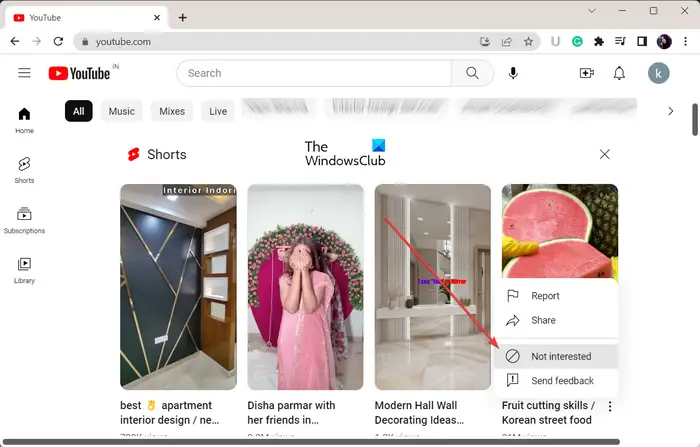
To disable YouTube Shorts on your smartphone or tablet, open the YouTube app and go to the section where all the Shorts are displayed.
Step 1: Select each Short individually and click on “No interest”.
Step 2: Repeat this process until no more Shorts appear in the section.
Step 3: Close and reopen the YouTube app. The Shorts should be gone from your homepage.
Note: This method is temporary, as Shorts will reappear based on your interests and channel subscriptions.
Method 2: Using an Extension (Android Only)
If you use an Android device, you can download an extension called “YouTube-Shorts Block” that serves the same purpose as the browser extensions mentioned earlier.
Step 1: Go to the Google Play Store and search for “YouTube-Shorts Block”.
Step 2: Click on the “Install” button and confirm the installation.
Step 3: Close and reopen the YouTube app. The extension should be activated, and Shorts will no longer appear on your homepage.
Note: This method is also temporary, as Shorts will reappear based on your interests and channel subscriptions.
We hope this guide has been helpful in disabling YouTube Shorts on your PC, Mac, smartphone, or tablet!


