
How to Disable Siri on Iphone, Ipad, Mac, Apple Watch, And Airpods
Are you tired of Siri’s constant suggestions and interruptions? Do you want to disable Siri on your iPhone, iPad, Mac, Apple Watch, or AirPods? Look no further! In this article, we’ll guide you through the step-by-step process of disabling Siri on each of these devices.
Why Disable Siri?
While Siri can be a helpful assistant, it can also be annoying when it keeps suggesting things to you. By disabling Siri, you can regain control over your device and avoid unwanted suggestions. Plus, if you’re concerned about privacy, disabling Siri can help protect your personal data.
Disable Siri on Iphone
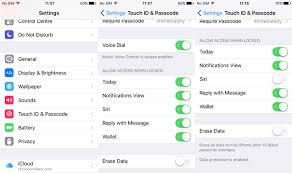
To disable Siri on your iPhone, follow these steps:
- Unblock The Phone: If necessary, unblock the phone by entering the correct passcode or using Face ID.
- Access Settings: Tap on the Settings icon (looks like a wheel of gears) on your home screen.
- Select Siri & Search: Scroll down and tap on “Siri & Search”.
- Toggle Off Siri: Turn off Siri by tapping on the switch next to “Hey Siri” and then “Siri”.
Note: You can also disable specific features of Siri, such as only responding to voice commands or disabling suggestions.
Disable Siri on Ipad
The process for disabling Siri on an iPad is similar to that of an iPhone:
- Unblock The Device: If necessary, unblock the device by entering the correct passcode.
- Access Settings: Tap on the Settings icon (looks like a wheel of gears) on your home screen.
- Select Siri & Search: Scroll down and tap on “Siri & Search”.
- Toggle Off Siri: Turn off Siri by tapping on the switch next to “Hey Siri” and then “Siri”.
Disable Siri on Mac
To disable Siri on a Mac, follow these steps:
- Access System Preferences: Click on the Apple logo in the top left corner of your screen and select System Preferences.
- Select Siri & Spotlight: Click on the “Siri & Spotlight” icon.
- Toggle Off Siri: Turn off Siri by clicking on the switch next to “Ask Siri”.
- Confirm: Click on the “Disable Siri” button to confirm.
Note: You can also modify Siri’s settings, such as disabling suggestions or feedback, by accessing the Siri preferences window.
Disable Siri on Apple Watch
To disable Siri on an Apple Watch, follow these steps:
- Unblock The Device: If necessary, unblock the device by entering the correct passcode.
- Access Settings: Tap on the Digital Crown to access the list of apps.
- Select Siri & Search: Scroll down and tap on “Siri”.
- Toggle Off Siri: Turn off Siri by tapping on the switch next to “Hey Siri”.
Disable Siri on Airpods
To disable Siri on AirPods, follow these steps:
- Connect Your Airpods to Your Device: Connect your AirPods to your iPhone, iPad, or Mac.
- Access Settings: Tap on the Settings icon (looks like a wheel of gears) on your home screen.
- Select Bluetooth: Scroll down and tap on “Bluetooth”.
- Select The Airpods: Select the name of your AirPods from the list of devices.
- Toggle Off Siri: Turn off Siri by tapping on the switch next to “Hold for Hey Siri” or “Play Two Beats”.
Additional Options
You can also modify Siri’s settings, such as disabling suggestions, feedback, or certain features, by accessing the Settings app on your device.
Conclusion
Disabling Siri is a straightforward process that can help you regain control over your device and protect your personal data. By following these steps, you can disable Siri on your iPhone, iPad, Mac, Apple Watch, or AirPods.
Frequently Asked Questions (FAQs)
- Q: Can I Disable Siri Only For Specific Features?
A: Yes, you can disable specific features of Siri, such as only responding to voice commands or disabling suggestions. - Q: Will Disabling Siri Affect my Device’s Performance?
A: Disabling Siri will not significantly impact your device’s performance. - Q: Can I Enable Siri Again if I Decide to Use it in The Future?
A: Yes, you can easily re-enable Siri by following the same steps as disabling it. - Q: Will Disabling Siri Affect my Apple Watch or Airpods’ Functionality?
A: Disabling Siri will not significantly impact your Apple Watch or AirPods’ functionality. - Q: Can I Disable Siri Without Affecting Other Features, Such as Spotlight or Dictation?
A: Yes, you can disable Siri without affecting other features like Spotlight or Dictation. - Q: Will Disabling Siri Affect my Device’s Security And Privacy?
A: Disabling Siri will not significantly impact your device’s security and privacy.
References
- Apple Support (2022). Siri & Search on your iPhone, iPad, or iPod touch.
- Apple Support (2022). Enable or disable Siri on your Mac.
- Apple Support (2022). Turn Siri on or off on your Apple Watch.
- Apple Support (2022). How to turn Siri on or off on AirPods.


