
How to Disable Touch Screen on Your Device: A Step-by-step Guide
Are you tired of accidentally pressing buttons or navigating menus on your device’s touch screen? Do you want to prevent accidental inputs or make it easier to use your device in certain situations? Look no further! In this article, we’ll show you how to disable the touch screen on various devices, including Windows 10 PCs, Android smartphones and tablets, iPhones, and iPads.
Why Disable Touch Screen?
Before we dive into the steps, let’s discuss why you might want to disable your device’s touch screen. Here are a few scenarios where disabling the touch screen can be useful:
- You’re working on a project that requires precise inputs, but accidental touches keep disrupting your work.
- You need to prevent children from accessing certain features or apps on their devices.
- You want to make it easier to use your device with assistive technologies like external keyboards or joysticks.
Disabling Touch Screen on Windows 10 Pcs
To disable the touch screen on a Windows 10 PC, follow these steps:
- Click on the Start button and select Settings.
- Click on the “System” option.
- Scroll down to the “Device management” section.
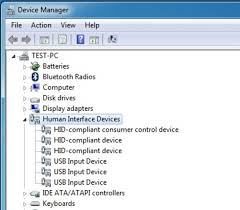
- Click on the “Human Interface Devices” tab.
- Right-click on the touch screen device and select “Disable device.”
- Confirm that you want to disable the device.
Disabling Touch Screen on Android Devices
To disable the touch screen on an Android device, follow these steps:
- Go to Settings > Display.
- Tap on the “Screen timeout” option.
- Select the “Turn off display when phone is in pocket or bag” option.
- If your device has a specific feature like “Smart Stay,” you can also disable that.
Disabling Touch Screen on Iphones And Ipads
To disable the touch screen on an iPhone or iPad, follow these steps:
- Go to Settings > Accessibility.
- Tap on the “Touch” option.
- Select the “AssistiveTouch” feature.
- Enable the “Tap to Wake” feature to allow your device to wake up when you tap it.
Important Notes
- When disabling the touch screen, keep in mind that some features may not work as expected or at all.
- If you’re using a device with an external keyboard or joystick, you might need to adjust settings accordingly.
- Disabling the touch screen doesn’t necessarily mean that your device will be completely inaccessible. Other input methods like voice assistants, gestures, or assistive technologies can still be used.
Conclusion
Disabling the touch screen on your device can be a useful solution for specific situations. By following these steps and understanding the potential implications, you can make informed decisions about how to use your device. If you have any further questions or concerns, feel free to ask.


