
How to Disable Debug Usb on Android Devices
Are you tired of dealing with the Debug USB feature on your Android device? Do you want to know how to disable it? You’ve come to the right place! In this article, we’ll guide you through the process of disabling the Debug USB feature on various Android devices.
Why Disable Debug Usb?
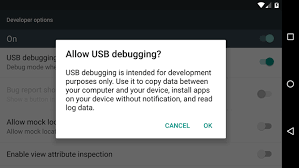
Before we dive into the steps, let’s quickly explain why you might want to disable Debug USB. The Debug USB feature allows developers to test and debug applications directly on a device connected via USB. While this can be useful for developers, it can also pose security risks if not properly managed.
Disabling Debug Usb: A Step-by-step Guide
Here are the steps to follow to disable Debug USB on different Android devices:
Disabling Debug Usb on Samsung Devices
- Open the Settings app on your Samsung device.
- Tap on the “About phone” option.
- Scroll down and tap on “Developer options.”
- If you don’t see Developer options, go back to Settings > About phone > Software information. Tap on the Build number 7 times to enable it.
- Now that Developer options are enabled, go back to Settings > Developer options.
- Look for the “USB debugging” option and toggle it off.
Disabling Debug Usb on Xiaomi Devices
- Open the Settings app on your Xiaomi device.
- Tap on the “About phone” option.
- Scroll down and tap on “Developer options.”
- If you don’t see Developer options, go back to Settings > About phone > Software information. Tap on the Build number 7 times to enable it.
- Now that Developer options are enabled, go back to Settings > Developer options.
- Look for the “USB debugging” option and toggle it off.
Disabling Debug Usb on Huawei Devices
- Open the Settings app on your HUAWEI device.
- Tap on the “About phone” option.
- Scroll down and tap on “Developer options.”
- If you don’t see Developer options, go back to Settings > About phone > Software information. Tap on the Build number 7 times to enable it.
- Now that Developer options are enabled, go back to Settings > Developer options.
- Look for the “USB debugging” option and toggle it off.
Disabling Debug Usb on Oppo Devices
- Open the Settings app on your OPPO device.
- Tap on the “About phone” option.
- Scroll down and tap on “Developer options.”
- If you don’t see Developer options, go back to Settings > About phone > Software information. Tap on the Build number 7 times to enable it.
- Now that Developer options are enabled, go back to Settings > Developer options.
- Look for the “USB debugging” option and toggle it off.
Conclusion
Disabling Debug USB on Android devices is a relatively simple process that can help ensure your device’s security. By following these step-by-step guides, you can disable the feature on various Android devices, including Samsung, Xiaomi, HUAWEI, and OPPO devices.


