
Disabling Windows Defender: A Step-by-step Guide
Introduction
Windows Defender is an antivirus protection software developed by Microsoft that safeguards the system against various privacy and security risks. However, in some cases, it may be necessary to disable Windows Defender to execute specific programs or activities. In this article, we will explore how to temporarily or permanently disable Windows Defender, as well as how to disable certain features.
Temporarily Disabling Windows Defender
If you want to disable Windows Defender for a short period, follow these steps:
- Click on the Start button and select the gear icon.
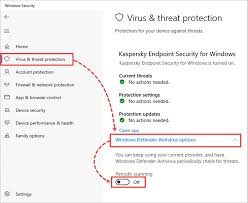
- Select “Update & Security” and then click on “Windows Security”.
- In the window that opens, select “Virus & threat protection” and then click on “Manage settings”.
- Slide the toggle under “Real-time protection” to “Off”.
- Confirm the changes by clicking “Yes”.
Permanently Disabling Windows Defender
If you want to permanently disable Windows Defender, follow these steps:
- Install an alternative antivirus software.
- Follow the instructions provided by the software to configure and enable it.
- Once installed and configured, the new antivirus will automatically disable Windows Defender.
Disabling Specific Files or Folders
If you don’t want to completely disable Windows Defender but exclude specific files or folders from scanning, follow these steps:
- Access Windows Defender settings.
- Select “Virus & threat protection settings”.
- Click on “Manage settings” and then click on “Add or remove exclusions”.
- In the window that opens, select the type of exclusion you want (file, folder, or specific file type).
- Select the item to exclude and confirm the changes.
Disabling Windows Defender on Windows 11
To disable Windows Defender on Windows 11, follow the same steps as for Windows 10. The procedure is identical.
Disabling Smartscreen of Windows Defender
SmartScreen is a component of Windows Defender that protects navigation and downloads of programs and websites. To disable it, follow these steps:
- Open Windows settings.
- Select “Privacy & security”.
- Click on “Windows Security” and then click on “Open Windows Security”.
- In the window that opens, select “App & browser control”.
- Slide the toggle under “Block potentially unwanted apps” to “Off”.
Disabling Windows Defender Firewall
The Windows Defender firewall protects online navigation. To disable it, follow these steps:
- Open Windows settings.
- Select “Firewall & network protection”.
- Click on “Network and Sharing Center” and then click on “Change adapter settings”.
- Right-click on the network connection you want to disable and select “Disable”.
Conclusion
In this article, we have explored how to temporarily or permanently disable Windows Defender, as well as how to disable certain features. It’s essential to note that disabling Windows Defender may increase the risk of cyber attacks and compromise system security. If in doubt, consult a professional.
Faqs
Q: Why do I need to disable Windows Defender?
A: You can disable Windows Defender if you want to execute programs or activities that require specific access or have already installed an alternative antivirus on your system.
Q: How can I reinstall Windows Defender after disabling it?
A: You can reinstall Windows Defender by following the software instructions and configuring it as described above.
Q: Can I exclude only some files or folders from Windows Defender scanning?
A: Yes, you can exclude specific files or folders from Windows Defender scanning using the procedure described above for excluding specific items.
Q: How can I disable SmartScreen of Windows Defender?
A: You can disable SmartScreen of Windows Defender by following the steps described above for disabling app and browser control.
Q: Can I disable Windows Defender Firewall?
A: Yes, you can disable the Windows Defender firewall using the procedure described above.
Q: How can I reinstall Windows 10 or Windows 7 if I disabled Windows Defender on these versions?
A: To reinstall Windows 10 or Windows 7, follow the software instructions and configure it as described above.


