
How to Disconnect a Device From Wifi: A Step-by-step Guide
Are you tired of unwanted connections to public WiFi networks? Do you want to disconnect your device from a specific WiFi network without deleting the password or data access credentials? You’re not alone! In this article, we’ll show you how to disconnect a device from WiFi using various operating systems and devices.
Why Disconnect Your Device From Wifi?
Before we dive into the steps, let’s quickly discuss why you might want to disconnect your device from WiFi. Here are some scenarios:
- You’re trying to avoid unwanted connections to public WiFi networks.
- You want to prevent automatic reconnections to a specific network.
- You’re concerned about security and data protection.
- You need to reset or restore your device’s factory settings.
Windows: Disconnecting Your Device From Wifi
If you’re using Windows, follow these steps:
- Open The Settings App: Click on the Start button and select “Settings.”
- Click on Network & Internet: In the Settings window, click on “Network & Internet.”
- Select Wi-fi: In the left-hand menu, click on “Wi-Fi.”
- Disconnect From The Network: Click on the “Disconnect” button next to the WiFi network you want to disconnect from.
Note: If you want to prevent automatic reconnections to a specific network without deleting the password or data access credentials, select the “Forget this network” option instead.
Macos: Disconnecting Your Device From Wifi
If you’re using macOS, follow these steps:
- Open System Preferences: Click on the Apple menu and select “System Preferences.”
- Click on Wi-fi: In the System Preferences window, click on “Wi-Fi.”
- Disconnect From The Network: Click on the “Turn Wi-Fi Off” button.
- Forget This Network: If you want to prevent automatic reconnections to a specific network without deleting the password or data access credentials, click on the “Forget This Network” button.
Android: Disconnecting Your Device From Wifi
If you’re using Android, follow these steps:
- Open Settings: Click on the gear icon in the top-right corner of the screen.
- Click on Wi-fi & Internet: In the Settings window, click on “Wi-Fi & Internet.”
- Disconnect From The Network: Click on the three dots next to the WiFi network you want to disconnect from and select “Forget Network.”
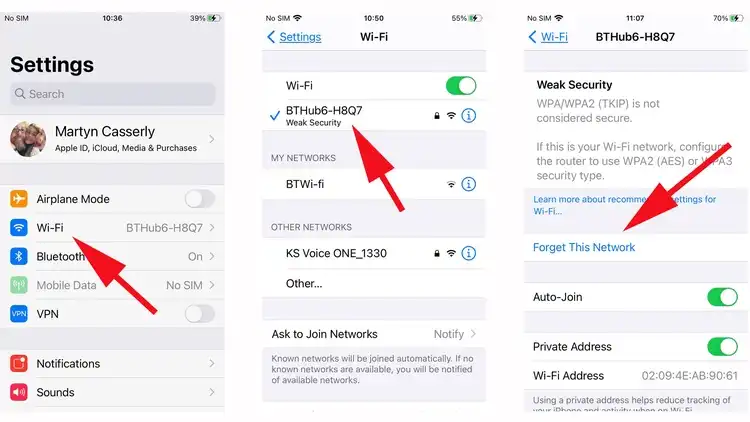
Iphone/ipad: Disconnecting Your Device From Wifi
If you’re using an iPhone or iPad, follow these steps:
- Open Settings: Tap on the gear icon in the bottom-right corner of the screen.
- Click on Wi-fi: In the Settings window, tap on “Wi-Fi.”
- Disconnect From The Network: Tap on the “i” icon next to the WiFi network you want to disconnect from and select “Forget This Network.”
Other Devices: Disconnecting Your Device From Wifi
The steps above apply to most devices with WiFi capabilities. However, if you’re using a device like a PlayStation 5 or a gaming console, follow these specific instructions:
- Playstation 5: Go to Settings > Net > Configure Internet Connection and select the network you want to disconnect from.
- Other Gaming Consoles: Refer to your device’s user manual for specific instructions on how to disconnect from WiFi.
How to Block a Device From Accessing Your Wifi Network
If you want to block a device from accessing your WiFi network, follow these steps:
- Access The Router Settings: Log in to your router using the IP address (usually 192.168.1.1 Or 192.168.1.254).
- Block The Device’s Mac Address: Go to the “LAN” section and select the option to block a device’s MAC address.
- Add The Device to The List: Enter the device’s MAC address and add it to the list of blocked devices.
Conclusion
Disconnecting your device from WiFi is a simple process that can help you avoid unwanted connections, prevent automatic reconnections, and improve security. Whether you’re using Windows, macOS, Android, or an iPhone/iPad, follow the steps above to disconnect your device from WiFi. If you need further assistance or have specific questions about blocking devices, refer to our article on how to block a device from accessing your WiFi network.
Faqs
- Q: Why Should I Disconnect my Device From Wifi?
A: You can disconnect your device from WiFi to avoid unwanted connections, prevent automatic reconnections, and improve security. - Q: How do I Prevent Automatic Reconnections to a Specific Network Without Deleting The Password or Data Access Credentials?
A: In Windows, select “Forget this network” instead of “Disconnect.” On macOS, click on “Forget This Network.” On Android and iOS devices, follow the steps above to disconnect from WiFi. - Q: How do I Block a Device From Accessing my Wifi Network?
A: Access your router settings, go to the “LAN” section, and select the option to block a device’s MAC address. Add the device to the list of blocked devices. - Q: Can I Disconnect my Device From Wifi Without Deleting The Password or Data Access Credentials?
A: Yes, you can disconnect your device from WiFi without deleting the password or data access credentials by following the steps above. - Q: How do I Prevent Automatic Reconnections to a Specific Network on an Iphone/ipad?
A: Tap on the “i” icon next to the WiFi network you want to disconnect from and select “Forget This Network.” - Q: Can I Disconnect my Device From Wifi if It’s Not Connected to The Network?
A: Yes, you can disconnect your device from WiFi even if it’s not currently connected to the network. - Q: How do I Prevent Automatic Reconnections to a Specific Network on an Android Device?
A: Click on the three dots next to the WiFi network you want to disconnect from and select “Forget Network.” - Q: Can I Block a Device From Accessing my Wifi Network Using a Third-party App?
A: No, it’s not recommended to use third-party apps to block devices from accessing your WiFi network. Instead, access your router settings and follow the steps above.
Disclaimer
This article is for informational purposes only and may not be applicable in all situations. If you’re unsure about how to disconnect your device from WiFi or need further assistance, consult a qualified IT professional or refer to your device’s user manual.


