
Raiding on Twitch has become an essential tool for building a community, helping streamers support one another by sending viewers from one channel to another. If you’ve recently started streaming on Twitch, you may have heard about raids but are unsure how to use them effectively. This article will walk you through everything you need to know about raiding on Twitch, from what it is to how you can perform it on both desktop and mobile devices. So, sit back, relax, and let’s dive into the world of Twitch raids.
What is a Raid on Twitch?
A raid on Twitch is an action taken by one streamer to send their viewers to another streamer’s live broadcast. Think of it as a way to share your audience with other content creators. This can help build a sense of community and increase visibility for smaller streamers. After your stream ends, you can initiate a raid, and your viewers will be automatically redirected to the new stream.
Why Are Twitch Raids Important?
Twitch raids aren’t just about numbers. They can strengthen relationships between streamers and help introduce viewers to new content they might love. When done right, raids can also build goodwill within the Twitch community and help smaller streamers grow.
Benefits of Raids:
- Community Growth: Raids create collaboration opportunities between streamers.
- Audience Exposure: Viewers are introduced to new channels, broadening their Twitch experience.
- Engagement: Increases interaction between streamers and their communities.
How Does a Twitch Raid Work?
Once a streamer initiates a raid, all their live viewers are automatically transferred to the selected streamer’s live broadcast. It’s a fun and spontaneous way to end your stream while supporting others.
After a raid, many streamers will encourage their community to actively participate in the chat of the raided streamer, perhaps by sending friendly greetings or even using a specific hashtag or phrase to identify the raid.
The Difference Between a Raid and a Host
A host on Twitch is slightly different from a raid. While raids transfer viewers to another streamer’s live channel at the end of a stream, hosting allows you to feature another live stream directly on your own channel.
Raids are immediate transfers, while hosting allows your channel to display another stream without sending your viewers away. Both are fantastic tools, but it’s crucial to understand the distinction.
How to Perform a Raid on Twitch
Let’s now walk through how to perform a raid on Twitch, both from a desktop computer and mobile devices.
How to Perform a Raid on Twitch from a PC
Performing a raid from your desktop is a straightforward process. Whether you use the website or the Twitch app, the steps are virtually the same.
Steps for Raiding on PC:
- Go to Your Dashboard: Click on your profile icon in the top right and select Creator Dashboard.
- Select Stream Manager: Navigate to the stream management tools.
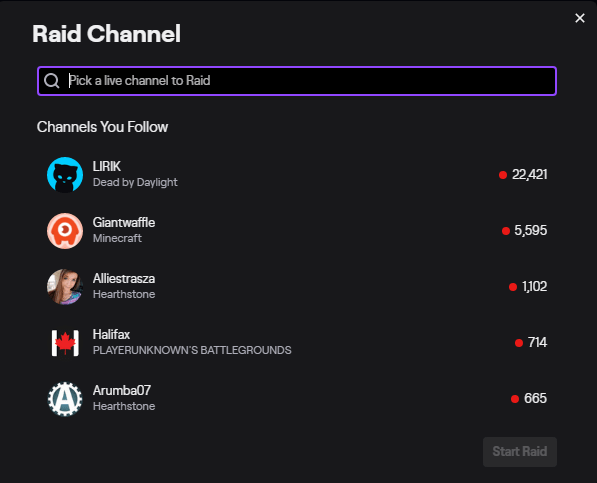
- Choose a Channel to Raid: On the right side, you will see an option to raid another channel. Select the target channel from the dropdown.
- Initiate the Raid: Click on Start Raid, and after a few seconds, Twitch will transfer your viewers to the new channel.
- Confirm the Raid: In the chat, a confirmation will appear, and viewers will see how many people are joining the raid.
Alternatively, you can type the command /raid [channelname] in your chat to trigger a raid.
How to Perform a Raid on Twitch from a Mobile Device
If you’re streaming from your mobile device, you can still initiate a raid. However, the features on the mobile app are a bit more limited compared to the desktop version.
Steps for Raiding on Mobile:
- Open the Twitch App: Ensure you’re logged in and navigate to the Creator Dashboard.
- Select the Stream Manager: Access this from the side menu.
- Use the Chat Command: In the chat box, type
/raid [channelname]to initiate a raid. - Finalize the Raid: After you type the command, the raid will begin automatically after 30 seconds.
Although mobile raiding is limited, it’s still an efficient way to support other streamers, even when you’re on the go.
Key Considerations When Raiding on Twitch
Before you go all-in on Twitch raids, it’s worth keeping a few important things in mind. Raiding is an excellent tool, but it should be used wisely and with consideration for your community.
1. Raid Etiquette
Always be respectful when raiding another streamer. Make sure that the streamer you are raiding is okay with the influx of viewers, and consider using a polite message to introduce your audience. It’s important to avoid raiding channels that are not family-friendly if your community is PG-rated.
2. Timing is Everything
Try not to raid too early or too late. Give your viewers a chance to say goodbye to you first, then initiate the raid at the right moment. Raiding too soon may confuse your viewers, and raiding too late may result in a dwindling audience for the next streamer.
3. Consider Smaller Channels
While raiding popular streamers is fun, consider supporting smaller channels too. This can greatly help new or growing streamers, and your viewers might discover a new favorite!
How to Host Another Channel After a Raid
Hosting after a raid is optional but highly recommended. By hosting the other streamer on your channel, those who may have joined late or missed the raid can still see the ongoing stream.
To host another channel after a raid:
- Type
/host [channelname]in the chat, and your viewers can still watch the raid target’s stream directly from your profile.
How to Cancel a Raid on Twitch
If, for any reason, you decide to cancel the raid after initiating it, you can do so by typing /unraid in your chat box. This command will prevent your viewers from being redirected.
Bold Guide Table for Raid Features
| Feature | Description |
|---|---|
| Raid | Transfers your viewers to another stream |
| Host | Displays another stream on your channel |
| Chat Commands | Use commands like /raid and /host to initiate |
| Mobile Support | Limited, but you can still perform basic actions |
Conclusion
Raiding on Twitch is an excellent way to engage with other streamers and help build a strong community. Whether you’re raiding from your desktop or mobile, it’s a fantastic way to introduce your viewers to new content. Remember, the key to successful raiding lies in good etiquette, thoughtful timing, and always considering the experience of your audience.
Happy streaming, and may your raids always be successful!
FAQs About Twitch Raids
1. What is a Twitch raid?
A Twitch raid allows one streamer to send their viewers to another live stream at the end of their broadcast.
2. Can I raid from the Twitch mobile app?
Yes, you can use the /raid command in the chat to initiate a raid from your mobile device.
3. How do I cancel a raid?
You can cancel a raid by typing /unraid in your chat before the raid begins.
4. Is hosting the same as raiding?
No, hosting displays another stream on your channel, while raiding redirects your viewers to another live channel.
5. Can raids help grow my Twitch channel?
Yes, raids can help grow your channel by building relationships with other streamers and introducing your content to new viewers.
6. Can viewers opt-out of a raid?
Yes, viewers can choose to leave the raided stream at any time.
7. How many viewers can I send in a raid?
There is no limit to how many viewers you can send in a raid. However, the number of participants depends on how many people are watching your stream at the time.
8. Can I raid a channel that is offline?
No, you can only raid channels that are live at the time of your raid.


