
How to Do a Live Stream on Pc: A Comprehensive Guide
Are you interested in doing a live stream on your PC? Look no further! In this article, we will guide you through the process of setting up a successful live stream, from choosing the right hardware and software to broadcasting on various platforms.
Why Do a Live Stream on Pc?
There are several reasons why you might want to do a live stream on your PC. Perhaps you’re an avid gamer who wants to share their gameplay with friends or a YouTube personality looking to engage with their audience in real-time. Maybe you’re a teacher who wants to demonstrate complex concepts in a more interactive way. Whatever your reason, we’ll show you how to get started.
Hardware Requirements
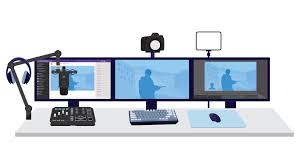
Before we dive into the software and platforms, let’s talk about the hardware you’ll need for a successful live stream. Here are some essential components:
- A good quality webcam or camera
- A microphone (either built-in or external)
- A decent computer with sufficient RAM and processing power
- A stable internet connection (at least 3 Mbps upload speed)
Software Options
Now that we have the hardware covered, let’s look at the software options available for live streaming. Here are some popular choices:
- OBS Studio (Open Broadcasting Software): A free and open-source software that supports many platforms, including Twitch, YouTube, Facebook, and more.
- XSplit: A user-friendly software that offers advanced features like chroma keying and audio ducking.
- Streamlabs OBS: A customizable version of OBS Studio with a user-friendly interface.
Platform Options
Next, let’s explore the various platforms you can use for live streaming. Here are some popular options:
- Twitch: A platform dedicated to gaming content, but also suitable for music, art, and other creative pursuits.
- Youtube Live: A feature that allows creators to broadcast live to their audience.
- Facebook Live: A feature that enables users to broadcast live video to their friends and followers.
- Instagram Live: A feature that allows users to broadcast live video to their followers.
How to Do a Live Stream on Pc: A Step-by-step Guide
Now that we’ve covered the basics, let’s dive into the step-by-step guide on how to do a live stream on your PC.
Step 1: Choose Your Platform
First, decide which platform you want to use for your live stream. Each platform has its own unique features and requirements, so choose wisely!
Step 2: Set Up Your Hardware
Next, make sure you have the necessary hardware for a successful live stream. This includes a good quality webcam or camera, a microphone (either built-in or external), and a decent computer with sufficient RAM and processing power.
Step 3: Choose Your Software
Now that we have the hardware covered, let’s choose our software. We recommend using OBS Studio (Open Broadcasting Software) for its flexibility and customization options.
Step 4: Configure Your Settings
Once you’ve chosen your software, configure your settings to ensure a smooth live stream. This includes setting up your webcam, microphone, and internet connection.
Step 5: Broadcast Live!
Finally, it’s time to broadcast live! Make sure you’re comfortable with the platform’s interface and features before going live.
Common Faqs
Here are some common questions and answers related to live streaming on PC:
Q: What is the minimum internet speed required for a live stream?
A: At least 3 Mbps upload speed is recommended for a stable and high-quality live stream.
Q: Can I use my phone’s camera for a live stream?
A: Yes, but keep in mind that phone cameras may not be as good quality as dedicated webcams or cameras.
Q: How do I deal with technical issues during a live stream?
A: Stay calm! Technical issues are inevitable, so have a plan in place to troubleshoot and resolve them quickly.
Conclusion
In conclusion, doing a live stream on PC is easier than you think. With the right hardware, software, and platform, you can engage your audience in real-time and build a loyal following. Remember to stay calm, be flexible, and always test your equipment before going live!
Frequently Asked Questions (FAQs)
Here are some additional FAQs related to live streaming on PC:
Q: How do I choose the best software for my live stream?
A: Consider factors like customization options, platform support, and user interface when choosing a software.
Q: Can I use multiple cameras for a live stream?
A: Yes, but ensure you have sufficient bandwidth and technical expertise to handle multiple camera feeds.
Q: How do I monetize my live streams on various platforms?
A: Each platform has its own unique features and requirements for monetization. Research and follow the platform’s guidelines carefully.
Q: Can I schedule a live stream in advance?
A: Yes, many platforms allow you to schedule a live stream in advance, but ensure you test your equipment before going live.
Additional Resources
Here are some additional resources related to live streaming on PC:
- OBS Studio (Open Broadcasting Software) documentation
- Twitch developer documentation
- YouTube Live documentation
- Facebook Live documentation
We hope this article has provided valuable insights and guidance on how to do a live stream on your PC. Happy streaming!


