
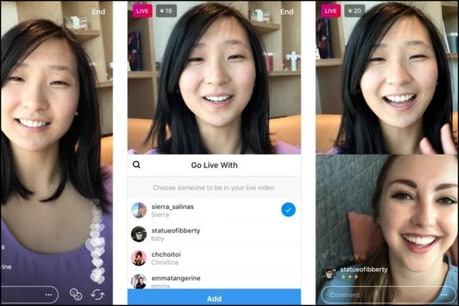
How to Do a Live Stream on Instagram: A Step-by-step Guide
Are you ready to take your social media game to the next level? Live streaming on Instagram is an excellent way to engage with your audience, build brand awareness, and showcase your products or services in real-time. In this article, we’ll walk you through the process of doing a live stream on Instagram, from preparation to execution.
Why Live Streaming on Instagram Matters
Before we dive into the nitty-gritty details, let’s talk about why live streaming on Instagram is essential for businesses and individuals alike. Here are some compelling reasons:
- Increased Engagement: Live streaming allows you to interact with your audience in real-time, fostering a sense of community and encouraging discussion.
- Improved Brand Awareness: By going live, you can showcase your products or services, share behind-the-scenes content, and humanize your brand.
- Enhanced Reach: Instagram’s algorithm favors live streams, making them more visible to your audience.
Getting Started: Equipment And Software
To do a live stream on Instagram, you’ll need:
- A smartphone (iPhone or Android) with a good camera
- A stable internet connection (Wi-Fi or mobile data)
- The Instagram app (version 50 or later)
Optional equipment includes:
- A tripod for stable footage
- External microphones for better audio quality
As for software, you can use the following options:
- Instagram Live: This is the built-in feature that allows you to go live directly from the app.
- Obs Studio: A popular screen recording and streaming software (free and available on Windows, macOS, and Linux).
Preparing Your Content
Before going live, make sure you have a clear plan in place:
- Define your goals: What do you want to achieve with your live stream?
- Choose a theme or topic: Keep it engaging and relevant to your audience.
- Create an outline: Structure your content for easier delivery.
Going Live on Instagram
Now that you’re ready, follow these steps:
- Open the Instagram app and navigate to your profile page.
- Tap the “+” icon at the top right corner.
- Select “Live” from the menu.
- Choose a title and add a brief description of your live stream.
- Select the audience you want to share with: Either “Friends” or “Public”.
Tips For a Successful Live Stream
Here are some pro tips to ensure a smooth experience:
- Be Yourself: Authenticity is key when interacting with your audience.
- Be Engaging: Encourage discussion and respond to comments in real-time.
- Keep it Concise: Keep your live stream brief and to the point.
Wrapping Up: Conclusion And Faqs
In conclusion, live streaming on Instagram is a fantastic way to connect with your audience and showcase your brand. By following these steps and tips, you’ll be well-equipped to deliver an engaging live stream that resonates with your viewers.
Here are some frequently asked questions:
- What’s The Minimum Length For a Live Stream? The minimum length for a live stream on Instagram is 60 seconds.
- Can I Save my Live Stream? Yes, you can save your live stream to Instagram Stories or IGTV for future reference.
- How do I Interact With my Audience During The Live Stream? Use the comment section to engage with your viewers and respond to their comments in real-time.
By following this guide, you’ll be well on your way to creating an engaging and memorable live streaming experience on Instagram.


