
How to Live Stream on Youtube: A Step-by-step Guide
Are you ready to take your online presence to the next level? Do you want to connect with your audience in real-time, share your passions, and build a loyal following? Look no further than live streaming on YouTube!
In this article, we’ll guide you through the process of setting up and broadcasting a live stream on YouTube, whether you’re using a computer, mobile device, or gaming console. We’ll cover everything from the basics to advanced features, so you can create engaging content that resonates with your viewers.
Benefits of Live Streaming on Youtube
Before we dive into the nitty-gritty, let’s explore the benefits of live streaming on YouTube:
- Increased Engagement: Live streams allow for real-time interaction with your audience, fostering a sense of community and encouraging participation.
- Improved Brand Awareness: Regular live streams can help establish your brand as an authority in your niche, building trust and credibility with potential customers.
- Enhanced Content Reach: By broadcasting live, you can expand your content’s reach beyond pre-recorded videos, tapping into the vast YouTube audience.
Getting Started: Preparing Your Channel
Before you begin live streaming on YouTube, ensure that your channel is set up correctly:
- Verify Your Channel’s Copyright Status: Ensure your channel has a good reputation in terms of copyright to activate the live function.
- Download And Install Necessary Software: Depending on your device or console, you may need to download and install specific software (more on this later).
- Familiarize Yourself With Youtube Studio: Access your YouTube Studio account to configure settings for your channel.
Live Streaming on Computer
There are two ways to initiate a live stream from your computer:
- Native Functionality: Use the native YouTube Live feature, which is straightforward and easy to use.
- Third-party Software: Utilize third-party programs like OBS (Open Broadcasting Software) for more advanced options.
Using Native Youtube Live Functionality
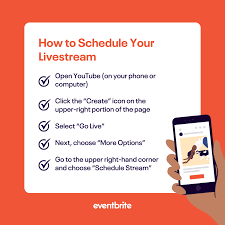
To start a live stream using YouTube’s built-in feature:
- Access your YouTube Studio account.
- Click on the “Create” button, then select “Live Streaming.”
- Choose your webcam or external camera as the video source.
- Configure settings for title, description, category, and thumbnail.
- Press the “Start” button to initiate your live stream.
Using Obs (Open Broadcasting Software)
For more advanced features:
- Download and install OBS Studio from the official website.
- Set up your YouTube account in OBS by navigating to Settings > Direct > YouTube — RTMP.
- Configure settings for title, description, category, and thumbnail.
- Press the “Start” button to initiate your live stream.
Live Streaming on Mobile Device
Yes, you can also live stream directly from your smartphone or tablet using the free YouTube app:
- Download and install the latest version of the YouTube app.
- Create a new video by selecting the “+” icon.
- Choose the “Direct” option.
- Configure settings for title, description, category, and thumbnail.
- Press the “Share” button to initiate your live stream.
Live Streaming on Gaming Console (PS4/Xbox One)
You can also live stream from gaming consoles:
- Playstation 4: Connect your console to the internet and ensure you have a valid PSN account set up.
- Xbox One: Similarly, ensure your Xbox is connected to the internet and has a valid Microsoft account set up.
To initiate a live stream on PS4 or Xbox One:
- Go to the YouTube app on your console.
- Select “Live” and choose your console as the video source.
- Configure settings for title, description, category, and thumbnail.
- Press the “Share” button to initiate your live stream.
Common Issues And Solutions
Don’t worry; we’ve got you covered! Here are some common issues and their solutions:
- Technical Difficulties: Ensure your device or console is connected to a stable internet connection. Restart your device if necessary.
- Audio or Video Issues: Adjust settings in OBS (for computer) or YouTube app (for mobile devices) to resolve audio or video problems.
Conclusion
Live streaming on YouTube can be an incredibly rewarding experience, allowing you to connect with your audience and build a loyal following. By following the steps outlined in this article, you’ll be well on your way to creating engaging live content that resonates with your viewers.
Frequently Asked Questions (FAQs)
Here are some additional FAQs to help you get started:
Q: What is the minimum number of enrolled users required for live streaming?
A: While 1,000 enrolled users were previously necessary, this restriction only applies to mobile devices. You can still live stream on PS4 or Xbox One without meeting this requirement.
Q: Can I live stream from a gaming console using native YouTube functionality?
A: Unfortunately, it’s not possible to live stream directly from a gaming console using the native YouTube feature.
Q: What software should I use for live streaming on computer or mobile devices?
A: OBS (Open Broadcasting Software) is an excellent choice for more advanced features and flexibility. However, you can also use native YouTube functionality or third-party apps like Streamlabs OBS.
Q: How do I troubleshoot common issues during a live stream?
A: Ensure your device or console is connected to a stable internet connection, restart if necessary, and adjust settings in the app or software used for live streaming.
Q: Can I save my live stream recordings after it’s finished?
A: Yes! You can save your live stream recording by accessing YouTube Studio and navigating to “Video Manager.”


