
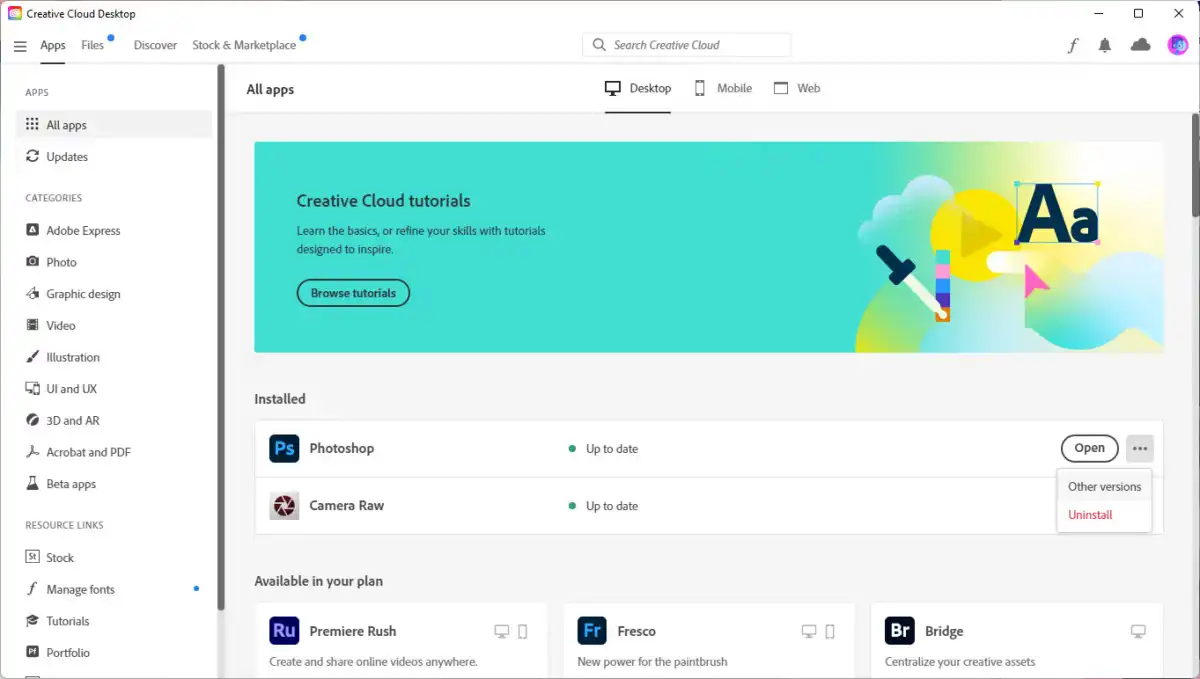
How to Download Adobe Creative Cloud: A Step-by-step Guide
Are you curious about downloading Adobe Creative Cloud, but not sure where to start? Look no further! In this article, we’ll guide you through the process of downloading and installing Adobe Creative Cloud, as well as some of its most popular applications.
What is Adobe Creative Cloud?
Adobe Creative Cloud is a suite of creative applications that allow users to access and edit files from anywhere. It includes popular apps like Photoshop, Illustrator, and Premiere Pro, among others.
How to Download Adobe Creative Cloud
To download Adobe Creative Cloud, follow these steps:
- Go to The Adobe Website: Visit the Adobe website at www.Adobe.Com.
- Click on “Creative Cloud”: In the top navigation bar, click on “Creative Cloud”.
- Sign in or Create an Account: If you already have an Adobe account, sign in. Otherwise, create a new account.
- Download The Creative Cloud App: Click on the “Download” button to download the Creative Cloud app.
- Install The App: Once downloaded, run the installer and follow the prompts to install the app.
How to Download Individual Apps
If you only need to access specific Adobe apps, such as Photoshop or Illustrator, you can download them individually. Here’s how:
- Go to The Adobe Website: Visit the Adobe website at www.Adobe.Com.
- Click on “Apps”: In the top navigation bar, click on “Apps”.
- Select The App You Want to Download: Choose the app you want to download from the list.
- Follow The Prompts: Follow the prompts to download and install the app.
Popular Adobe Apps
Here are some popular Adobe apps that can be downloaded individually:
- Adobe Acrobat: A powerful tool for editing PDFs.
- Adobe Illustrator: A vector graphics editor for creating logos, icons, and more.
- Adobe Photoshop: A photo editing software with a wide range of features.
- Adobe Premiere Pro: A video editing software for creating professional-looking videos.
Downloading Adobe Apps on Mobile Devices
If you want to download Adobe apps on your mobile device, follow these steps:
- Go to The App Store (iOS) or Google Play Store (Android): Open the app store on your device.
- Search For “Adobe”: Search for “Adobe” in the search bar.
- Select The App You Want to Download: Choose the app you want to download from the list.
- Follow The Prompts: Follow the prompts to download and install the app.
Frequently Asked Questions
Here are some frequently asked questions about downloading Adobe apps:
- Q: Is Adobe Creative Cloud Free?
A: No, Adobe Creative Cloud is not entirely free. However, it does offer a free trial period. - Q: What Are The System Requirements For Adobe Creative Cloud?
A: The system requirements for Adobe Creative Cloud vary depending on the app you’re using. Check the Adobe website for specific requirements. - Q: Can I Download Adobe Apps on my Mobile Device?
A: Yes, you can download Adobe apps on your mobile device from the App Store (iOS) or Google Play Store (Android).
Conclusion
Downloading Adobe Creative Cloud and its individual apps is a straightforward process. By following these steps, you’ll be able to access and use some of the most popular creative applications in the industry.
Remember, if you have any questions or need further assistance, don’t hesitate to reach out to Adobe’s support team.
Faqs
- Q: How Much Does Adobe Creative Cloud Cost?
A: The cost of Adobe Creative Cloud varies depending on the plan you choose. - Q: What Apps Are Included in Adobe Creative Cloud?
A: Adobe Creative Cloud includes popular apps like Photoshop, Illustrator, and Premiere Pro, among others. - Q: Can I Download Individual Adobe Apps?
A: Yes, you can download individual Adobe apps from the Adobe website or through the App Store (iOS) or Google Play Store (Android). - Q: Are Adobe Apps Compatible With Mobile Devices?
A: Yes, many Adobe apps are compatible with mobile devices and can be downloaded from the App Store (iOS) or Google Play Store (Android). - Q: What is The System Requirement For Adobe Creative Cloud?
A: The system requirements for Adobe Creative Cloud vary depending on the app you’re using. Check the Adobe website for specific requirements. - Q: Can I Cancel my Adobe Subscription at Any Time?
A: Yes, you can cancel your Adobe subscription at any time by contacting their support team.
Additional Resources
For more information about downloading Adobe apps and Creative Cloud, check out these additional resources:
- Adobe Website: Visit the Adobe website for more information about Creative Cloud and individual apps.
- Adobe Support: Contact Adobe’s support team for assistance with downloading and using their apps.
- Adobe Youtube Channel: Watch Adobe’s official YouTube channel for tutorials and demos on how to use their apps.


