
How to Download Amazon Bills: A Step-by-step Guide
Are you wondering how to download bills from Amazon? Look no further! In this article, we will guide you through the simple process of downloading your Amazon bills, whether it’s for personal or business use.
What Are Amazon Bills?
Amazon bills are digital copies of your purchases on the Amazon platform. They contain essential information such as date, time, product details, and total amount paid. Having access to these bills can be helpful in various situations, including tax purposes, record-keeping, or simply keeping track of your online shopping history.
Why Download Amazon Bills?
Downloading Amazon bills offers several benefits:
- Tax Purposes: For businesses, downloading Amazon bills can help with tax deductions and invoicing.
- Record-keeping: Personalizing your purchases by saving receipts for future reference can be helpful in case of returns or exchanges.
- Accounting: Downloaded bills can aid in keeping track of your business expenses, especially if you’re a freelancer or have multiple income streams.
Downloading Amazon Bills on Desktop
To download Amazon bills on your desktop:
- Log In to Your Account: Access your Amazon account using your credentials.
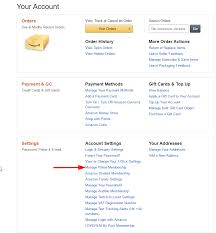
- Navigate to The Order Section: Click on “Order” in the top-right corner of your screen, followed by “Your Orders.”
- Select The Relevant Command: Find the order you want to download a bill for and click on it.
- Click on The Bill Option: Below the command details, find the “Bill” or “Invoice” option.
- Download The Bill: Click on the “Download” button to save your bill as a PDF file.
Downloading Amazon Bills on Mobile (Android)
If you prefer downloading Amazon bills on your mobile device:
- Open The Amazon App: Access the Amazon app for Android devices, using your account credentials.
- Navigate to Your Account: Click on the menu icon (three horizontal lines) and select “Account & Lists.”
- Click on The Menu Icon Again: Find the three dots next to the order you want to download a bill for and click on them.
- Select The Bill Option: Choose the “Bill” or “Invoice” option from the dropdown menu.
- Download The Bill: Click on the “Download” button to save your bill as a PDF file.
Downloading Amazon Bills on Mobile (iOS)
If you’re using an iOS device:
- Open The Amazon App: Access the Amazon app for iOS devices, using your account credentials.
- Navigate to Your Account: Click on your name at the top-right corner and select “Your Account.”
- Click on The Menu Icon: Find the three dots next to the order you want to download a bill for and click on them.
- Select The Bill Option: Choose the “Bill” or “Invoice” option from the dropdown menu.
- Download The Bill: Click on the “Download” button to save your bill as a PDF file.
Downloading Amazon Prime Subscription Bills
For Amazon Prime subscription bills:
- Log In to Your Account: Access your Amazon account using your credentials.
- Navigate to The Prime Section: Click on the “Prime” tab in the top-right corner of your screen.
- Find The Relevant Payment: Select the payment you want to download a bill for.
- Click on The Bill Option: Below the payment details, find the “Bill” or “Invoice” option.
- Download The Bill: Click on the “Download” button to save your bill as a PDF file.
Downloading Amazon Business Bills
For Amazon Business bills:
- Log In to Your Account: Access your Amazon Business account using your credentials.
- Navigate to The Order Section: Click on “Order” in the top-right corner of your screen, followed by “Your Orders.”
- Select The Relevant Command: Find the order you want to download a bill for and click on it.
- Click on The Bill Option: Below the command details, find the “Bill” or “Invoice” option.
- Download The Bill: Click on the “Download” button to save your bill as a PDF file.
Conclusion
Downloading Amazon bills is an easy and straightforward process that can be completed in just a few steps. Whether you’re using a desktop computer, Android device, or iOS device, following these simple instructions will have you downloading your bills in no time. If you have any further questions or concerns, feel free to reach out.
Faqs
- Can I Download Amazon Bills on my Mobile Device?
Yes, it is possible to download Amazon bills using the Amazon app for both Android and iOS devices. - How do I Access my Amazon Account?
To access your Amazon account, visit www.Amazon.Com and log in with your credentials. - What is an Amazon Bill?
An Amazon bill is a digital copy of your purchases on the Amazon platform, containing essential information such as date, time, product details, and total amount paid. - Can I Download Amazon Prime Subscription Bills?
No, it is not possible to download Amazon Prime subscription bills, as they are not generated in the same way as regular Amazon orders. - How do I Contact Amazon Customer Support?
You can contact Amazon customer support by visiting www.Amazon.Com/contact-us and following the instructions provided. - What is an Amazon Business Account?
An Amazon Business account is a professional version of the Amazon platform, designed for businesses to purchase products in bulk and take advantage of additional features such as tax deductions and invoicing. - Can I Download Amazon Business Bills on my Mobile Device?
Yes, it is possible to download Amazon Business bills using the Amazon app for both Android and iOS devices. - How do I Track my Amazon Orders?
You can track your Amazon orders by visiting www.Amazon.Com/orders and following the instructions provided.


