
How to Download Amazon: A Step-by-step Guide
Are you interested in downloading Amazon on your device? Look no further! This article will guide you through the process of downloading Amazon, as well as its various services such as Prime Video, Music, Alexa, Kindle, Photos, and Appstore.
Downloading Amazon
Amazon is a leading online shopping platform that offers hundreds of thousands of products across various categories. You can access Amazon through your browser on PC or smartphone and tablet devices. However, to make shopping more convenient, you can also download the official application from the Google Play Store (for Android) or App Store (for iOS).
Downloading Amazon on Android
To download Amazon on your Android device:
- Open the Google Play Store.
- Search for “Amazon” in the search bar.
- Select the official Amazon app from the search results.
- Click the “Install” button to begin the installation process.
- Wait for the installation to complete.
Downloading Amazon on Ios
To download Amazon on your iOS device:
- Open the App Store.
- Search for “Amazon” in the search bar.
- Select the official Amazon app from the search results.
- Click the “Get” button to begin the installation process.
- Wait for the installation to complete.
Downloading Amazon Prime Video
Amazon Prime Video is a popular streaming service that offers a vast library of movies and TV shows. You can download Amazon Prime Video on your device as follows:
- On Android, go to the Google Play Store and search for “Amazon Prime Video”. Click the “Install” button to begin the installation process.
- On iOS, go to the App Store and search for “Amazon Prime Video”. Click the “Get” button to begin the installation process.
- On Smart TV, access the Amazon Prime Video app from the menu.
Downloading Amazon Prime Music
Amazon Prime Music is a music streaming service that offers an extensive library of songs. You can download Amazon Prime Music on your device as follows:
- On PC, go to the Amazon website and click on “Download” to begin the installation process.
- On Android, go to the Google Play Store and search for “Amazon Music”. Click the “Install” button to begin the installation process.
- On iOS, go to the App Store and search for “Amazon Music”. Click the “Get” button to begin the installation process.
Downloading Amazon Alexa
Amazon Alexa is a virtual assistant that can be accessed through various devices. You can download Amazon Alexa on your device as follows:
- On Android, go to the Google Play Store and search for “Amazon Alexa”. Click the “Install” button to begin the installation process.
- On iOS, go to the App Store and search for “Amazon Alexa”. Click the “Get” button to begin the installation process.
Downloading Amazon Kindle
Amazon Kindle is an e-book reader that can be accessed through various devices. You can download Amazon Kindle on your device as follows:
- On PC, go to the Amazon website and click on “Download” to begin the installation process.
- On Android, go to the Google Play Store and search for “Kindle”. Click the “Install” button to begin the installation process.
- On iOS, go to the App Store and search for “Kindle”. Click the “Get” button to begin the installation process.
Downloading Amazon Photos
Amazon Photos is a cloud storage service that allows you to store your photos online. You can download Amazon Photos on your device as follows:
- On PC, go to the Amazon website and click on “Download” to begin the installation process.
- On Android, go to the Google Play Store and search for “Amazon Photos”. Click the “Install” button to begin the installation process.
- On iOS, go to the App Store and search for “Amazon Photos”. Click the “Get” button to begin the installation process.
Downloading Amazon Appstore
Amazon Appstore is a marketplace that offers various apps and games. You can download Amazon Appstore on your device as follows:
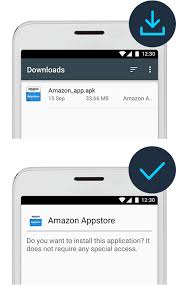
- Go to the official Amazon Appstore website and click on “Download” to begin the installation process.
- On Android, go to the Google Play Store and search for “Amazon Appstore”. Click the “Install” button to begin the installation process.
Conclusion
Downloading Amazon and its various services is a straightforward process that can be completed in a few steps. By following the instructions outlined in this article, you can access Amazon’s vast library of products, streaming services, music, Alexa, Kindle, Photos, and Appstore on your device.
Faqs
- What is Amazon?
Amazon is an online shopping platform that offers hundreds of thousands of products across various categories. - How do I Download Amazon on my Android Device?
To download Amazon on your Android device, go to the Google Play Store and search for “Amazon”. Click the “Install” button to begin the installation process. - How do I Download Amazon Prime Video on my Device?
To download Amazon Prime Video on your device, go to the Google Play Store (for Android) or App Store (for iOS) and search for “Amazon Prime Video”. - What is Amazon Prime Music?
Amazon Prime Music is a music streaming service that offers an extensive library of songs. - How do I Download Amazon Alexa on my Device?
To download Amazon Alexa on your device, go to the Google Play Store (for Android) or App Store (for iOS) and search for “Amazon Alexa”. - What is Amazon Kindle?
Amazon Kindle is an e-book reader that can be accessed through various devices. - How do I Download Amazon Photos on my Device?
To download Amazon Photos on your device, go to the Google Play Store (for Android) or App Store (for iOS) and search for “Amazon Photos”. - What is Amazon Appstore?
Amazon Appstore is a marketplace that offers various apps and games.
Note: The above FAQs are intended to provide brief answers to common questions related to downloading Amazon and its services. For more detailed information, please refer to the corresponding sections of this article.


