
The Ultimate Guide to Ios 12: A Step-by-step Tutorial
Are you ready to upgrade your iPhone or iPad to the latest operating system, iOS 12? Look no further! In this comprehensive guide, we will walk you through the entire process of downloading and installing iOS 12 on your device.
Requisites to Install Ios 12
Before we begin, it’s essential to check if your device is compatible with iOS 12. Here are the devices that can run the latest operating system:
- IPhone X
- IPhone XS
- IPhone XS Max
- IPhone XR
- IPhone 8
- IPhone 8 Plus
- IPhone 7
- IPhone 7 Plus
- IPhone 6s
- IPhone 6s Plus
- IPhone 6
- IPhone 6 Plus
- IPhone SE
- IPad Pro (12.9-Inch, 2nd generation)
- IPad Pro (12.9-Inch, 1st generation)
- IPad Pro (10.5-Inch)
- IPad Pro (9.7-Inch)
- IPad (6th generation)
- IPad (5th generation)
- IPad Air (2nd generation)
- IPad Air
- IPad mini (4th generation)
- IPad mini (3rd generation)
- IPad mini (2nd generation)
- IPod touch
If your device is compatible, proceed to the next step.
Preliminary Steps
Before downloading and installing iOS 12, it’s crucial to take a few preliminary steps to ensure a smooth update process:
- Backup Your Device: Make sure to backup your device on iCloud or iTunes.
- Save Photos And Videos: Save any important photos and videos on your computer.
- Update Itunes: Ensure that you have the latest version of iTunes installed on your computer.
Downloading And Installing Ios 12
Now that we’ve taken care of the preliminary steps, let’s move on to the main event!
Downloading Ios 12 Directly From Your Device
If you prefer to download and install iOS 12 directly from your device, follow these steps:
- Connect to Wi-fi: Make sure your device is connected to a stable internet connection.
- Go to Settings: Open the Settings app on your device.
- Tap on General: Tap on the “General” option.
- Tap on Software Update: Tap on the “Software Update” option.
- Download And Install Ios 12: Wait for the update to download and install.
Downloading Ios 12 From Your Computer
Alternatively, you can download and install iOS 12 from your computer using iTunes:
- Connect Your Device to Your Computer: Connect your device to your computer using a USB cable.
- Open Itunes: Open iTunes on your computer.
- Select Your Device: Select your device in the iTunes interface.
- Check For Updates: Click on “Check for Updates” and wait for the update to download and install.
Clean Installation of Ios 12
If you prefer a clean installation of iOS 12, follow these steps:
- Backup Your Device: Make sure to backup your device on iCloud or iTunes.
- Disable Find my Iphone/ipad: Disable Find my iPhone/iPad by going to Settings > [Your Name] > iCloud > Find My iPhone/iPad and toggling the switch off.
- Connect Your Device to Your Computer: Connect your device to your computer using a USB cable.
- Open Itunes: Open iTunes on your computer.
- Select Your Device: Select your device in the iTunes interface.
- Click on Restore Iphone/ipad: Click on “Restore iPhone/iPad” and follow the on-screen instructions.
New Features of Ios 12
Now that we’ve covered the process of downloading and installing iOS 12, let’s take a look at some of the new features introduced in this update:
- Improved Notification System: The notification system has been improved to group notifications by app.
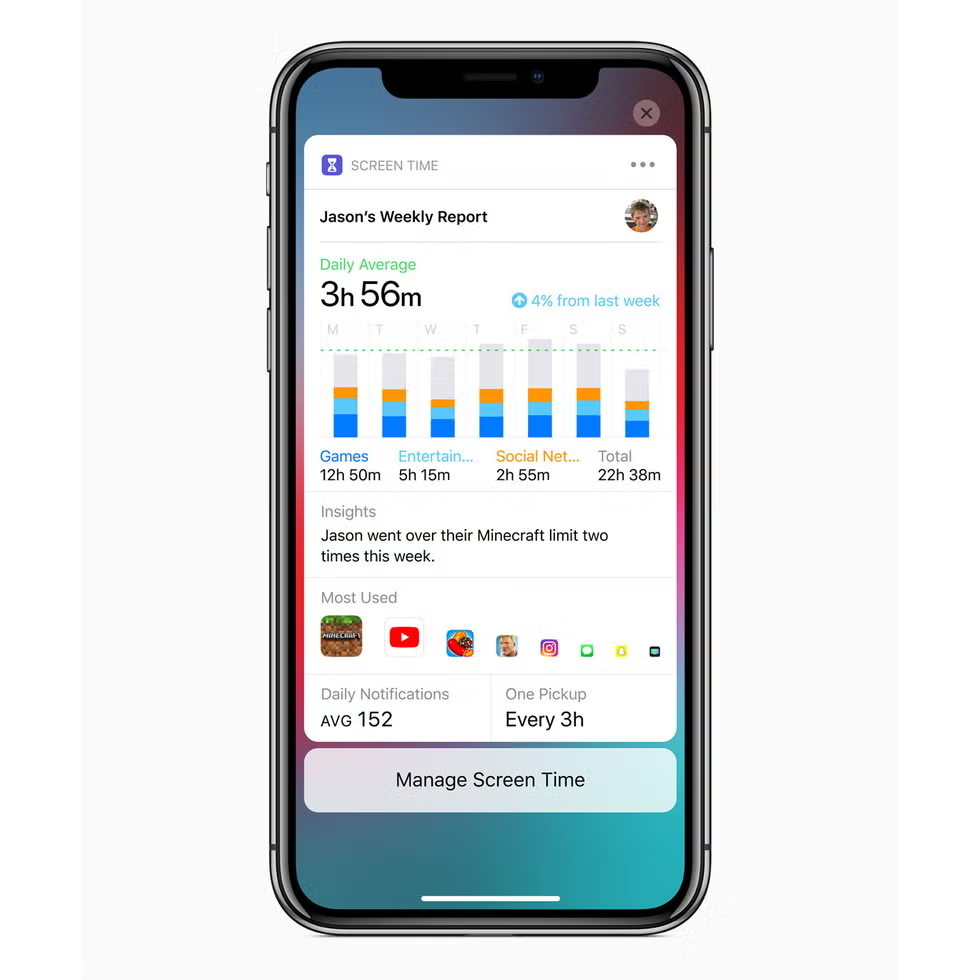
- Weather of Use: A new section called “Weather of Use” has been added to the Settings app to provide detailed reports on your device usage.
- Do Not Disturb: The Do Not Disturb feature has been enhanced with new features, including a scheduled mode and a sleep mode.
- Siri Suggestions: Siri suggestions have been improved to provide more relevant and personalized recommendations.
Conclusion
And that’s it! With this comprehensive guide, you should now be able to download and install iOS 12 on your device. Remember to take the necessary precautions before updating your device, including backing up your data and disabling Find my iPhone/iPad for a clean installation.
Frequently Asked Questions (FAQs)
- What Are The System Requirements For Ios 12?
- Your device must be compatible with iOS 12.
- How do I Check if my Device is Compatible With Ios 12?
- Check the list of compatible devices above.
- Can I Update my Device to Ios 12 Directly From my Computer?
- Yes, you can download and install iOS 12 from your computer using iTunes.
- What Are The New Features Introduced in Ios 12?
- Some of the new features include an improved notification system, a weather of use section, Do Not Disturb enhancements, and Siri suggestions improvements.
- How do I Restore my Device to Its Factory Settings For a Clean Installation of Ios 12?
- Follow the steps outlined in the “Clean Installation of iOS 12” section above.
I hope this guide has been helpful! If you have any further questions or need assistance with updating your device, feel free to ask.


