
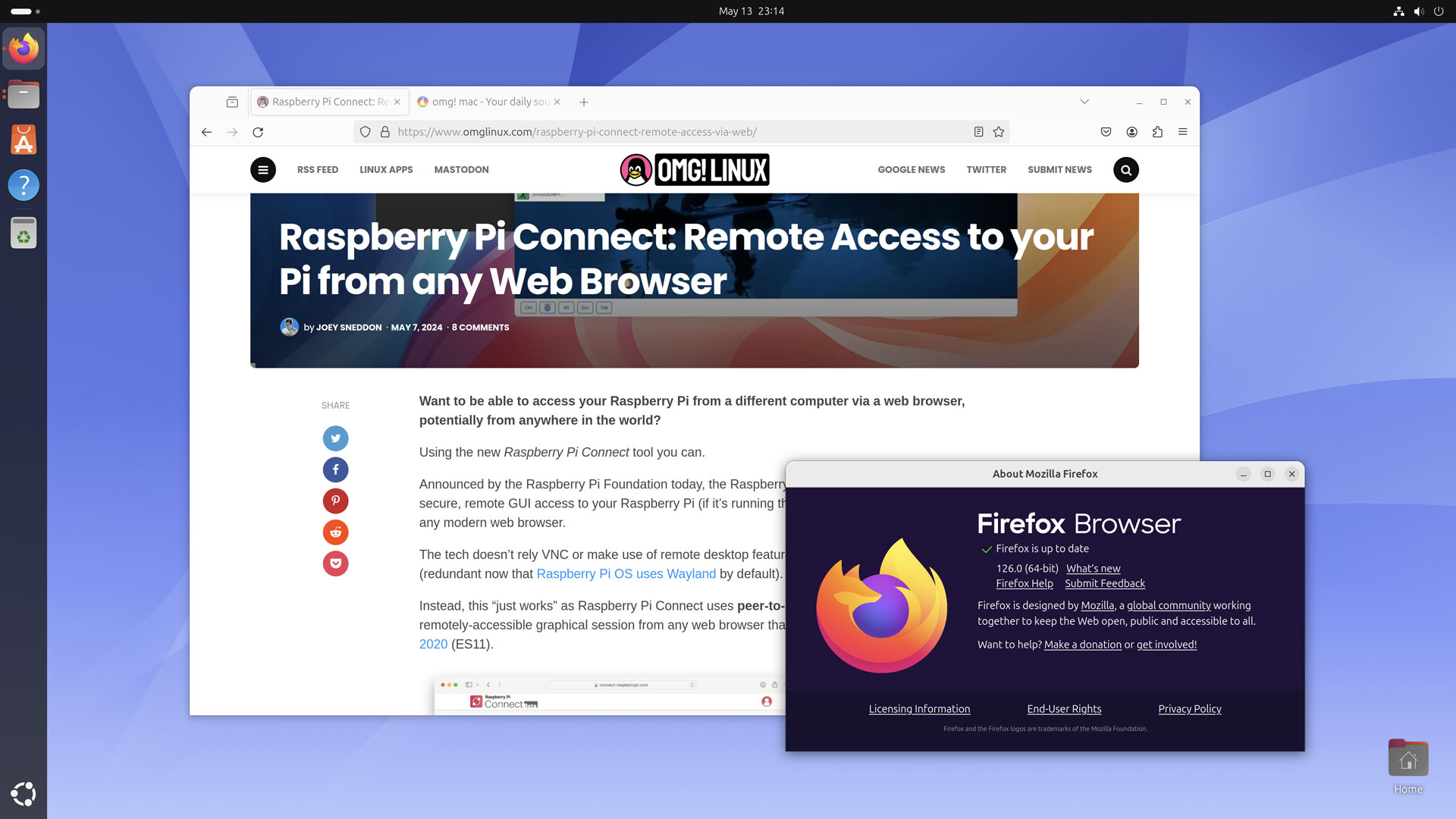
How to Download And Use Mozilla Firefox: A Comprehensive Guide
Are you looking for a free and open-source browser that can help you navigate the web with ease? Look no further than Mozilla Firefox! In this article, we will guide you through the process of downloading and using Mozilla Firefox on various devices, including Windows, Mac, Android, and iOS.
Introduction to Mozilla Firefox
Mozilla Firefox is a popular web browser that has been around for over two decades. It’s known for its speed, flexibility, and customizability. With millions of users worldwide, it’s one of the most widely used browsers on the planet.
Downloading Mozilla Firefox on Windows
To download Mozilla Firefox on your Windows device, follow these steps:
- Visit The Microsoft Store: Go to the Microsoft Store website or open the store app on your Windows device.
- Search For Mozilla Firefox: Type “Mozilla Firefox” in the search bar and select the result from the Microsoft Store.
- Click on Download: Click on the “Download” button to start the download process.
- Wait For The Installation Process: Wait for the installation process to complete, which may take a few minutes.
- Launch Mozilla Firefox: Once the installation is complete, launch Mozilla Firefox by clicking on its icon in the Start menu or searching for it in the Windows search bar.
Downloading Mozilla Firefox on Mac
To download Mozilla Firefox on your Mac device, follow these steps:
- Visit The Official Website: Go to the official Mozilla Firefox website and click on the “Download” button.
- Select Your Language: Select your language from the dropdown menu.
- Click on Download: Click on the “Download” button to start the download process.
- Wait For The Installation Process: Wait for the installation process to complete, which may take a few minutes.
- Launch Mozilla Firefox: Once the installation is complete, launch Mozilla Firefox by clicking on its icon in the Dock or searching for it in Spotlight.
Downloading Mozilla Firefox on Android
To download Mozilla Firefox on your Android device, follow these steps:
- Visit The Google Play Store: Open the Google Play Store app on your Android device.
- Search For Mozilla Firefox: Type “Mozilla Firefox” in the search bar and select the result from the Google Play Store.
- Click on Install: Click on the “Install” button to start the download process.
- Wait For The Installation Process: Wait for the installation process to complete, which may take a few minutes.
- Launch Mozilla Firefox: Once the installation is complete, launch Mozilla Firefox by clicking on its icon in the app drawer or searching for it in your device’s search bar.
Downloading Mozilla Firefox on Ios
To download Mozilla Firefox on your iOS device, follow these steps:
- Visit The App Store: Open the App Store app on your iOS device.
- Search For Mozilla Firefox: Type “Mozilla Firefox” in the search bar and select the result from the App Store.
- Click on Get: Click on the “Get” button to start the download process.
- Wait For The Installation Process: Wait for the installation process to complete, which may take a few minutes.
- Launch Mozilla Firefox: Once the installation is complete, launch Mozilla Firefox by clicking on its icon in the Home screen or searching for it in your device’s search bar.
Using Mozilla Firefox
Once you have downloaded and installed Mozilla Firefox on your device, here are some tips to get started:
- Customize Your Browser: Click on the three dots at the top right corner of the browser window and select “Options” to customize your browser.
- Add Extensions: Click on the three dots at the top right corner of the browser window and select “Add-ons” to add extensions that suit your needs.
- Use Incognito Mode: Click on the three dots at the top right corner of the browser window and select “New private window” to use incognito mode.
- Access Your Bookmarks: Click on the three dots at the top right corner of the browser window and select “Bookmarks” to access your bookmarks.
Tips For Using Mozilla Firefox on Mobile Devices
If you are using Mozilla Firefox on a mobile device, here are some tips:
- Use The Address Bar: Tap on the address bar at the top of the screen to enter a URL or search query.
- Access Your Bookmarks: Tap on the three dots at the bottom right corner of the screen and select “Bookmarks” to access your bookmarks.
- Use Incognito Mode: Tap on the three dots at the bottom right corner of the screen and select “New private window” to use incognito mode.
Conclusion
In conclusion, downloading and using Mozilla Firefox is a straightforward process that can be completed in just a few minutes. Whether you are using a Windows, Mac, Android, or iOS device, following these steps will have you navigating the web with ease in no time. Remember to customize your browser, add extensions, and use incognito mode to get the most out of Mozilla Firefox.
Faqs
- What is Mozilla Firefox?
Mozilla Firefox is a free and open-source web browser that has been around for over two decades. - Can I Download Mozilla Firefox on my Mobile Device?
Yes, you can download Mozilla Firefox on your Android or iOS device from the Google Play Store or App Store respectively. - How do I Customize my Browser?
To customize your browser, click on the three dots at the top right corner of the browser window and select “Options”. - Can I Add Extensions to Mozilla Firefox?
Yes, you can add extensions to Mozilla Firefox by clicking on the three dots at the top right corner of the browser window and selecting “Add-ons”. - How do I Use Incognito Mode in Mozilla Firefox?
To use incognito mode in Mozilla Firefox, click on the three dots at the top right corner of the browser window and select “New private window”.
Additional Tips
- Always keep your browser up-to-date to ensure you have the latest security patches.
- Use strong passwords and enable two-factor authentication for added security.
- Be cautious when downloading extensions or add-ons, as they may compromise your browser’s security.


