
How to Download Android Apps: A Comprehensive Guide
Are you a non-tech enthusiast who has recently acquired a smartphone? Or perhaps you’re looking to download new apps on your existing device? Look no further! In this article, we’ll take you through the step-by-step process of downloading Android apps, covering various scenarios and devices.
Understanding The Basics
Before we dive into the nitty-gritty details, it’s essential to understand the basics. To download Android apps, you need to have a Google account associated with your device. If you’re configuring a new smartphone, follow the on-screen instructions to create or access your Google account. This will enable you to download and install apps from the Google Play Store.
Downloading Apps on Your Smartphone
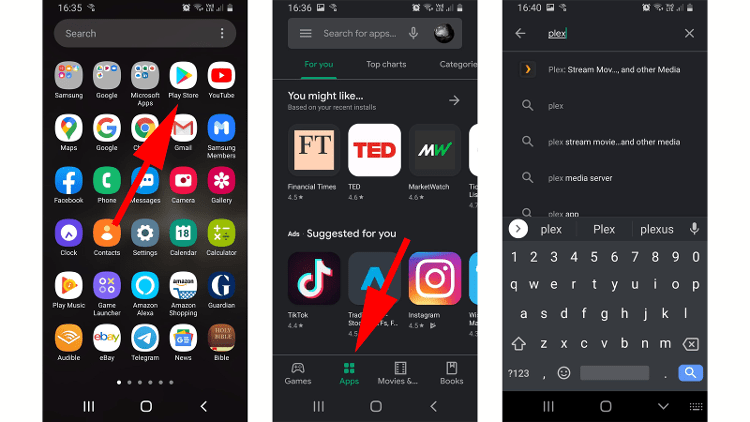
To download apps on your smartphone, follow these simple steps:
- Open The Google Play Store: Locate the Google Play Store icon on your home screen or in your app drawer. Tap on it to open the store.
- Navigate to The App Section: At the bottom of the screen, you’ll see three sections: Apps, Games, and Books. Select the “Apps” section.
- Search For Your Desired App: Use the search bar at the top of the screen to find your desired app. You can also browse through the various categories or use the “Recommended” section for suggestions.
- Select The App: Once you’ve found the app, tap on its icon to view its description and reviews.
- Tap “Install”: To download and install the app, tap the “Install” button. If it’s a paid app, you’ll be prompted to purchase it using your Google account.
- Wait For Installation: The app will begin installing on your device. This may take a few seconds or minutes, depending on the size of the app.
Downloading Apps on Huawei Devices
If you have a Huawei smartphone, things might seem a bit different. Since 2019, Huawei devices have been unable to access Google services due to a trade ban. However, this doesn’t mean you can’t download apps!
To download apps on your Huawei device:
- Associate a Huawei Account: Open the Settings app and tap “Access with Huawei ID” or “Add account.” Create a new Huawei ID or use an existing one.
- Open Appgallery: Locate the AppGallery icon on your home screen or in your app drawer. Tap on it to open the store.
- Browse And Download Apps: Use the search bar or browse through the various categories to find your desired app.
Downloading Apps For Android Auto
If you’ve recently acquired a car with an infotainment system that supports Android Auto, you might be wondering how to download apps for this feature.
To download apps for Android Auto:
- Connect Your Smartphone: Connect your smartphone to your car’s infotainment system using a cable or wirelessly.
- Access The App Drawer: On your smartphone, access the app drawer and look for the Android Auto icon.
- Browse And Download Apps: Browse through the available apps and download those compatible with Android Auto.
Downloading Ios Apps on Your Iphone
If you’ve recently switched to an iPhone from an Android device, you might be confused about how to download new apps.
To download iOS apps on your iPhone:
- Open The App Store: Locate the App Store icon on your home screen or in your app drawer. Tap on it to open the store.
- Browse And Download Apps: Use the search bar or browse through the various categories to find your desired app.
- Tap “Get”: To download and install the app, tap the “Get” button.
Downloading Android Apps on Windows 11
If you want to use your favorite Android apps on your Windows 11 computer, you can do so using an emulator.
To download Android apps on Windows 11:
- Open Amazon Appstore: Locate the Amazon AppStore icon on your home screen or in your app drawer. Tap on it to open the store.
- Browse And Download Apps: Use the search bar or browse through the various categories to find your desired app.
Conclusion
Downloading Android apps is a straightforward process that can be completed with ease using the Google Play Store or AppGallery, depending on your device. By following these steps, you’ll be able to download and install new apps on your smartphone, whether it’s an Android device or an iPhone. Remember to always associate a Google account with your device for seamless app downloads.
Frequently Asked Questions (FAQs)
- Q: What is The Minimum Requirement For Downloading Android Apps?
A: A Google account associated with your device is necessary for downloading and installing apps from the Google Play Store. - Q: Can I Download Ios Apps on my Android Device?
A: No, you cannot download iOS apps directly on an Android device. However, some apps are available on both platforms. - Q: How do I Update my Existing Apps?
A: To update your existing apps, open the Google Play Store or AppGallery and tap on the “Updates” icon. - Q: Can I Download Multiple Apps at Once?
A: Yes, you can download multiple apps simultaneously from the Google Play Store or AppGallery. - Q: How do I Manage my App Installations?
A: To view your installed apps, open the Google Play Store or AppGallery and tap on the “My Apps” icon. - Q: Can I Delete Unnecessary Apps?
A: Yes, you can uninstall unwanted apps by opening the Google Play Store or AppGallery and tapping on the “Uninstall” button. - Q: How do I Resolve App Installation Issues?
A: If you encounter any issues during app installation, restart your device or try reinstalling the app. - Q: Can I Download Android Apps on my Windows 11 Computer?
A: Yes, you can use an emulator to run Android apps on your Windows 11 computer.
I hope this comprehensive guide has helped you understand how to download Android apps across various devices and scenarios!


